
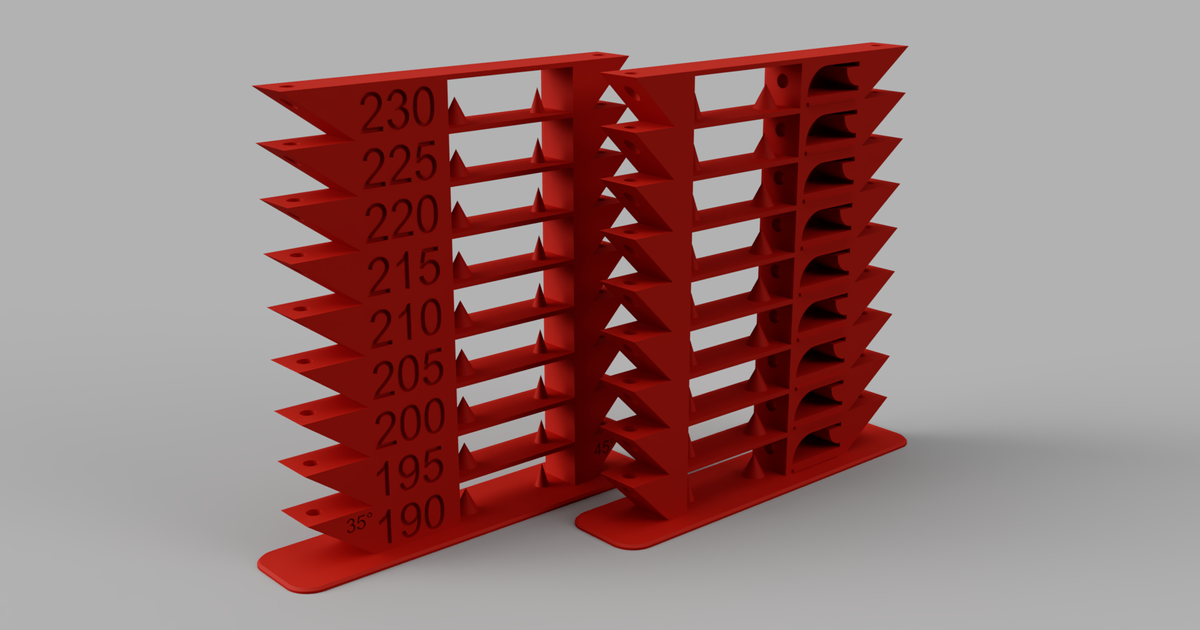
ASA Temperature Tower (temp tower) G Code


Print Profile(1)

Description
Like and share!
EASY PROCESS
You MUST INSERT THE G CODE:
- Select the edit button to the right of your printer model to bring up printer settings.
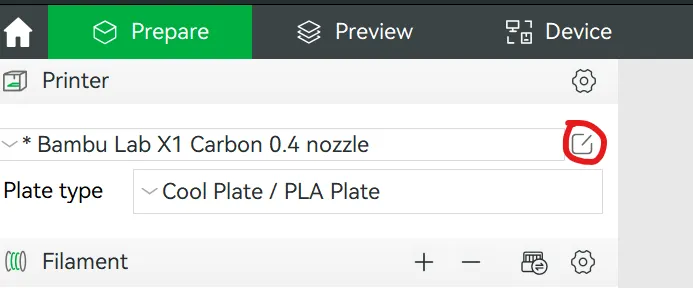
2. Select the “Machine G-code” tab
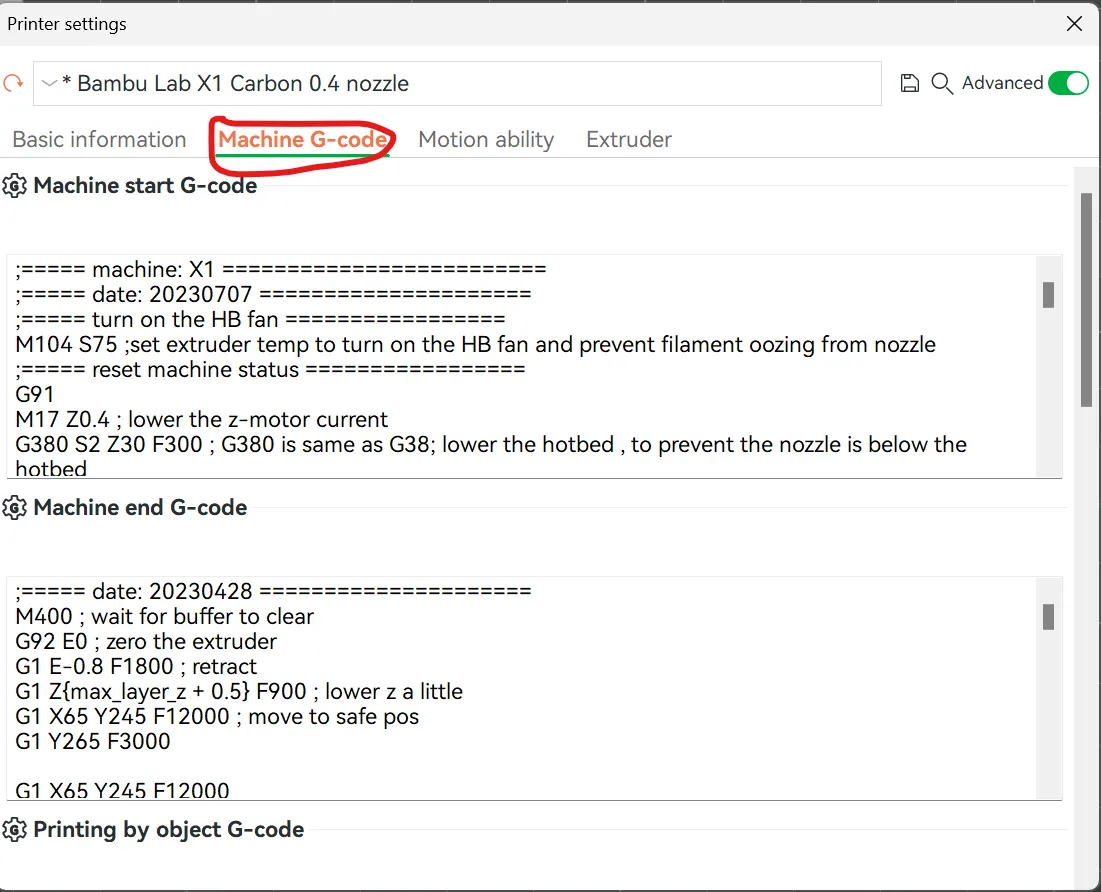
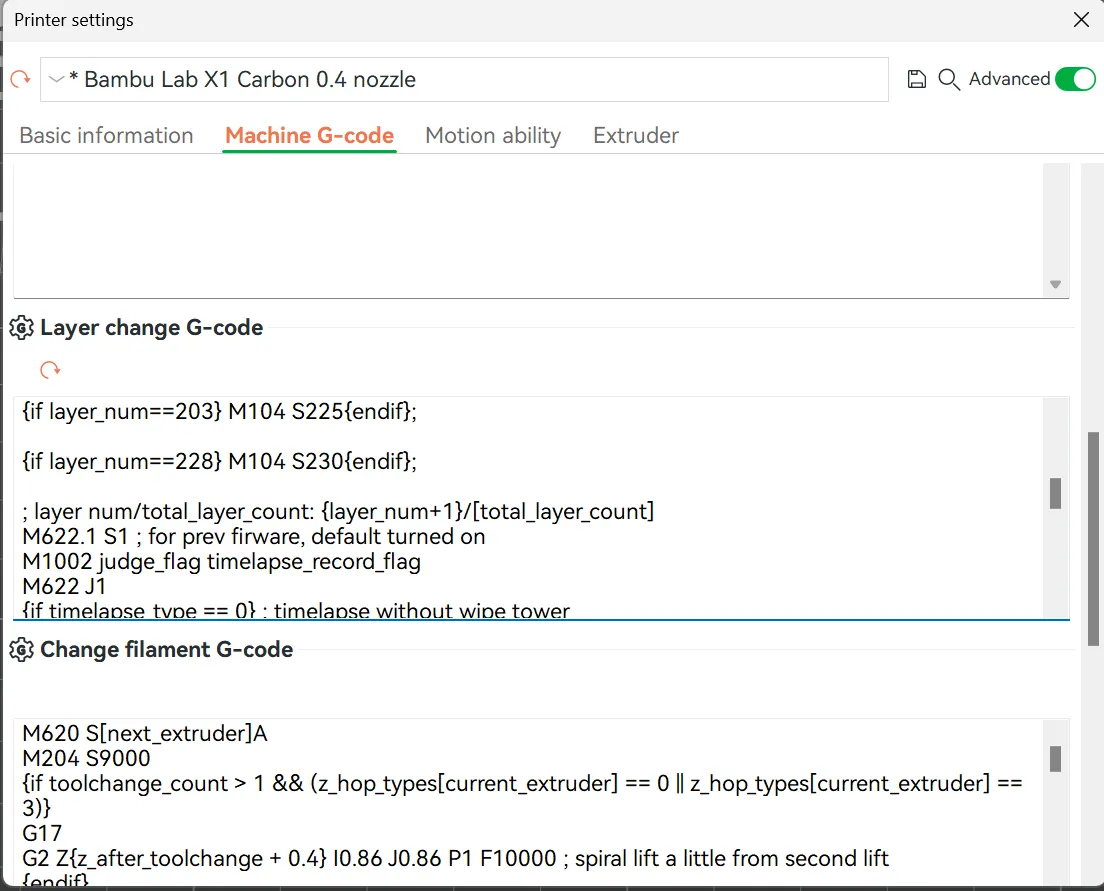
3. Scroll down to “Layer change G-code.” Now copy and paste this code above the current G-code (DO NOT REMOVE the current G-code, simply copy and paste it above.
{if layer_num==0} M104 S220{endif};
{if layer_num==28} M104 S225{endif};
{if layer_num==53} M104 S230{endif};
{if layer_num==78} M104 S235{endif};
{if layer_num==103} M104 S240{endif};
{if layer_num==128} M104 S245{endif};
{if layer_num==153} M104 S250{endif};
{if layer_num==178} M104 S255{endif};
{if layer_num==203} M104 S260{endif};
YOU ARE DONE :) You can slice the file, and select Temperature colour scheme to check if it worked and you will see a rainbow coloured model with different colours for each of the layers
This remix is based on
License

You shall not share, sub-license, sell, rent, host, transfer, or distribute in any way the digital or 3D printed versions of this object, nor any other derivative work of this object in its digital or physical format (including - but not limited to - remixes of this object, and hosting on other digital platforms). The objects may not be used without permission in any way whatsoever in which you charge money, or collect fees.


Comment & Rating (30)