
NFC Tag Phone Contact Keychain | iPhone + Android
Print Profile(1)

Description
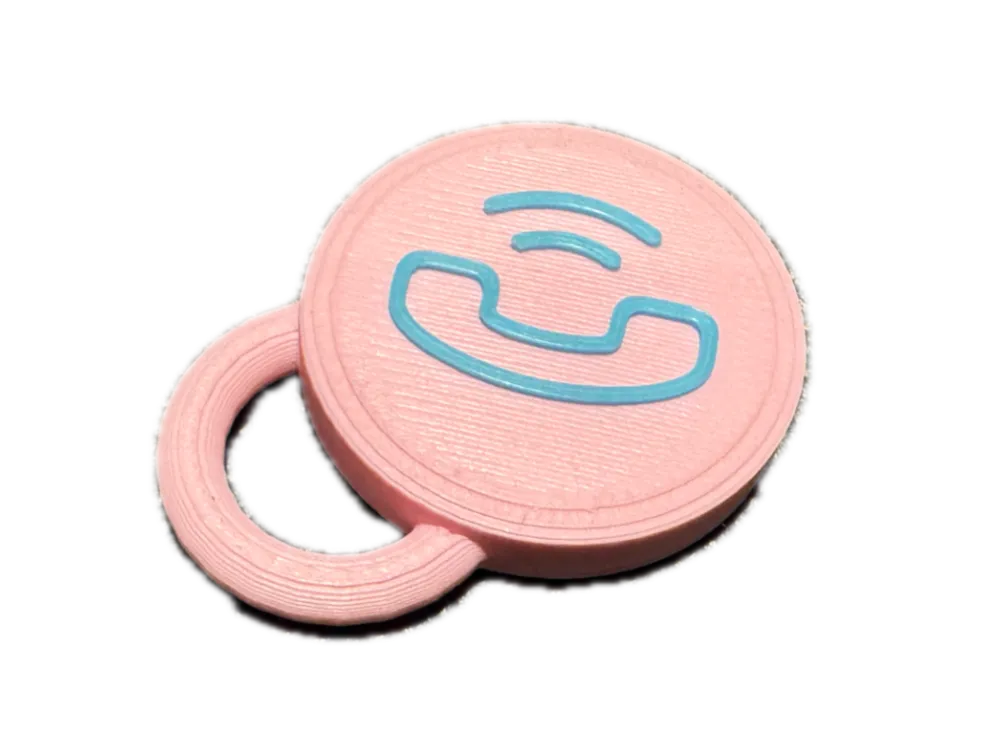
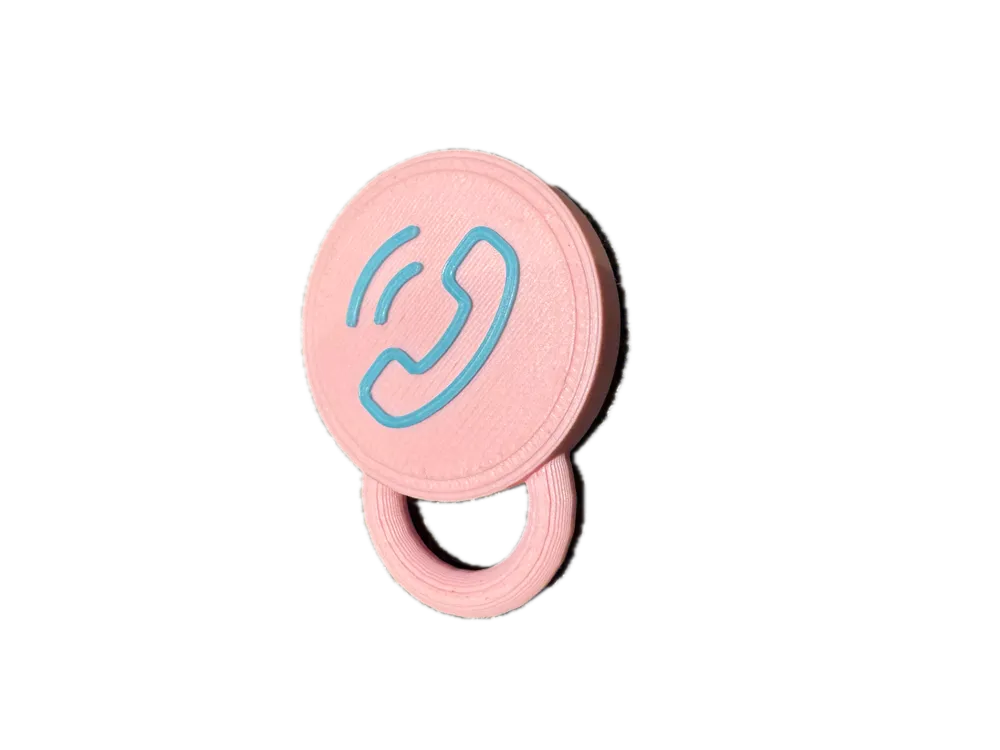
Upgrade the way you share your contact information with this sleek and convenient NFC Tag Phone Contact Keychain. Designed to work seamlessly with both iPhone and Android devices, this modern accessory allows you to exchange contact details, links, or other information with a simple tap.
- Universal Compatibility: Works with most NFC-enabled smartphones, including iPhone and Android.
- Effortless Sharing: No need for apps or manual input—just tap the keychain to share your contact info instantly.
- Customizable Design: Program the NFC tag to link to your contact card, social media profiles, websites, or any other digital content.
- Compact & Stylish: Lightweight and durable, this keychain combines practicality with a sleek design that suits any style.
Perfect for networking events, social gatherings, or everyday convenience, the NFC Tag Phone Contact Keychain makes exchanging information easier, faster, and more professional.
PAUSE AT THE BEGINNING OF LAYER 20 (4mm) in order to put your NFC tag into it!
Pause is already present in the print profile!
Please consider give this model a boost, if you like it ! It would be greatly appreciated! THX
HOW TO USE IT:
Step 1: Create a VCF File
- Open a text editor like VisualStudio or Notepad (Windows) / TextEdit (Mac).
Write your contact information in the following format:
- BEGIN:VCARD
- VERSION:3.0
- N:LastName;FirstName;;;
- FN:FirstName LastName
- TEL;TYPE=CELL:+1234567890
- EMAIL;TYPE=INTERNET:email@example.com
- URL:https://yourwebsite.com
- END:VCARD
- Replace the placeholder values (e.g., FirstName, LastName, email@example.com, etc.) with your actual contact information.
- Save the file with the .vcf extension (e.g., MyContact.vcf).
Step 2: Upload the VCF File to Dropbox (or Another Host)
- Go to Dropbox or any preferred file hosting service (Google Drive, OneDrive, etc.).
- Log in to your account.
- Upload the VCF file:
- Drag and drop the .vcf file into your Dropbox account or click Upload Files.
- Generate a shareable link:
- Right-click on the uploaded file and select Share or Copy Link.
- Ensure the link settings allow anyone with the link to access it.
Step 3: Write the Link to the NFC Tag
- Install an NFC writing app on your smartphone (e.g., NFC Tools, available for iOS and Android).
- Open the app and follow these steps:
- Select the option to Write or Add a Record.
- Choose URL as the record type.
- Paste the shareable link to the VCF file you uploaded.
- Tap the NFC tag to your phone when prompted to write the data.
Step 4: Test the NFC Tag
- Use another NFC-enabled device to tap the tag.
- Ensure the device opens the link to your VCF file and allows the user to download it.
This process makes it easy for others to save your contact details with a simple tap on your NFC tag.
License

You shall not share, sub-license, sell, rent, host, transfer, or distribute in any way the digital or 3D printed versions of this object, nor any other derivative work of this object in its digital or physical format (including - but not limited to - remixes of this object, and hosting on other digital platforms). The objects may not be used without permission in any way whatsoever in which you charge money, or collect fees.


Comment & Rating (2)