
AMS Purge Calibration V2


Print Profile(20)


Description
General description
After the great success of the drainage project, I am proposing a simpler and more intuitive version, especially for new users and beginners who are approaching the world of multicolor.
https://makerworld.com/en/models/54909#profileId-56456
The basic purpose is always to minimize purging material as much as possible to save on color changes and drastically reduce the amount of discarded material
I have decided to update the model and make it more user-friendly
The basic idea was to make it a standard Bambulab Calibration, similar to the K calibration
So, lines with numbers to instantly identify which value is the most accurate to assign to the purging of the respective material
Being a test, it must be as economical as possible, so a test strip requires only 2 grams
I'm leaving you the video of a guy who explains in detail how to use this type of calibration
I thank him for considering my project for the creation of a video on YouTube, and I'm pleased that I've shared his video
Pre-print Procedure
*Edit 03-01-2024*
From one of the various print profiles you download, you'll need to set the color combination you desire
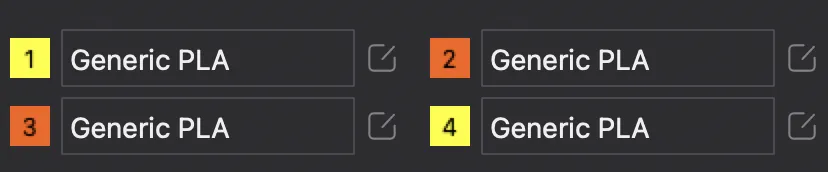
In my case, I'm calibrating these purge combinations, and the model will result like this
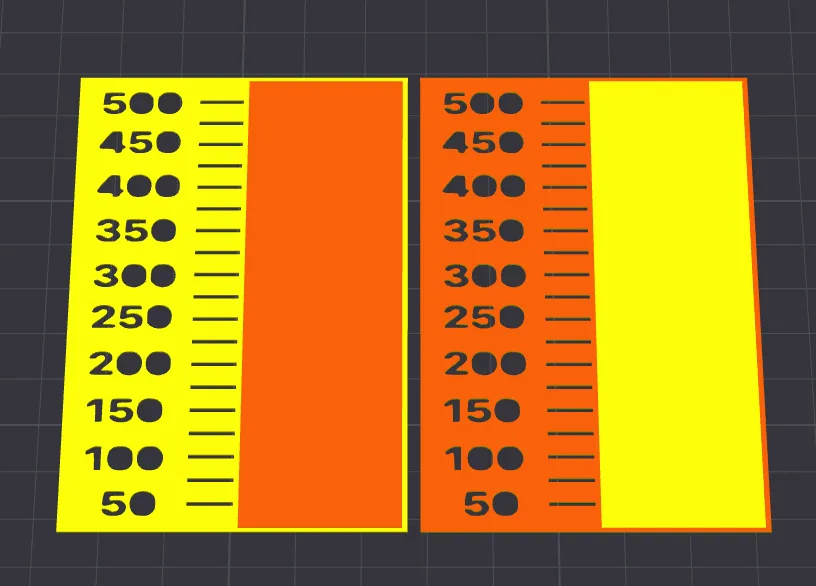
If you want to change the color combination, simply use a different type of filament

and the print profile will adapt to the combination you have set, as in this case
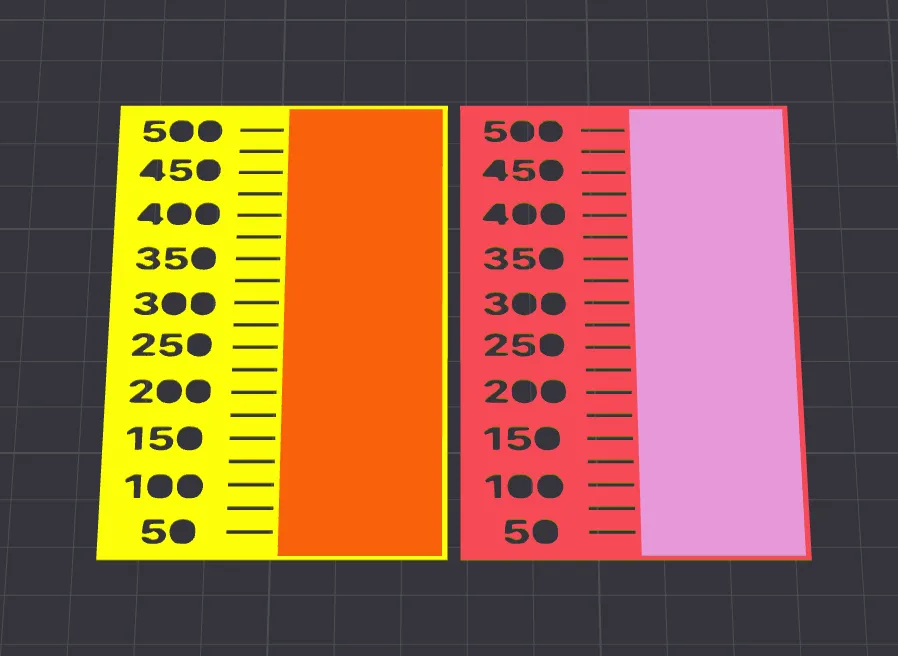
The model will update in real-time, allowing you to see immediately which color you are changing
I've implemented additional print profiles to significantly streamline the procedure.
While the process can be fast for those with a single AMS, it might be quite lengthy for those with multiple using the previous print profiles.
With these new print profiles, there is also increased compatibility for the A1 Mini model.
The idea of implementing the print profiles in this new way was suggested by Michael when he uploaded his print profile for the V1 model. I'll leave you the link to his Makerword channel (https://makerworld.com/en/u/2954682459)
As on the previous model, it is necessary to reduce the purging material to allow us to calculate the material quantity adequately.
The only significant difference is that this time we set all purging quantities to 0
On the dual-object print profile, you can also do it manually.
However, on the other print profiles, if you want to expedite the process, you can set the multiplier to 0, instantly reducing the purge to 0
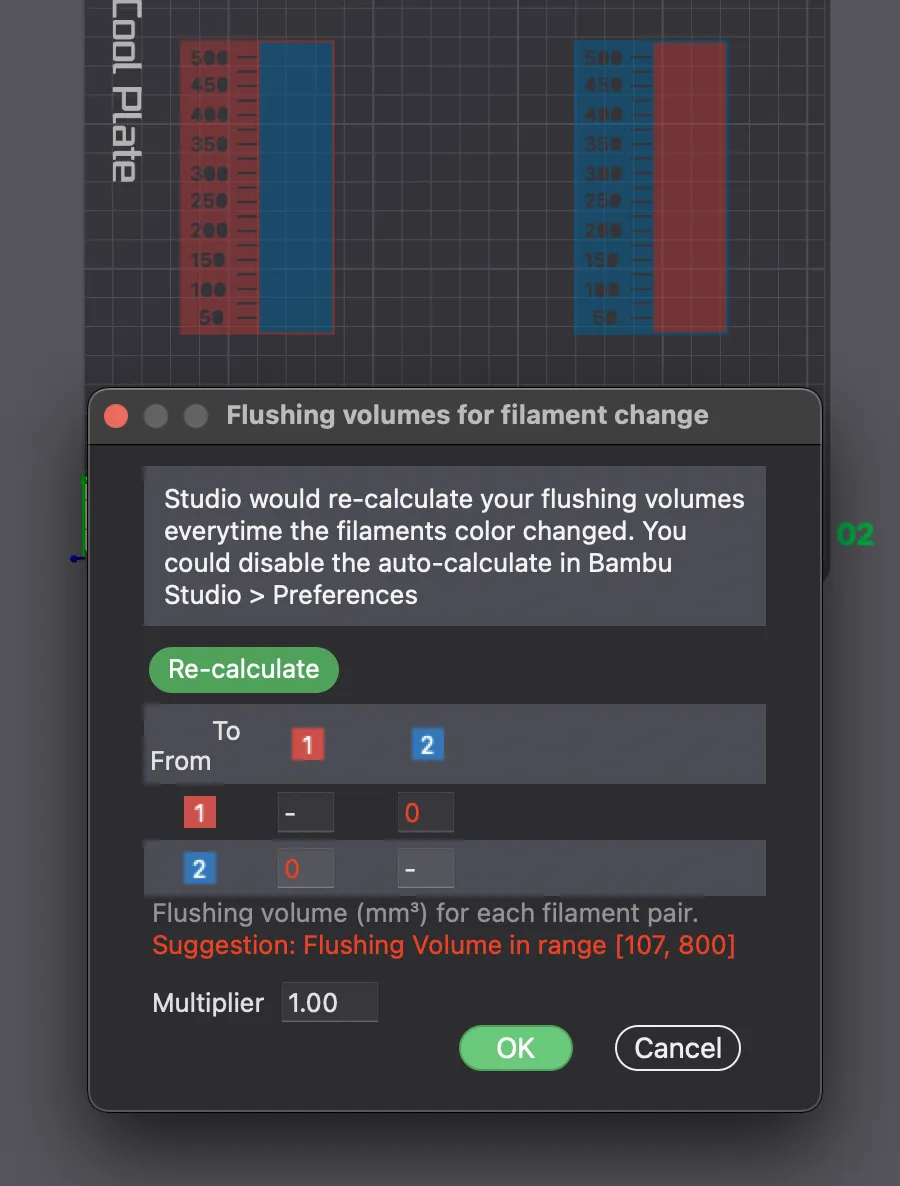
Now you can start the printing process
Note: Do not touch any other parameters I've set, or the colors won't be printed in the correct order
Calibration reading
After completing the print, for calibrating the K factor, we need to read and determine the most accurate value to set as the purging quantity
What you will find in front of you will be this
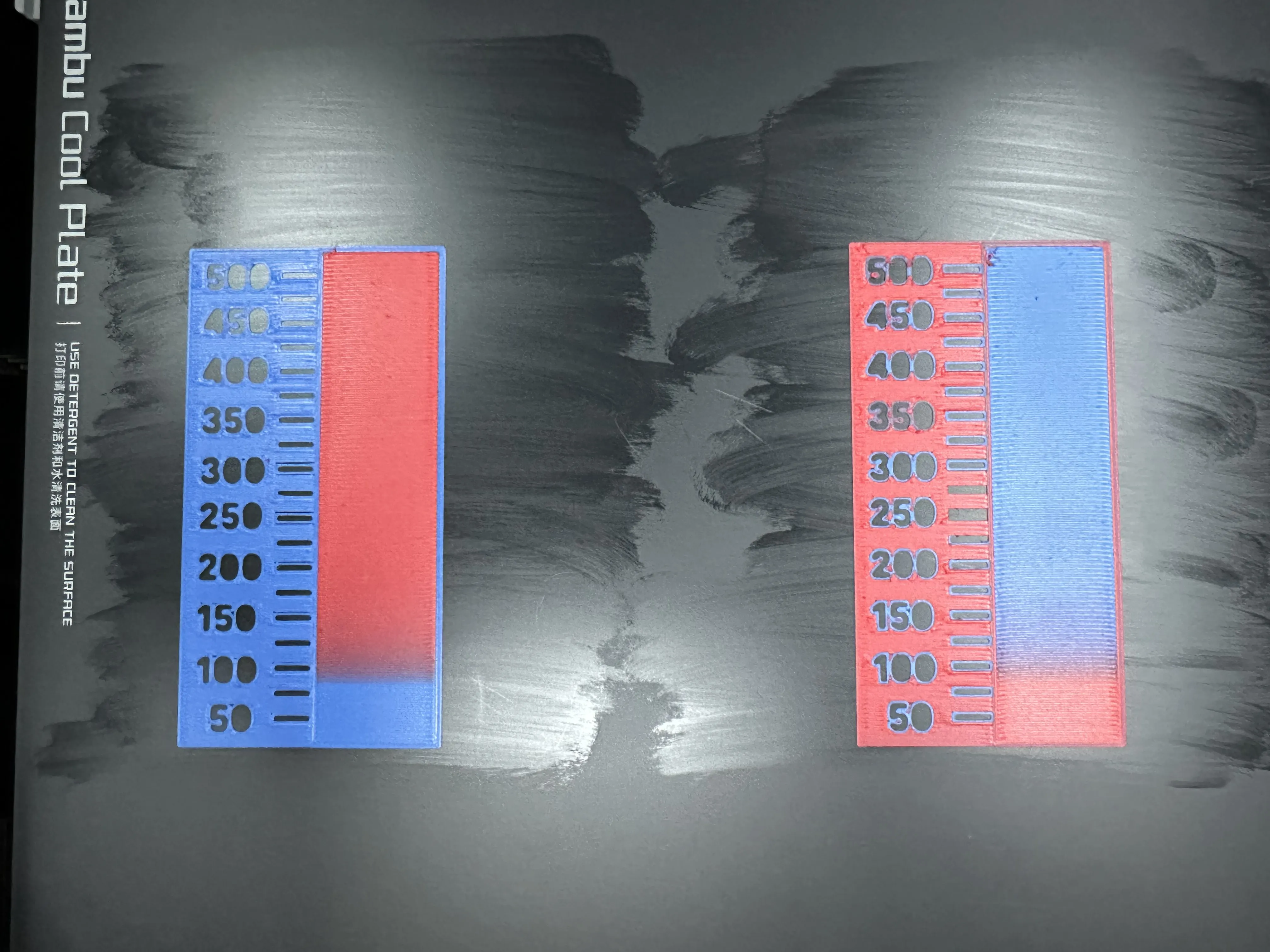
As you can see inside the two green rectangles, that is the exact moment when the material is purged, and the next color takes over.
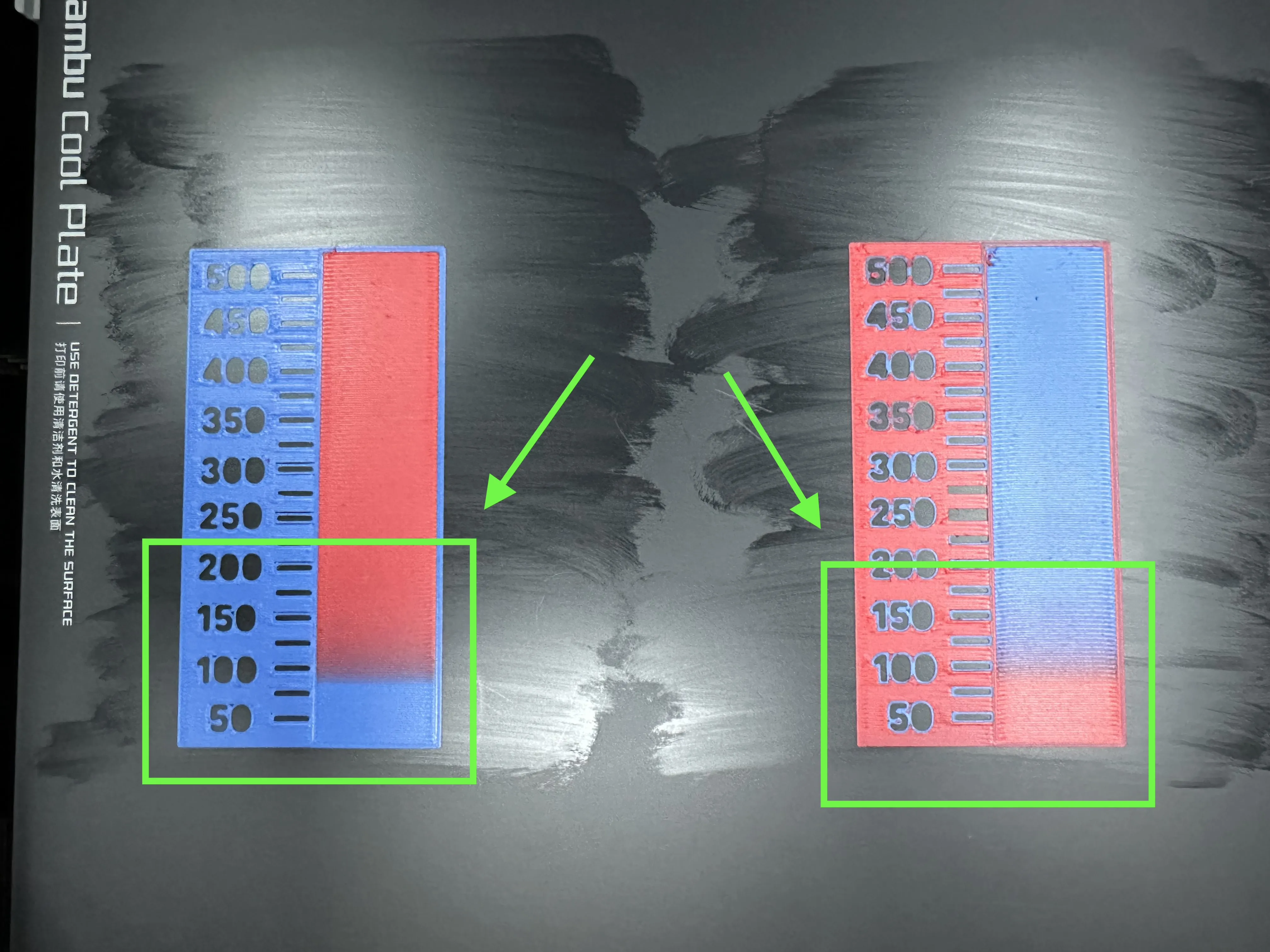
At this point, all that's left is to identify the correct value and set the purging quantity for that specific color change
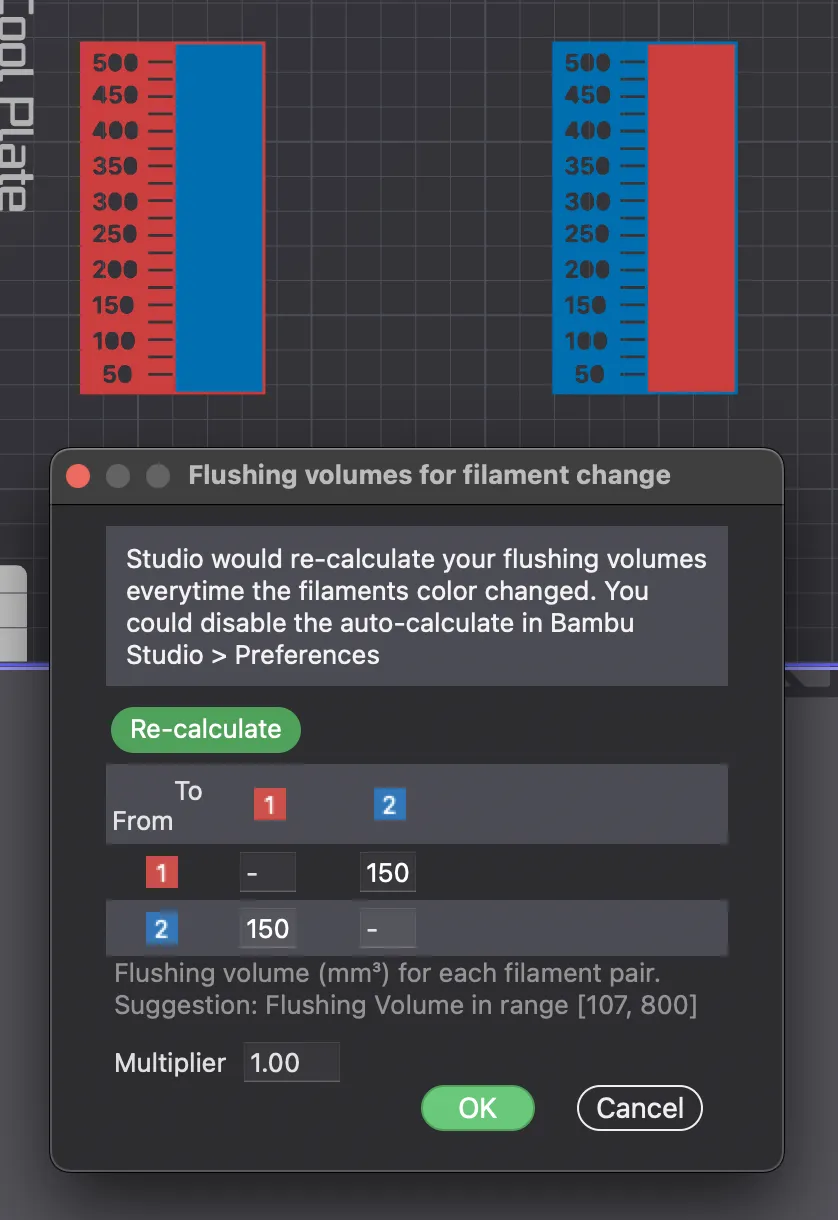
For these tests, it's highlighted that 150mm^3 of material is required to perform the color change
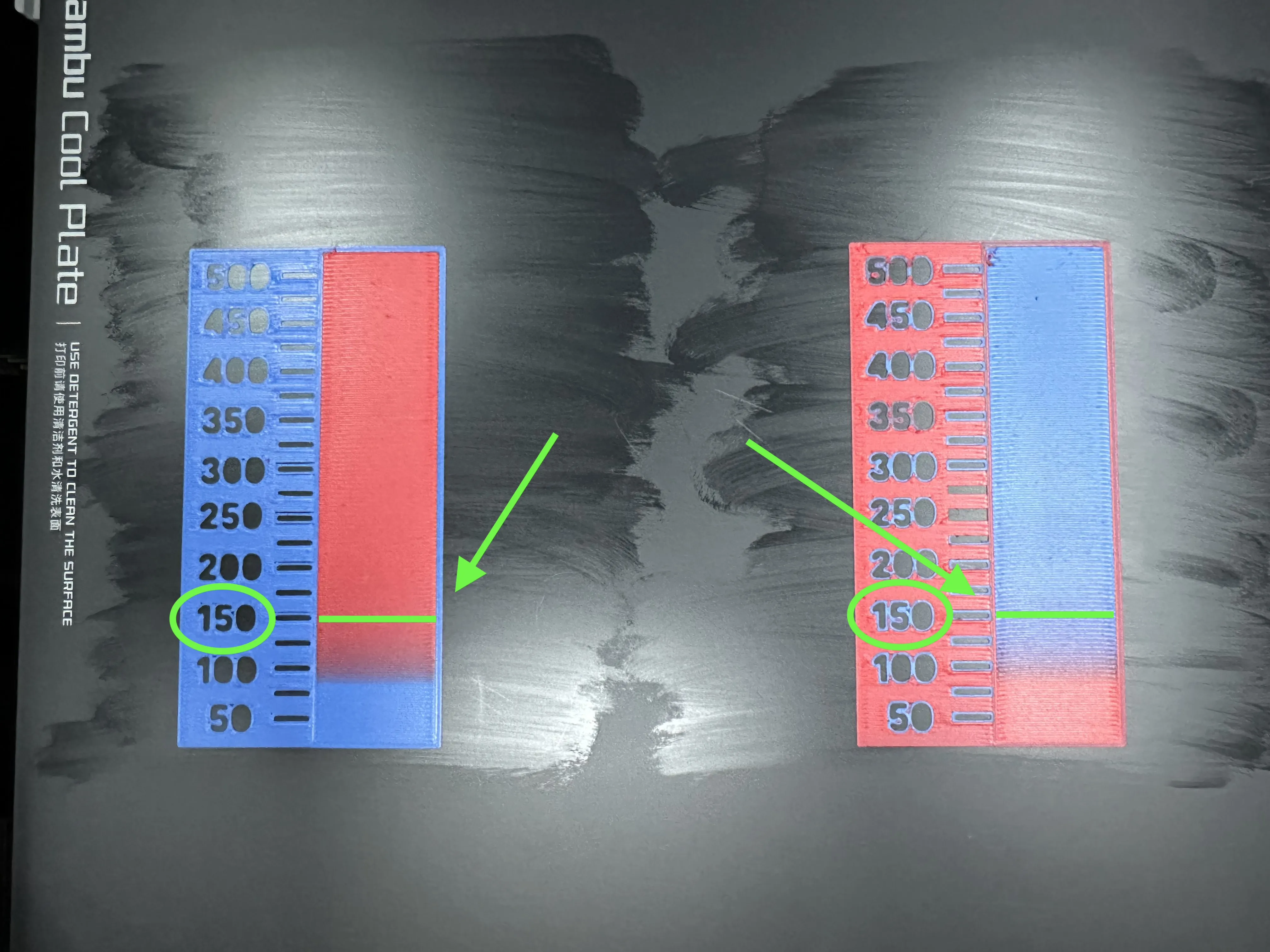
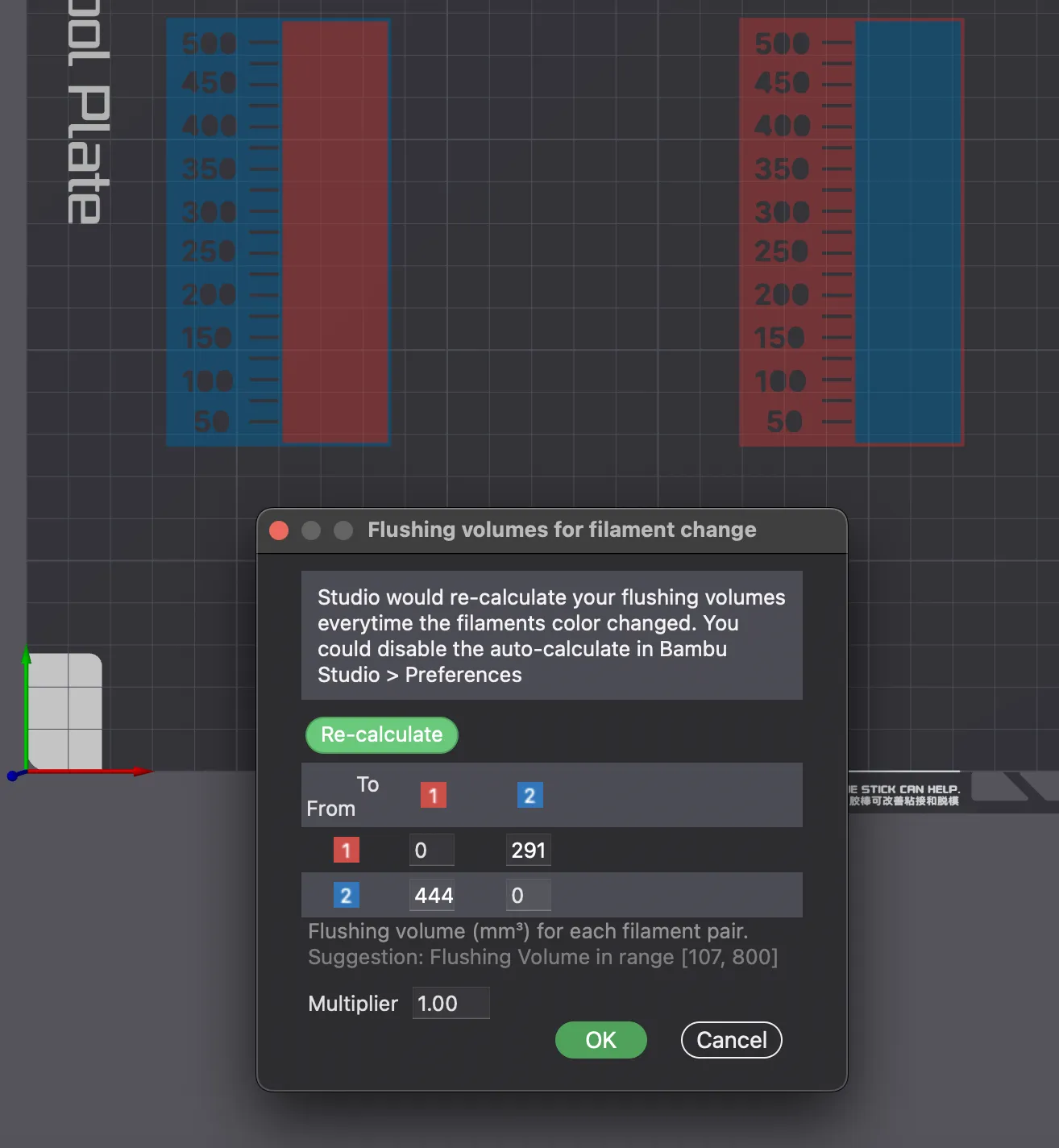
In this specific case, the quantity is identical for both color changes, but for other combinations, it may vary
As you can see, the difference between the default values of Bambustudio and the ones just found is significantly lower.
This allows us to reduce material waste and significantly cut down on print times, decreasing the time the printer takes to change the filament
License

You shall not share, sub-license, sell, rent, host, transfer, or distribute in any way the digital or 3D printed versions of this object, nor any other derivative work of this object in its digital or physical format (including - but not limited to - remixes of this object, and hosting on other digital platforms). The objects may not be used without permission in any way whatsoever in which you charge money, or collect fees.


Comment & Rating (3517)