
Square Reader + Business Card Display Stand





Print Profile(1)

Description
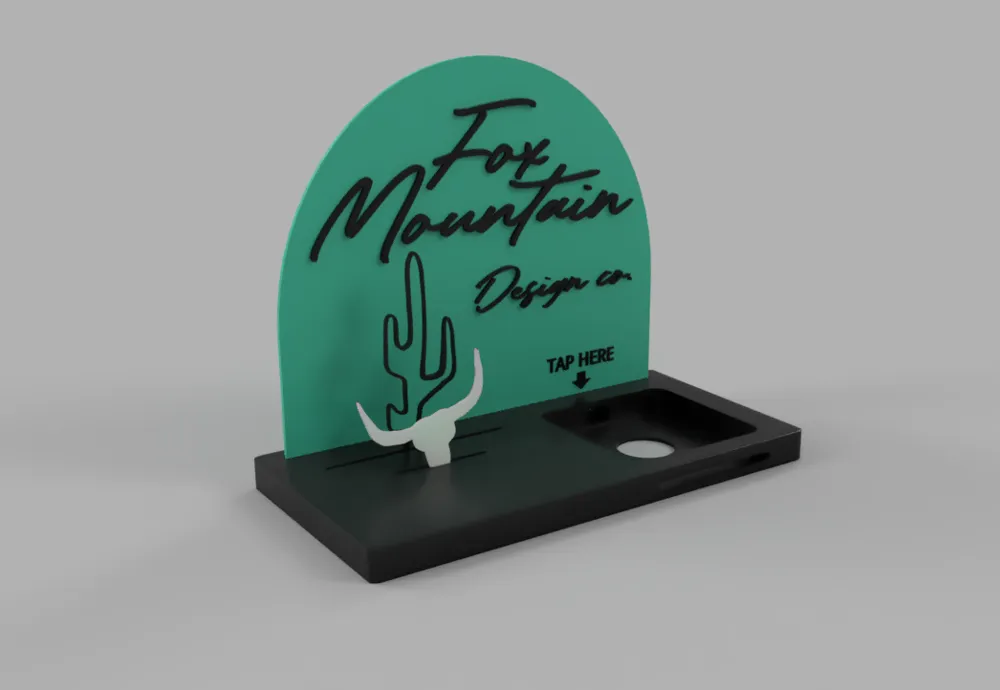
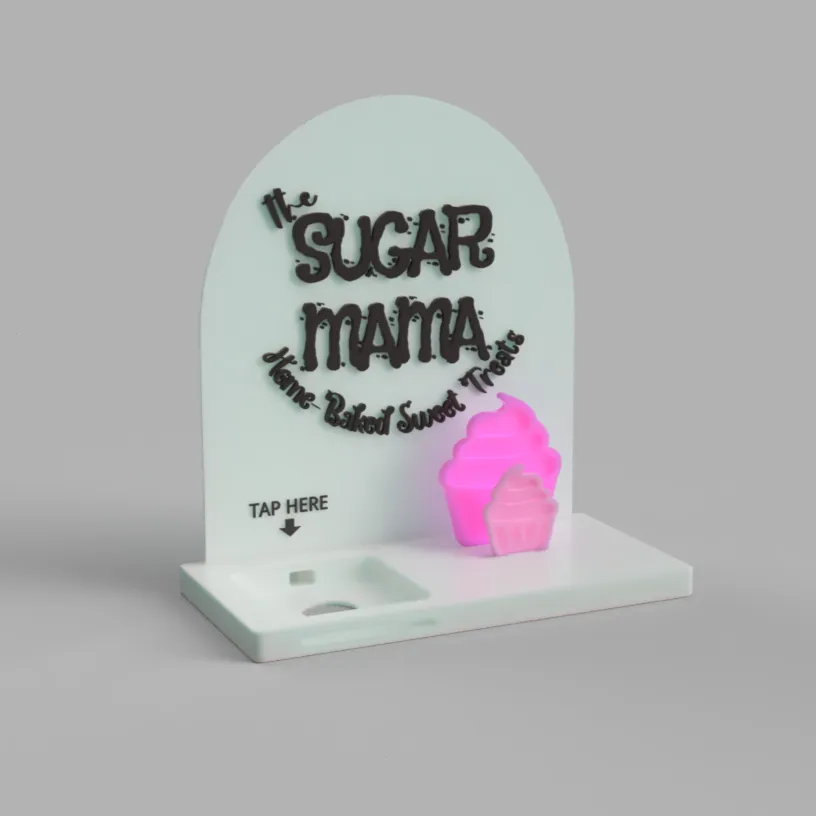
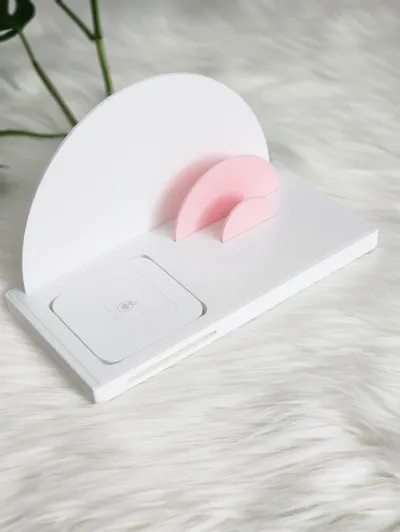
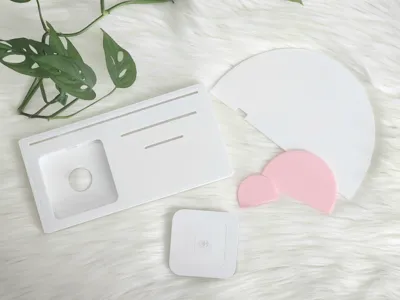
Square Reader + Business Card Display Stand – 3D Printable File
This is my original Square Reader display design. I created this over a year ago and thought I would share! Hope you like it 🫶
If you want to explore my other personal or commercial use designs, check out my website.
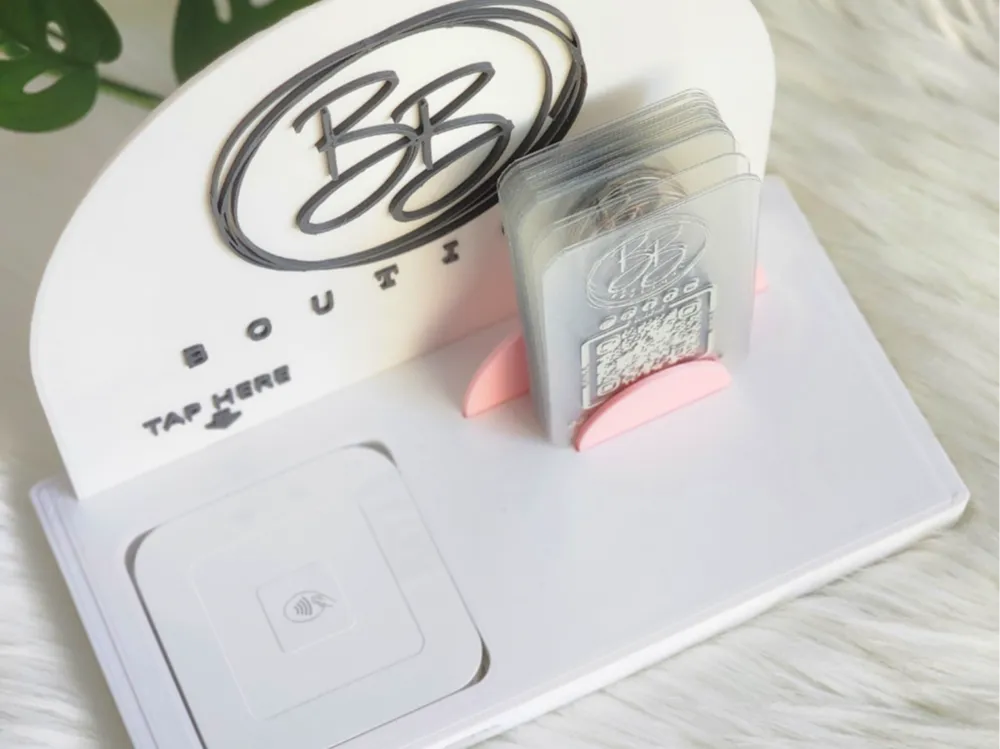
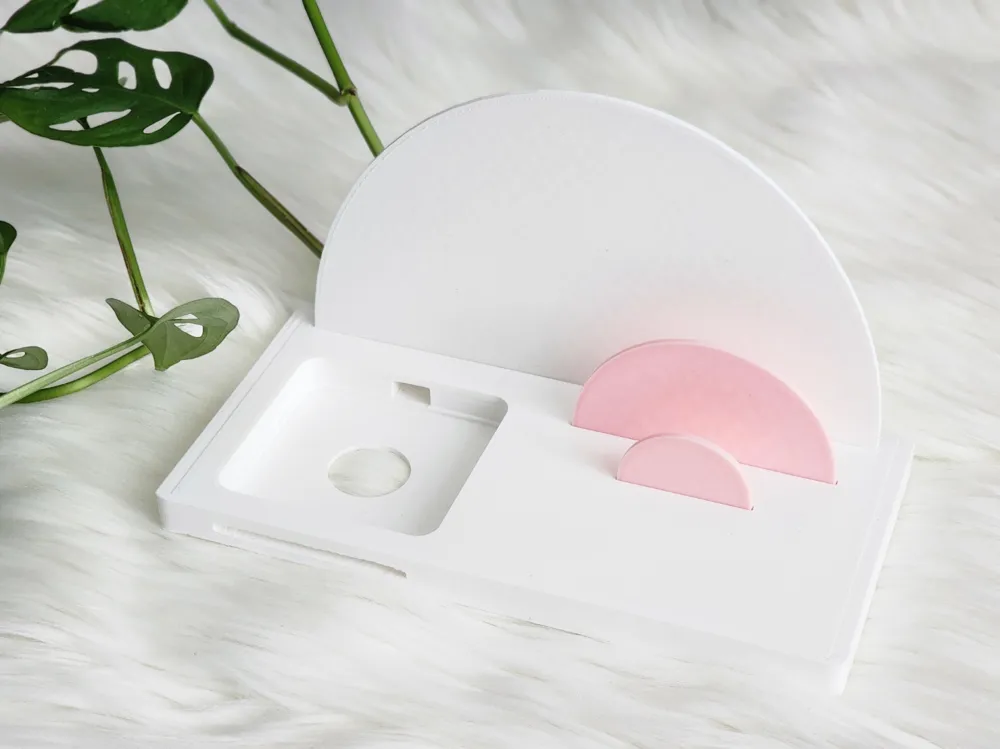
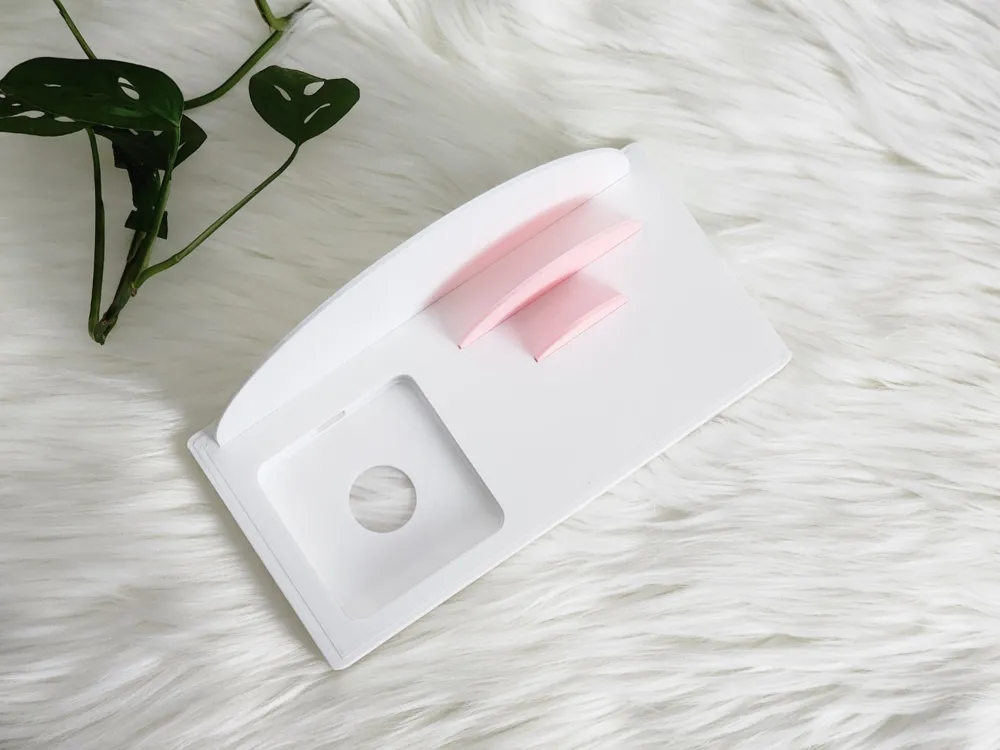
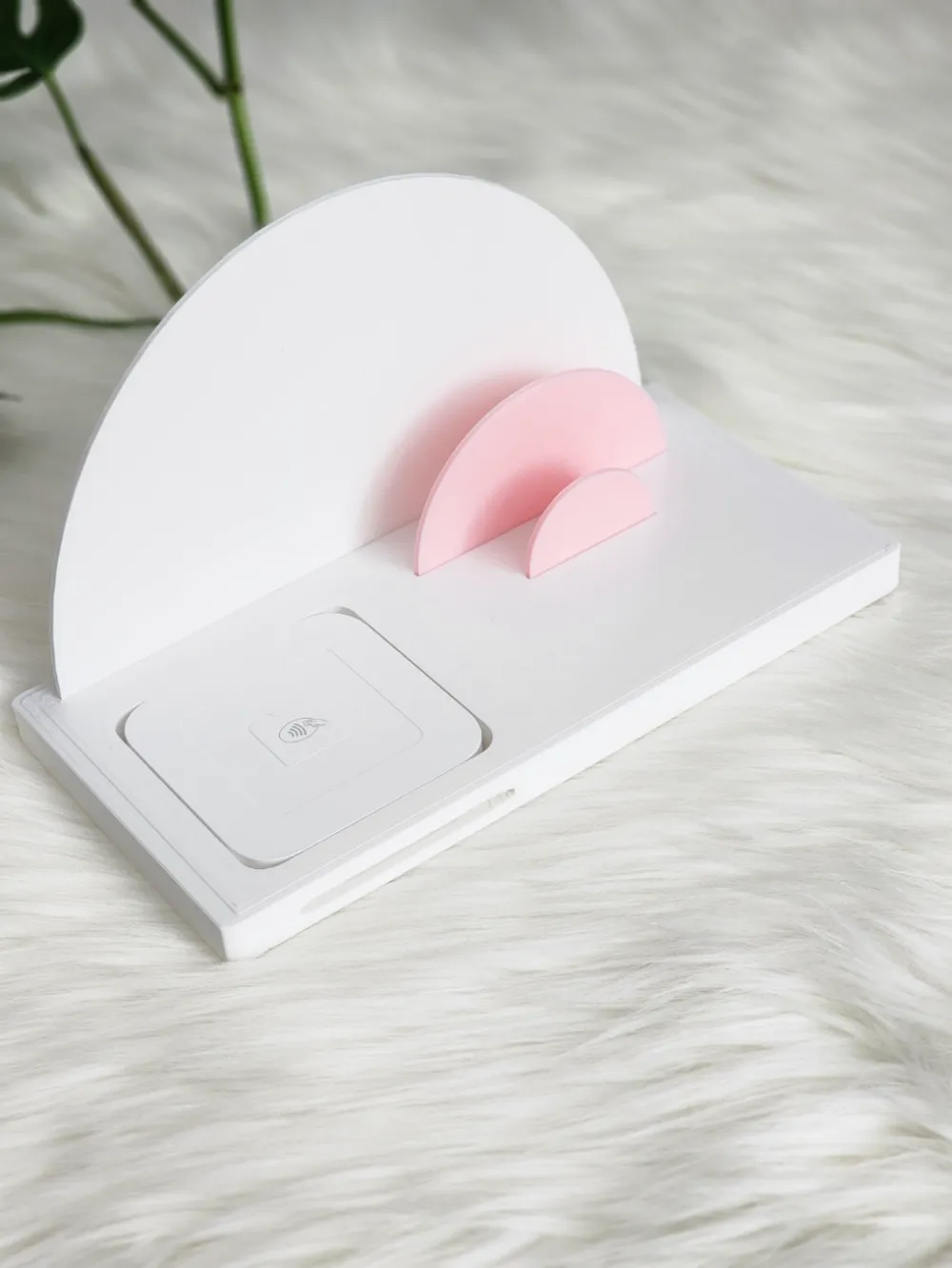
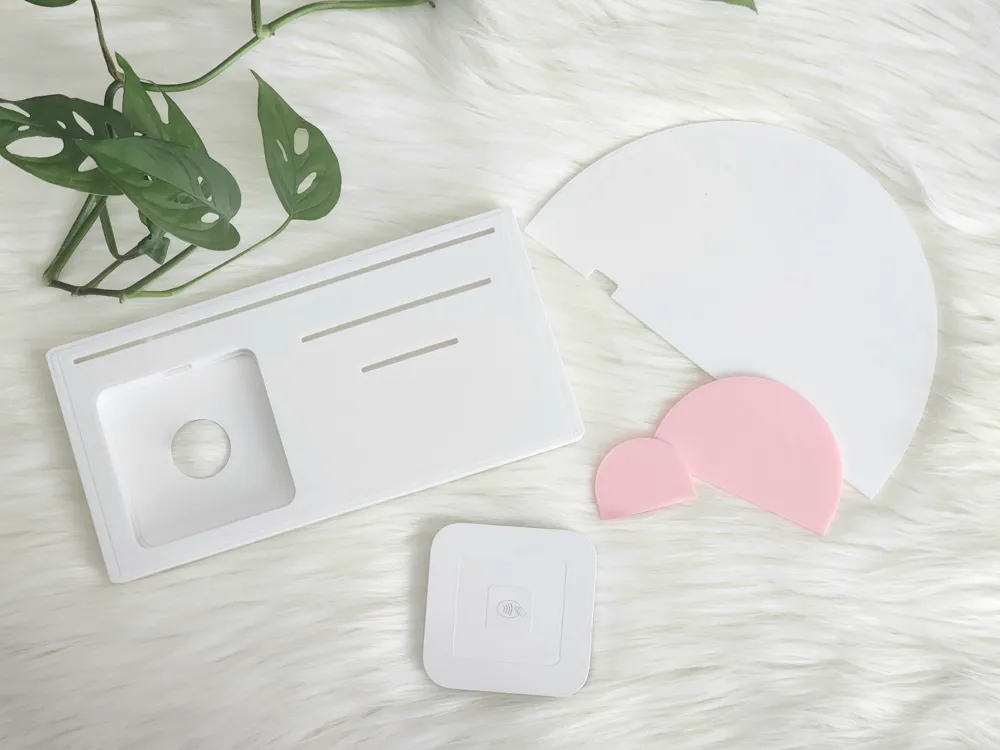
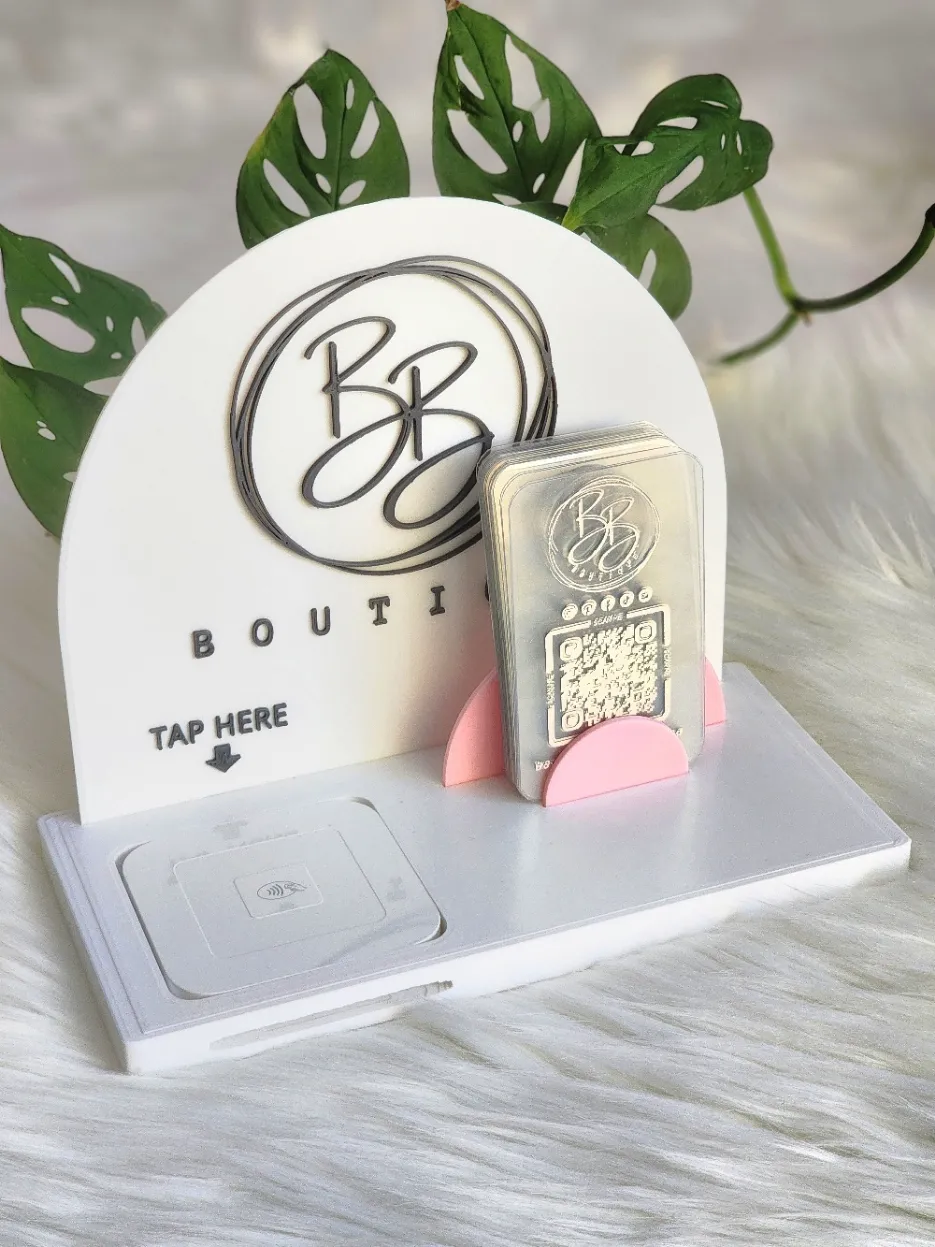
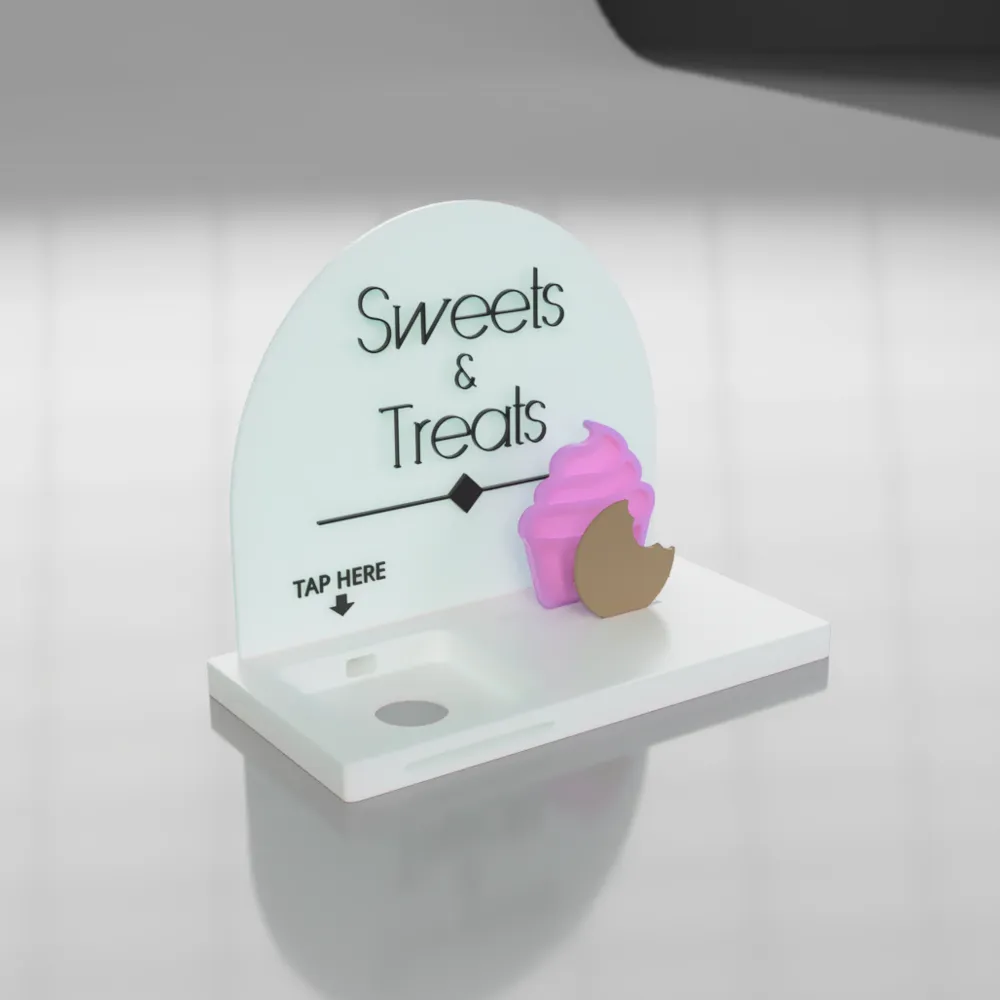
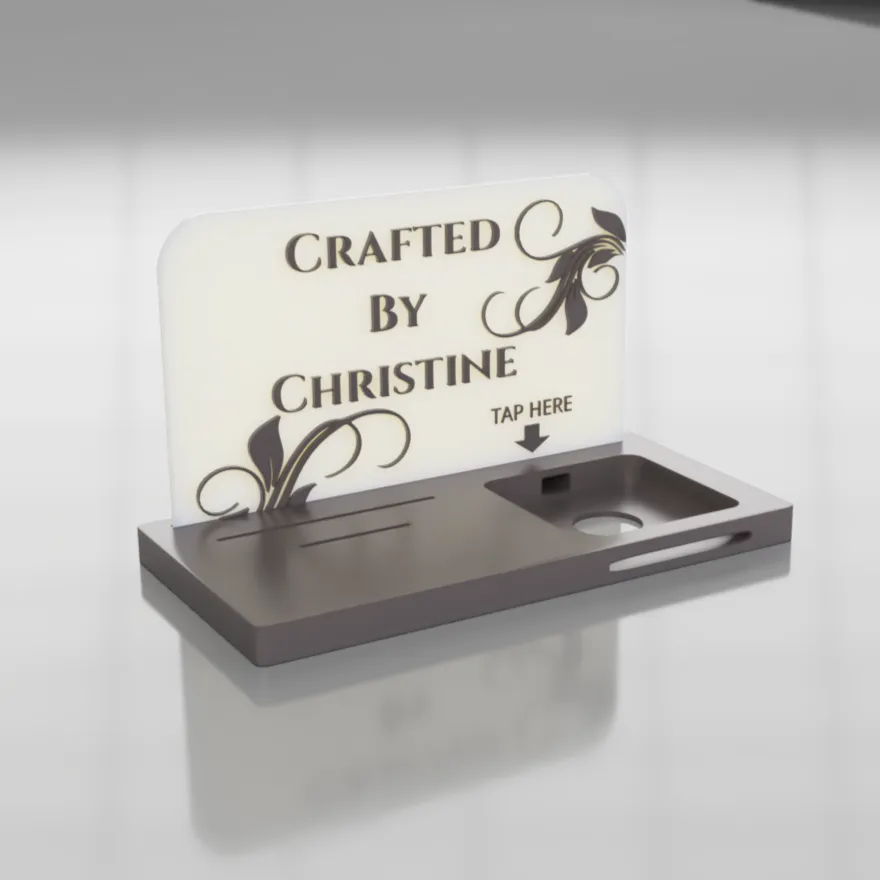
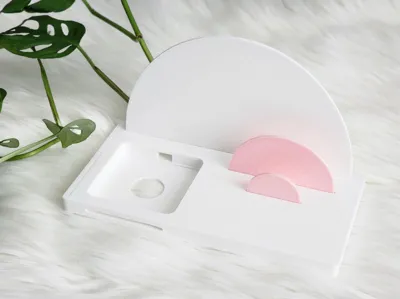
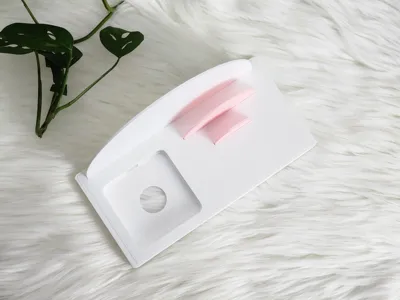
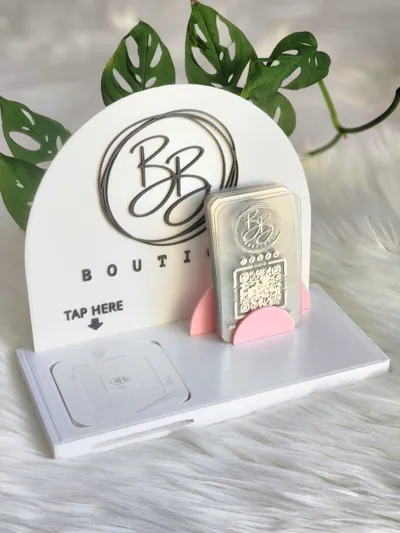
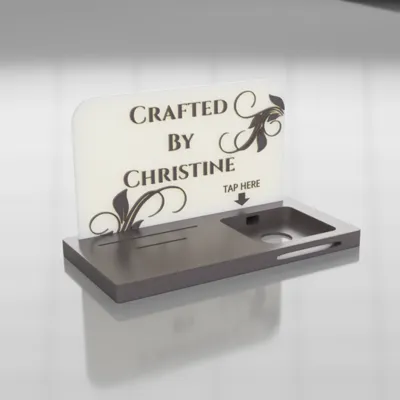
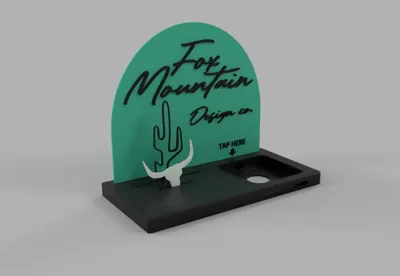
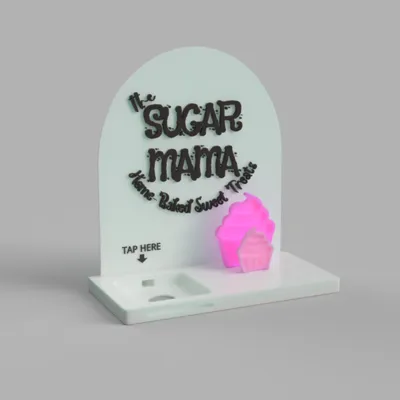
Enhance your professional presentation with this sleek and modern 3D-printed square reader holder + business card display stand! Designed with clean lines and a minimalist aesthetic, this stand features a dedicated slot for business cards and a prominent curved back panel—perfect for showcasing your logo or branding, as well as a convenient place to store your square reader.
Key Features:
✔ Functional & Stylish: Holds standard business cards with a built-in logo display area and square reader holder.
✔ Convenient Ports: Card Payment, Charger, and Ejection Ports.
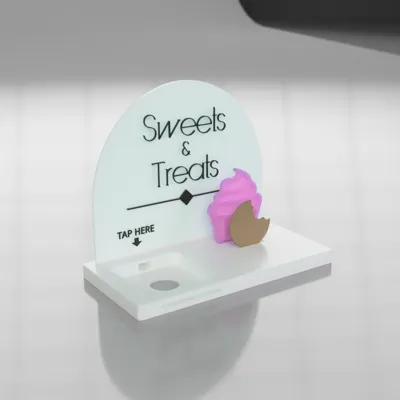
✔ Customizable: Print in different colors to match your brand or personalize for clients.
✔ Easy to Print: No supports required, designed for smooth, hassle-free 3D printing.
✔ Multi-Use: Ideal for craft fairs, markets, offices, or shop counters.
📂 File Format: STL/3MF
📏 Dimensions: Optimized for standard business cards.
🖨️ Print Recommendations: Works for FMD printers.
Click on “Download STL/CAD Files” for different backing sizes and shapes!
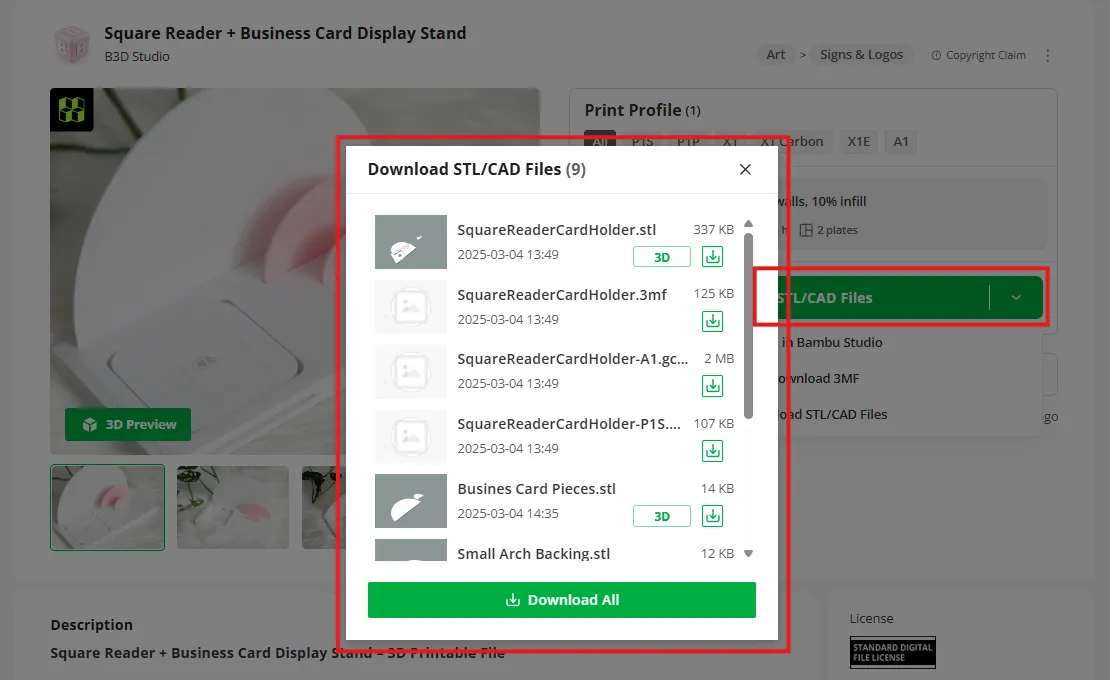
This digital file is for personal use—perfect for adding a touch of professionalism to your setup! 🚀
Right click and mirror on X axis for opposite orientation
🩷🩷🩷🩷🩷🩷🩷🩷
HOW TO CUSTOMIZE:
Option A:
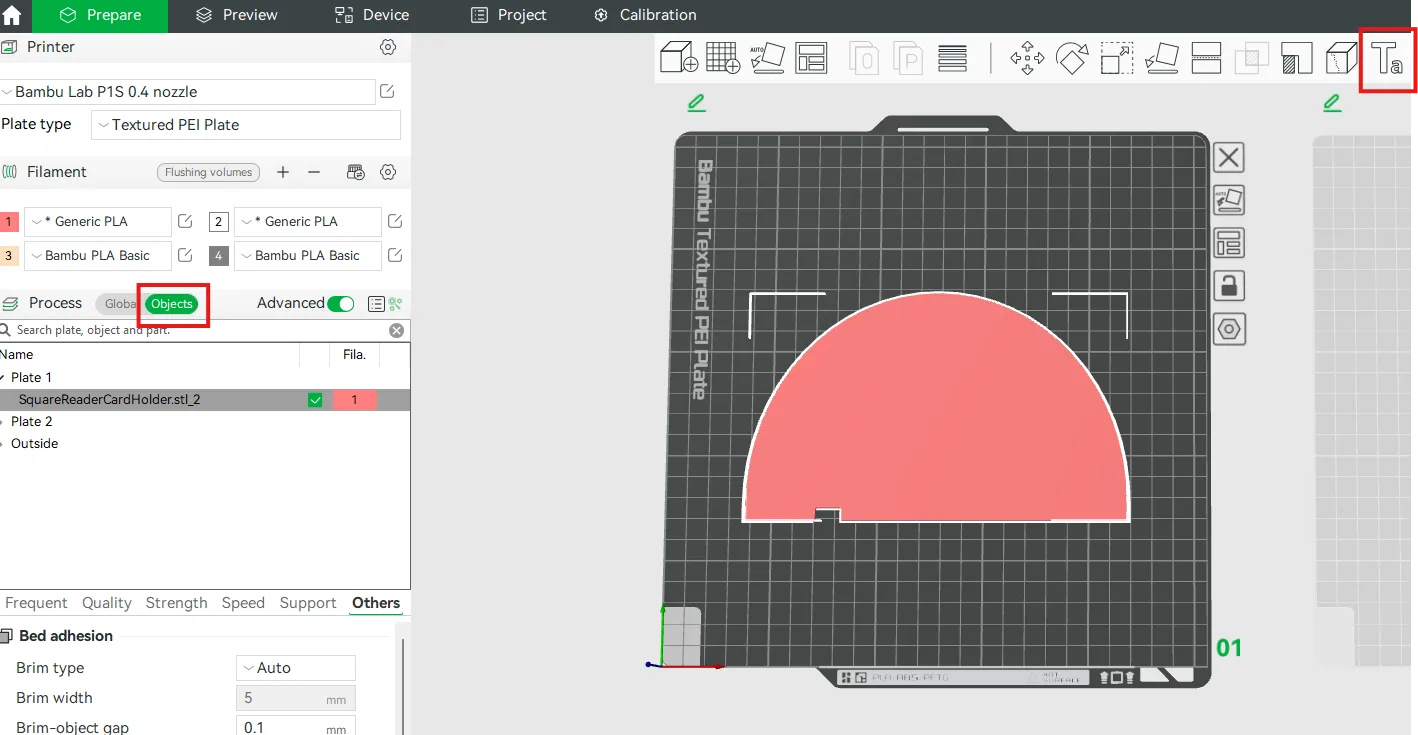
Select the backing, and select the text option along the top right.
Type whatever you would like, choosing size, thickness and font.
Make sure you're in “Object” mode to customize the color and position to your liking.
Suggestion for non AMS Printers:
Thickness: 1mm
Depth 0mm
Option B:
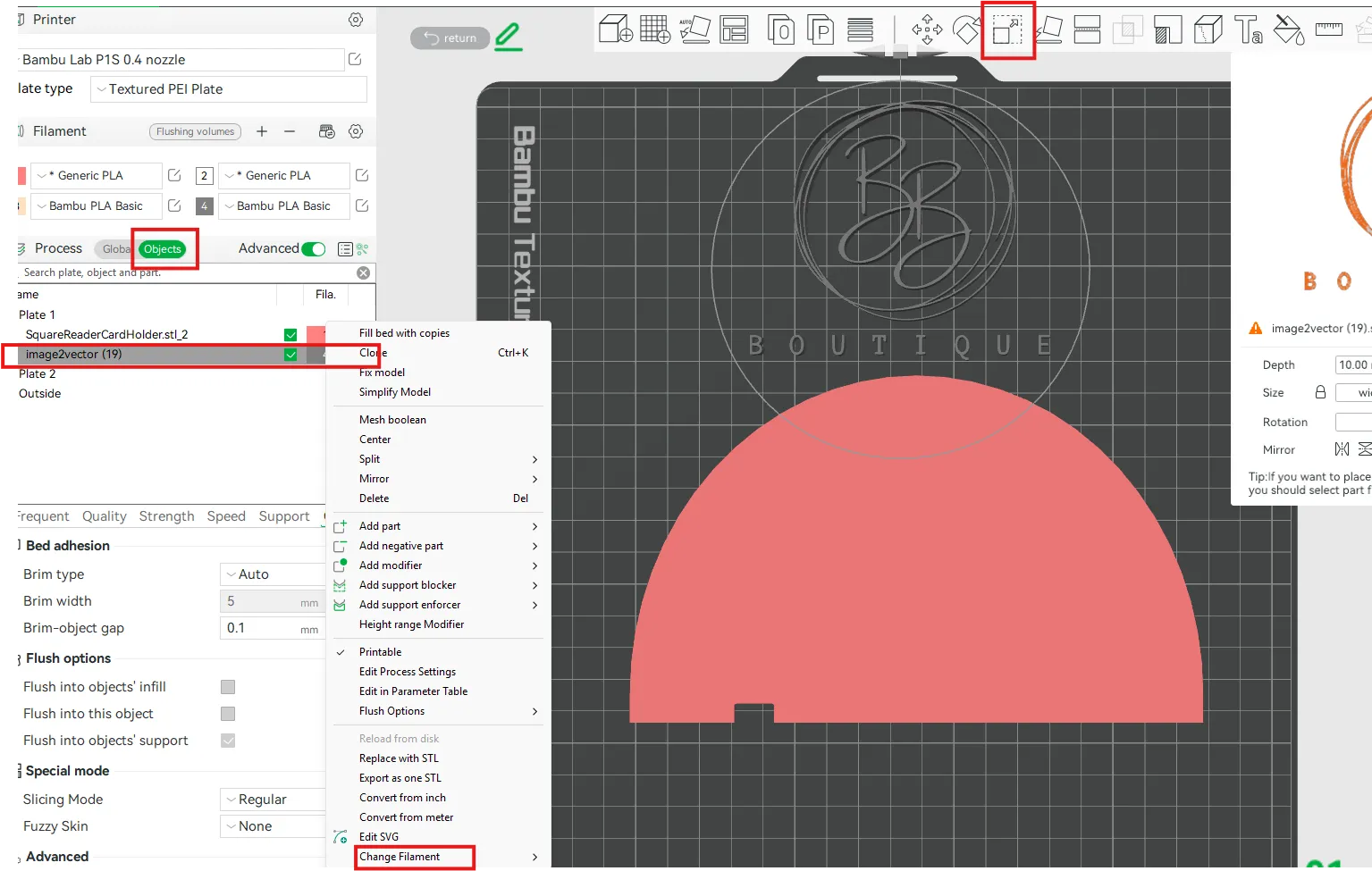
Upload logo/image of your choice into an SVG converter like THIS.
Import into Bambu Studio.
In object mode, HOLDING DOWN SHIFT, select the backing and SVG together. Right mouse click and select “merge”.
Now select only the SVG in the object mode panel. This allows you to move it up and down without it snapping to the plate.
Making sure you're still in object mode with your SVG selected, resize it and position where you would like it on the surface of your backing!
Suggestion for non AMS printers:
Thickness: 1 mm
From Build plate (Z axis): 2mm
👇👇👇👇👇👇👇👇
BONUS:
Using a custom font!
How To Use Custom Fonts in Bambu Studio:
Step 1: Download Font of your choice.
Step 2:
-Copy the TTF or OTF Font File.
-Paste to “C:\Program Files\Bambu Studio\resources\fonts”
-Right Click on file, choose “Install for ALL USERS” (may be under "show more options")
Step 3: Restart Bambu Studio
Step 4:
Make sure you have “Objects” selected, beside the “Global” option on the left panel. Then select “Text_Shape” below that.
Step 5:
Select the text icon along the top right menu, to edit text
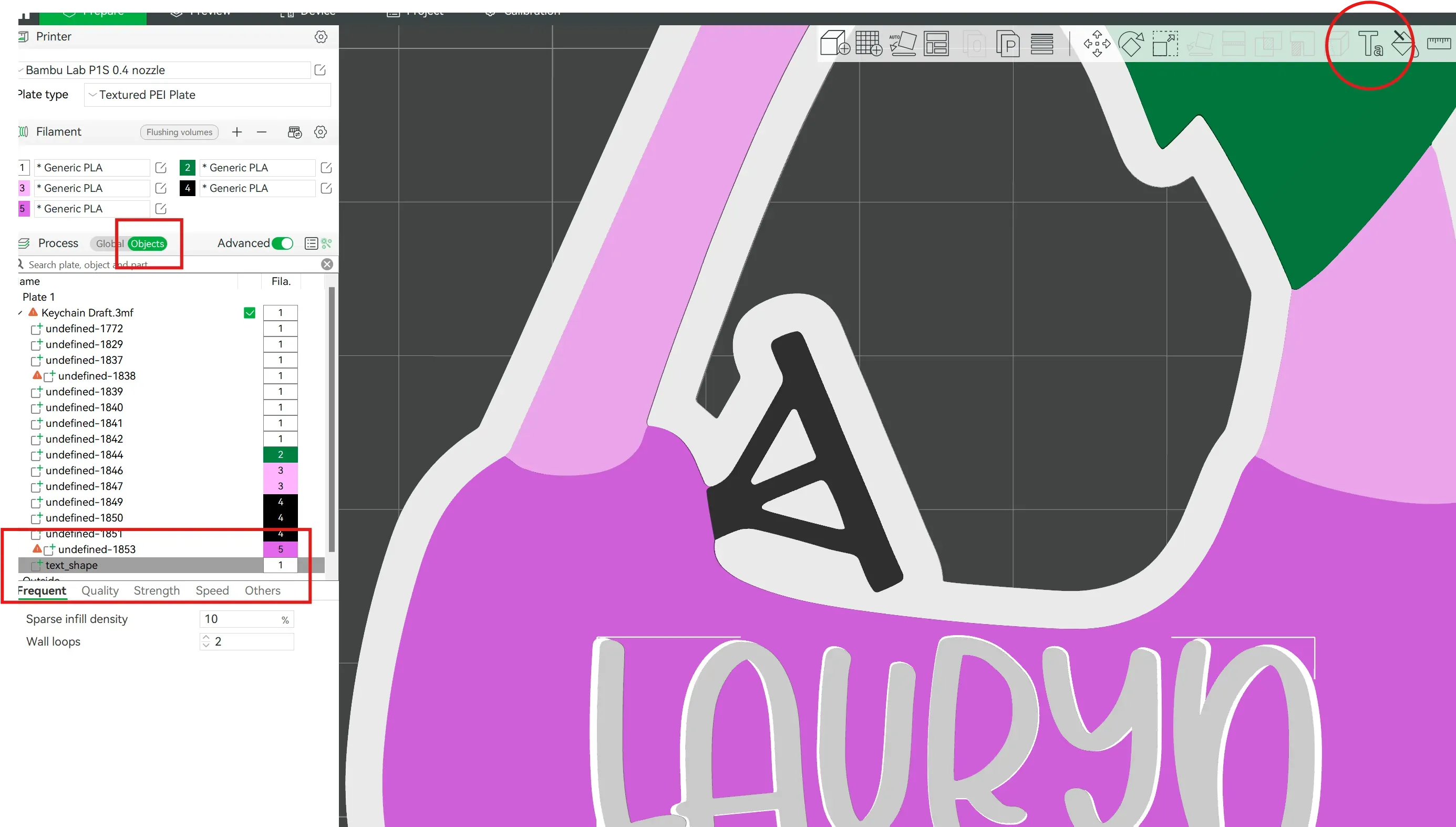
Step 6: Choose your new font from the dropdown menu, and change the text to the font of your choice.
Step 7: Print & Enjoy!
License

You shall not share, sub-license, sell, rent, host, transfer, or distribute in any way the digital or 3D printed versions of this object, nor any other derivative work of this object in its digital or physical format (including - but not limited to - remixes of this object, and hosting on other digital platforms). The objects may not be used without permission in any way whatsoever in which you charge money, or collect fees.


Comment & Rating (46)