
Super Glue Nozzle, various variants
Print Profile(1)

Description
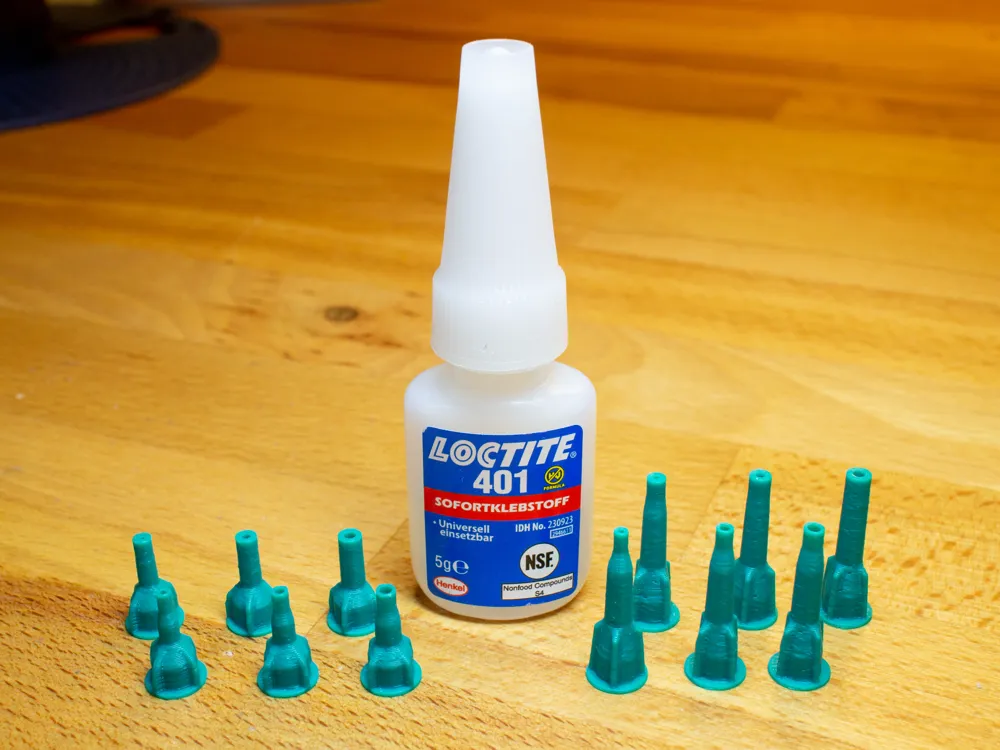
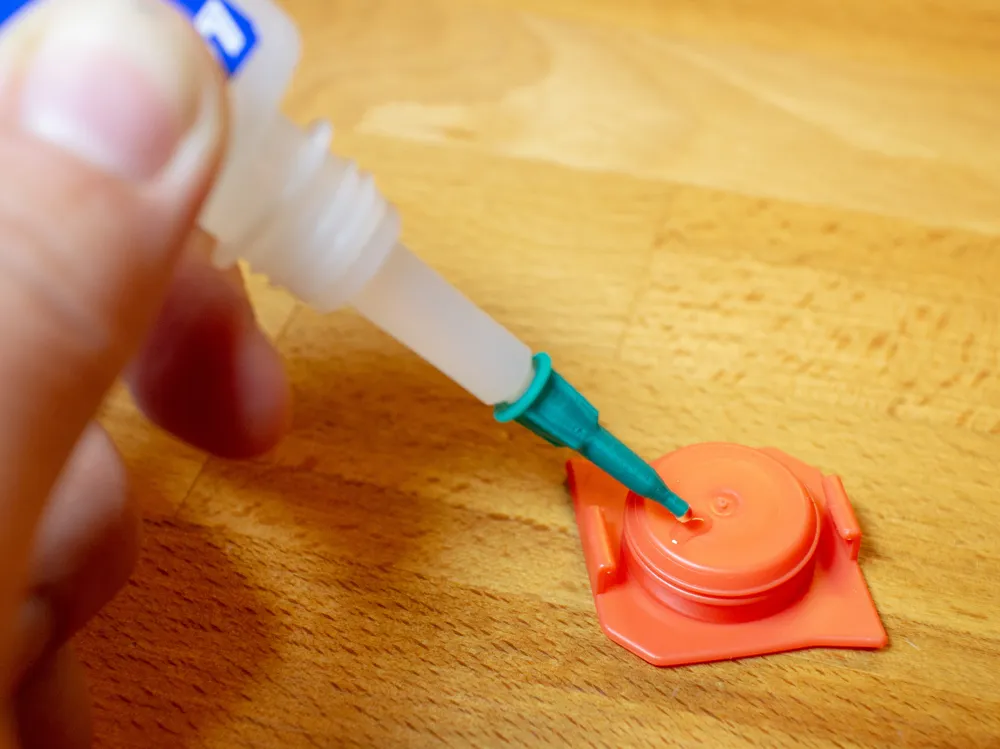
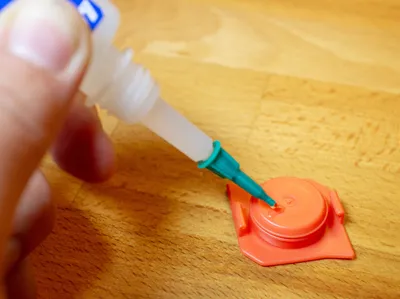
Some nozzles i found here had a too big glue outlet hole for my needs, so i made my own.
Variants:
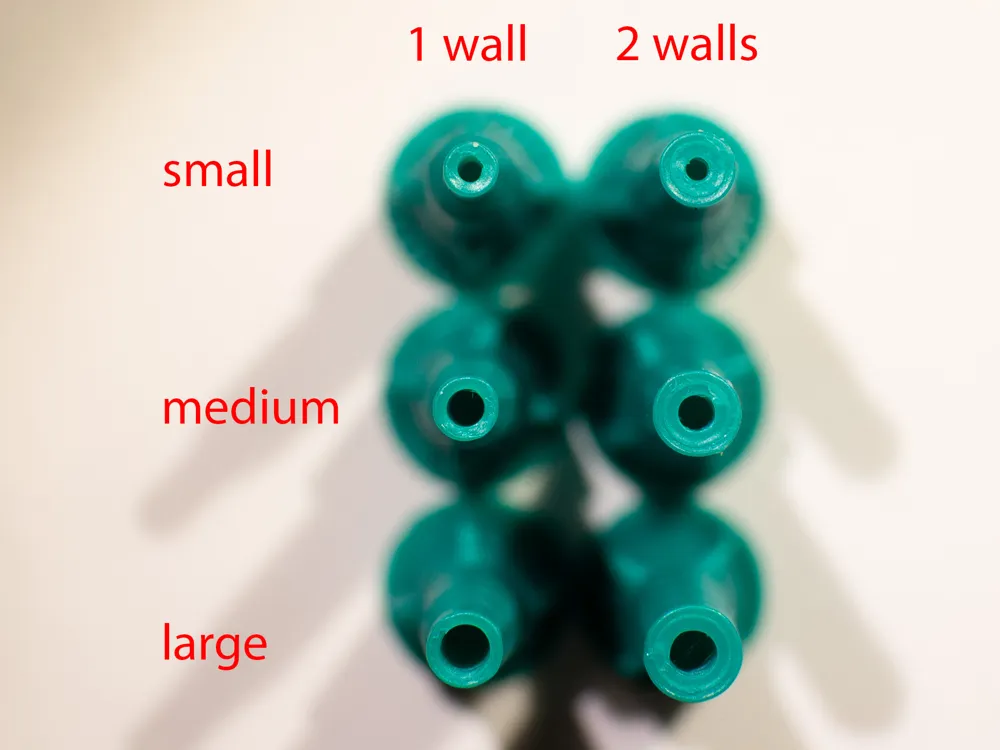
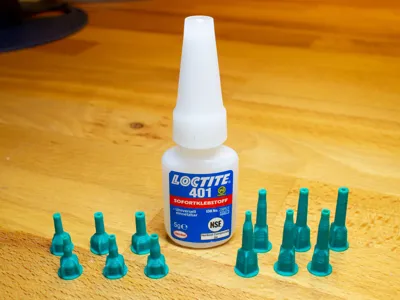
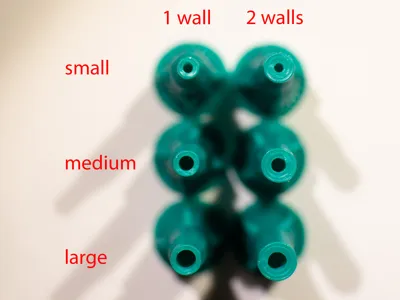
- small, medium and large glue outlet hole to fit your precision needs
- 1 wall at tip for maximum precision or 2 walls at tip for more stability
- length 24mm or short 15mm version to save filament and reduce wasted glue inside nozzle after use
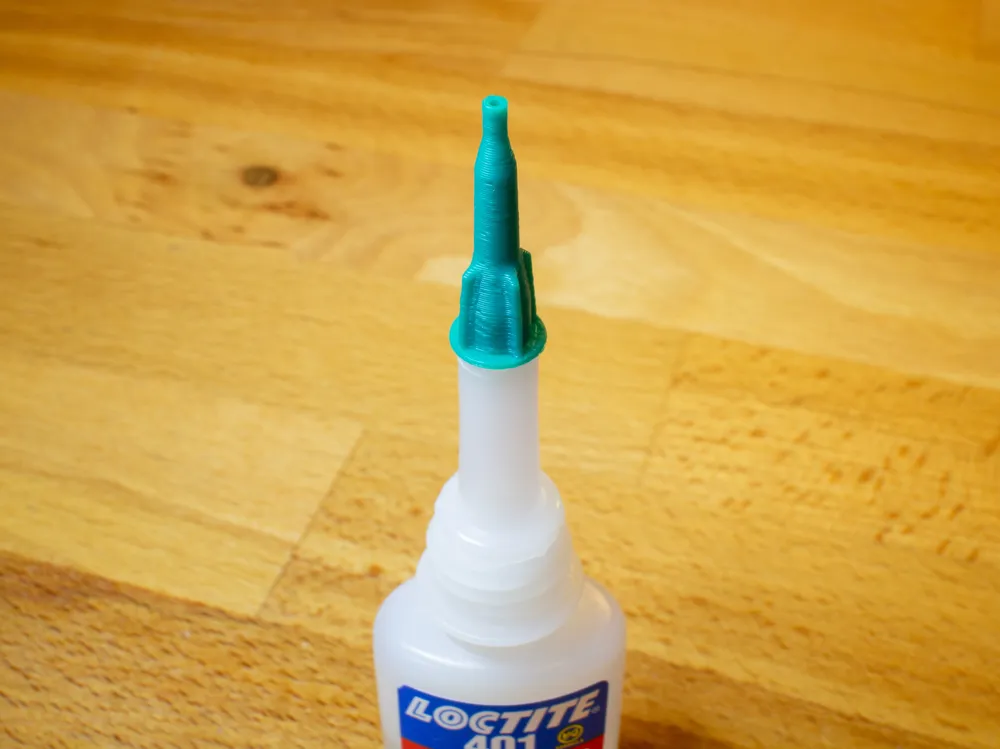
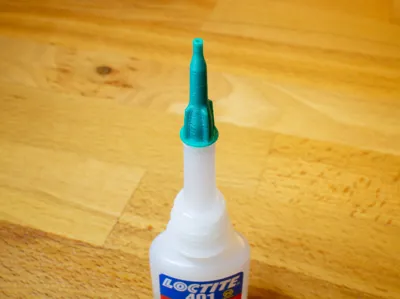
I tested the nozzle with Loctite super glue bottles as shown in the picture. They have a tip diameter of about 4.2-4.4mm. I assume my nozzles fit on some other brands too but you have to test. If you can measure the tip of your glue bottle you can also scale my model in XY direction to fit your glue bottle.
Note on variant with small glue outlet hole:
Your printer and/ or filament may need to be calibrated well to print the small hole cleanly. Also if your glue is very viscous a larger outlet hole size may be better for you.
Printing instrucitons:
I put all variants on one plate for you to test what suits you best. In the objects tab you can see the name of the objects to identify what is what.
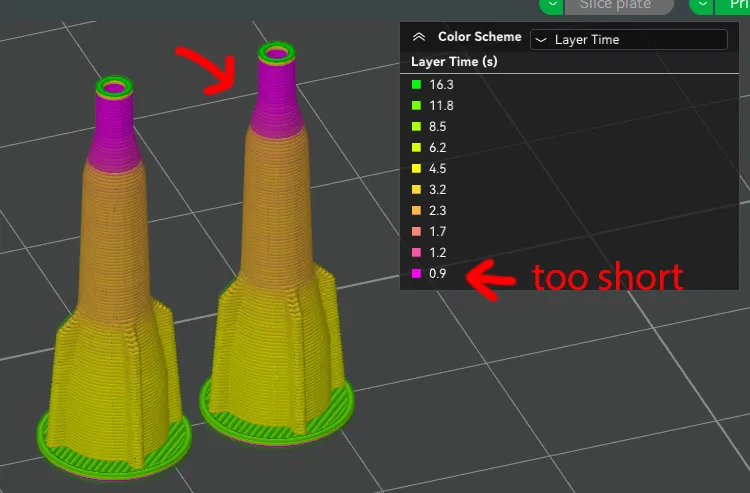
It is not advisable to print only one nozzle at once. The layer time at the tip will get very short. That means your top layer has not enough time to cool down and your tip may become ugly and non-functional.
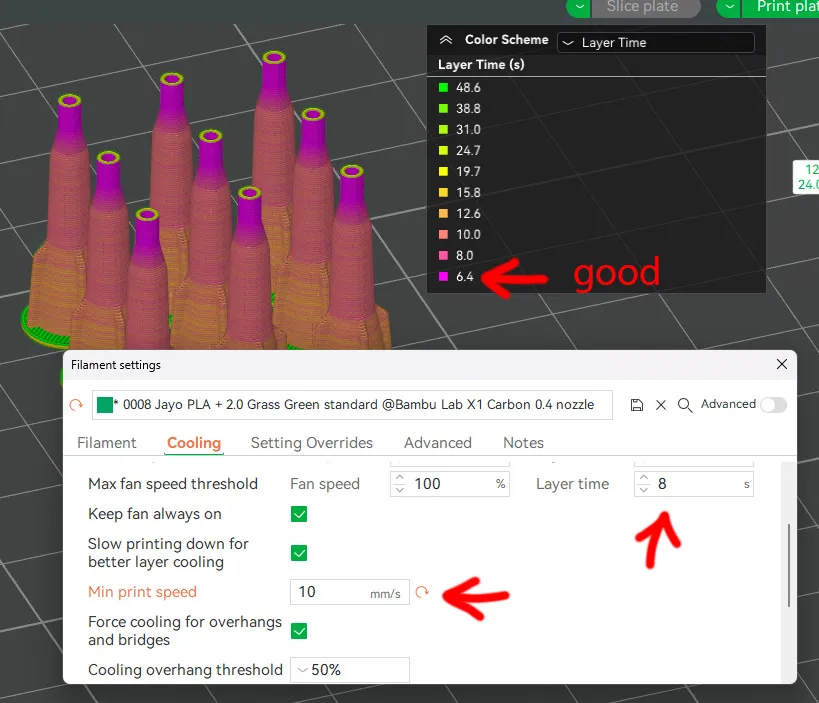
I recommend a minimum layer time not shorter than 4 seconds, 8 is better.
You can achieve this in different ways:
- print more pieces of the same object
- in the filament settings cooling tab reduce min print speed to 10 mm/s and enable slow printing down for better layer cooling
- place your pieces far apart on the build plate to increase travel time (waste time on purpose)
a combination of all of the above
Sometimes the slicer gives me a floating regions warning. There are no floating regions, you can ignore that. Seems to be a bug. If you go in the prepare tab and move one object slightly an slice again the error vanishes.
License



Comment & Rating (68)