Search models, users, collections, and posts

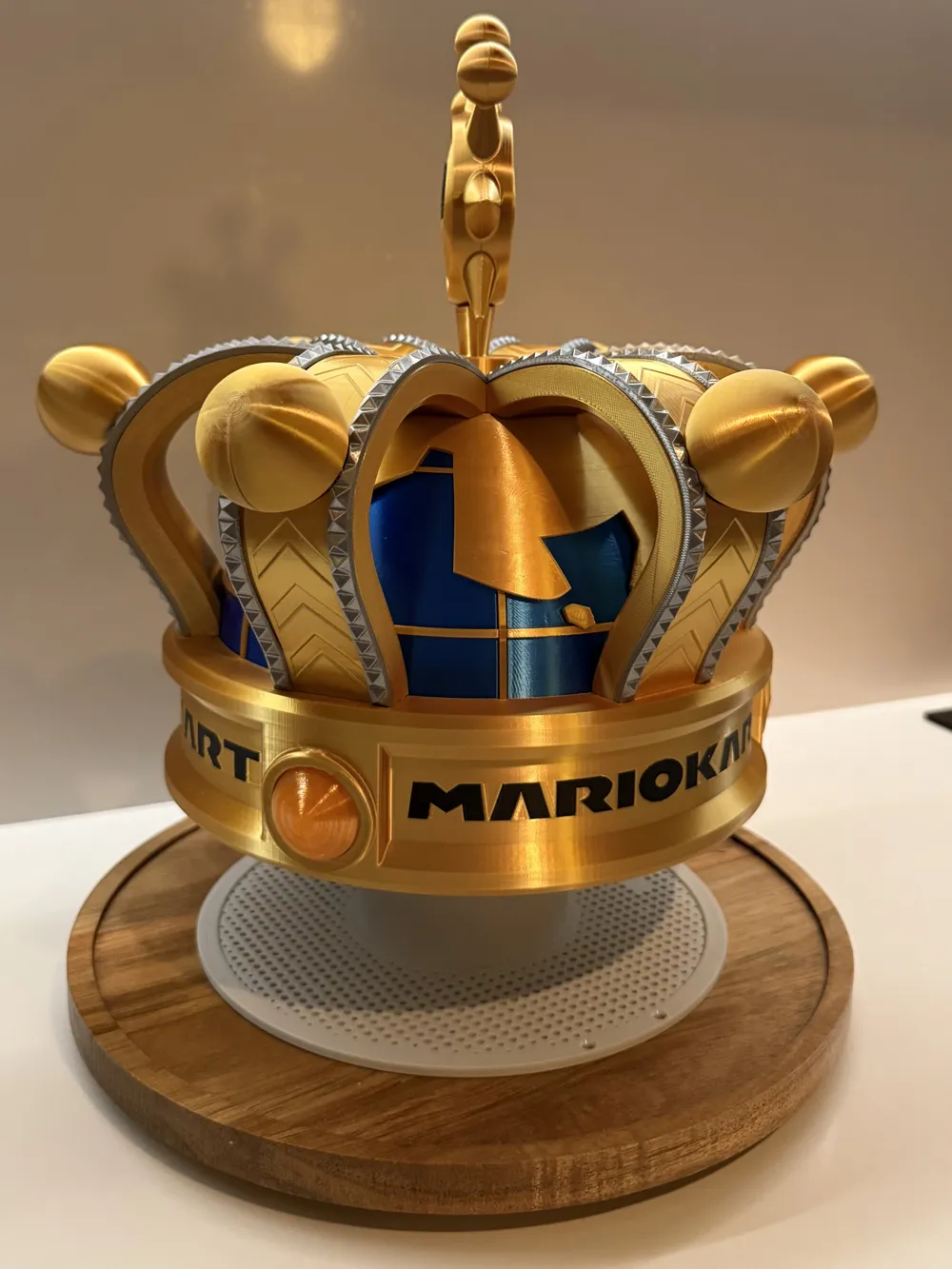
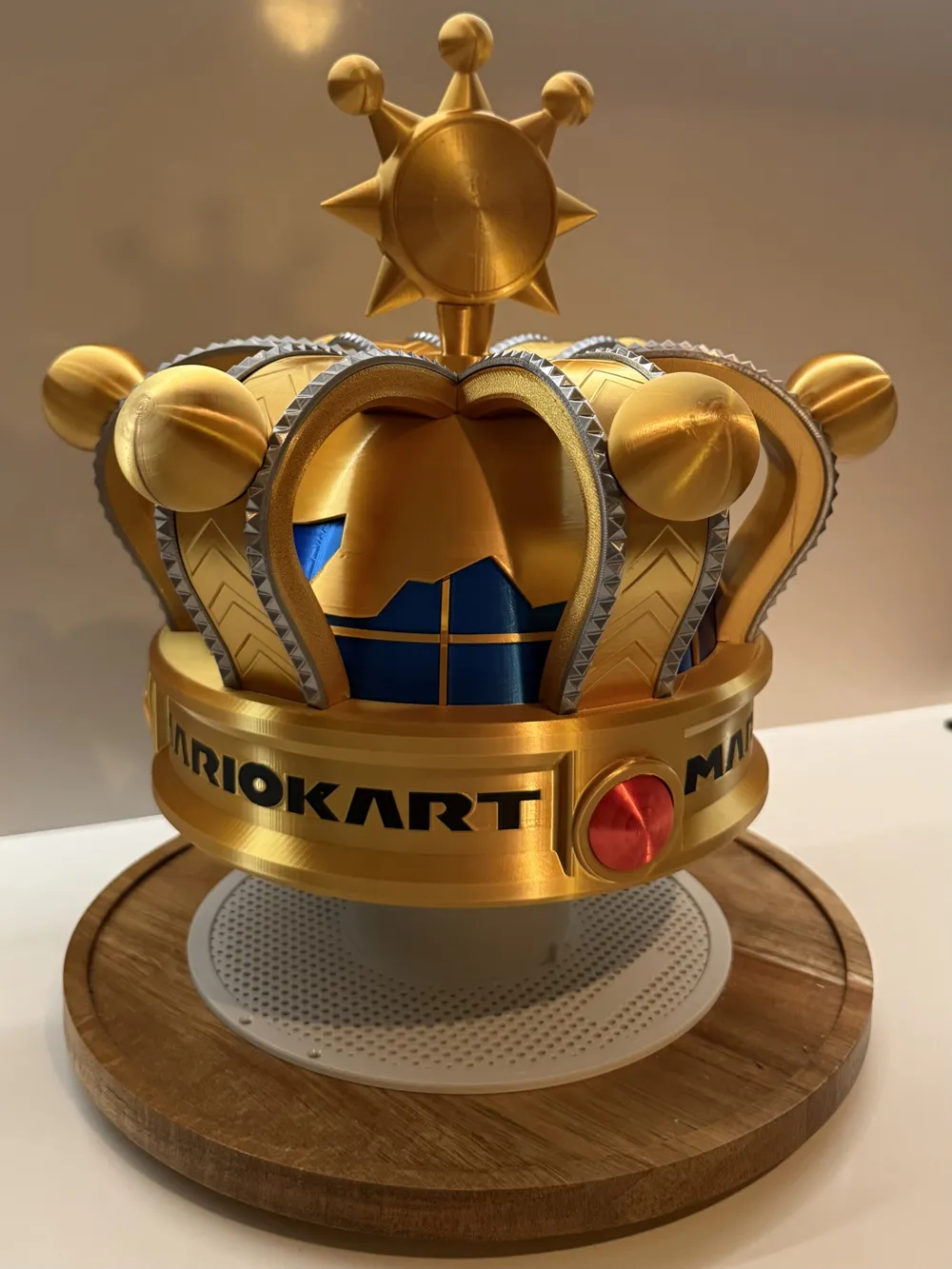
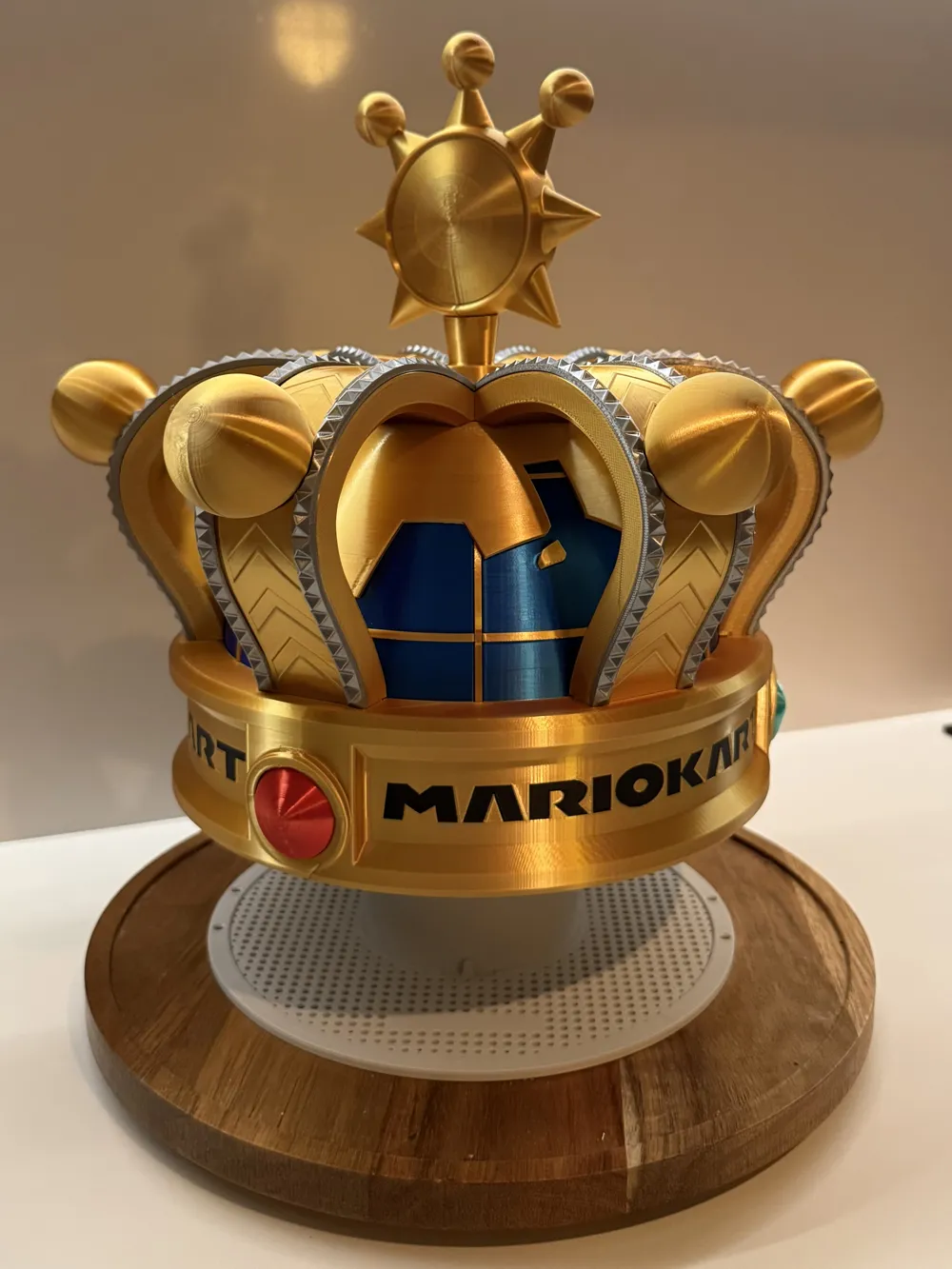
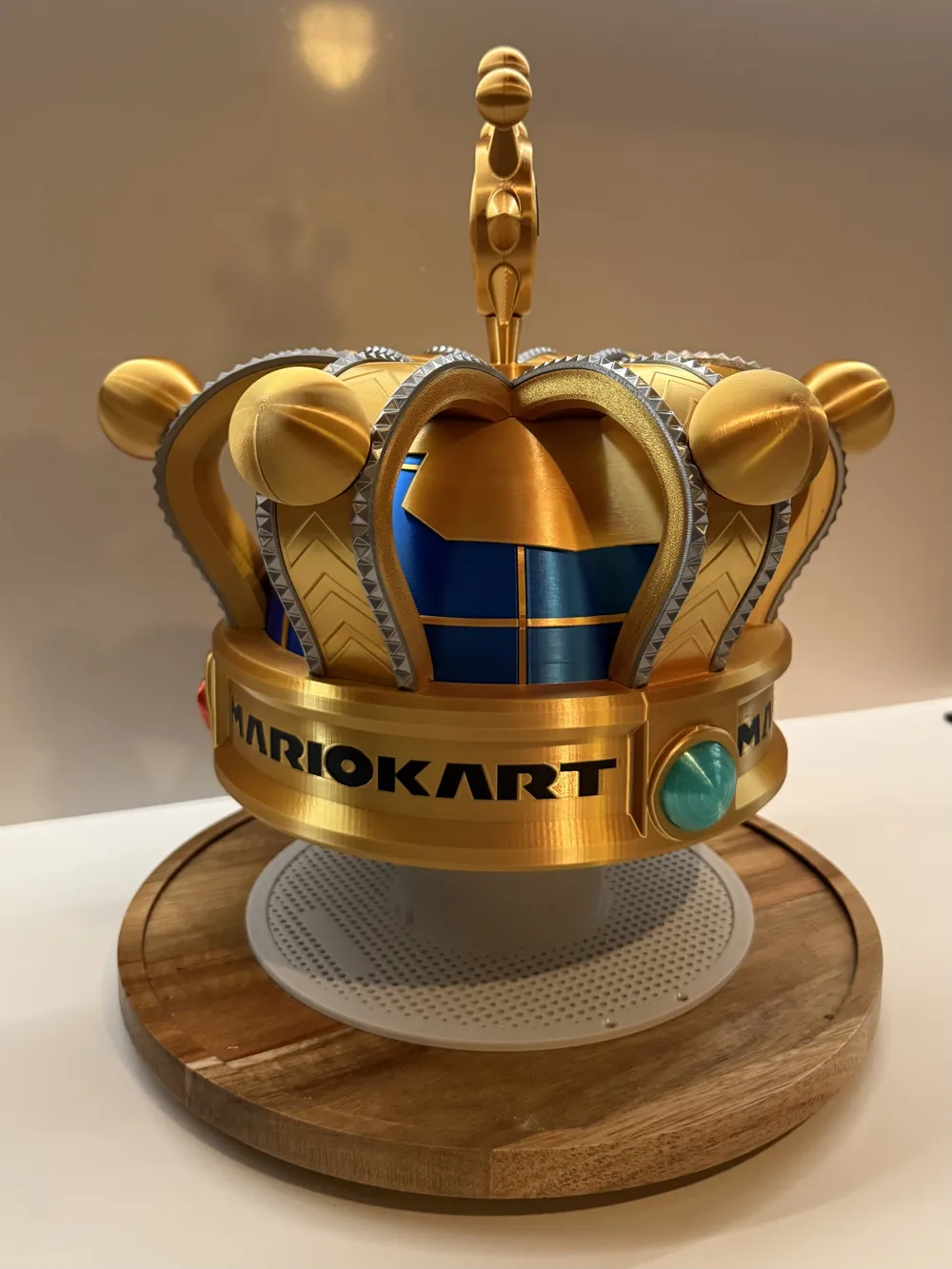
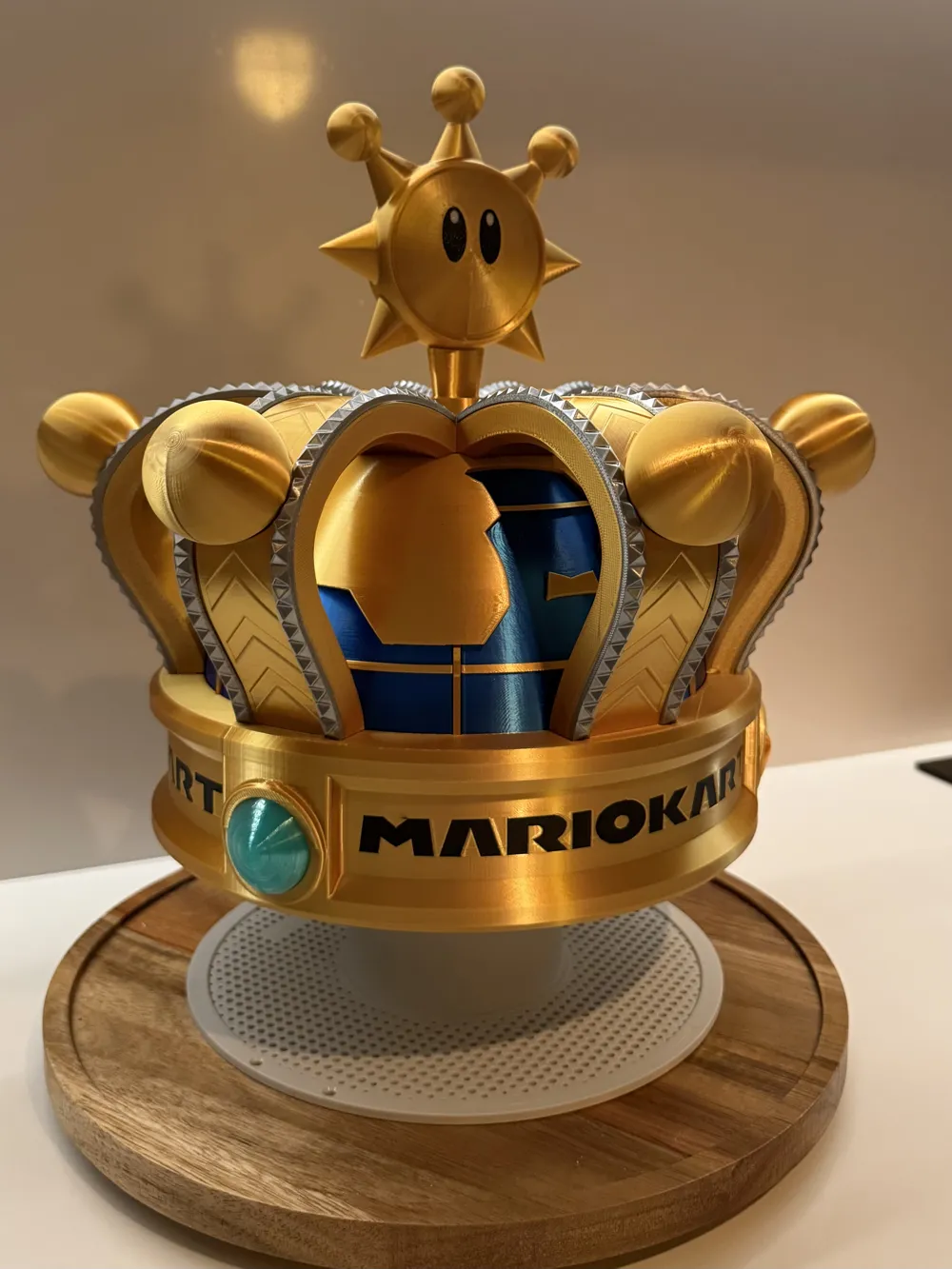
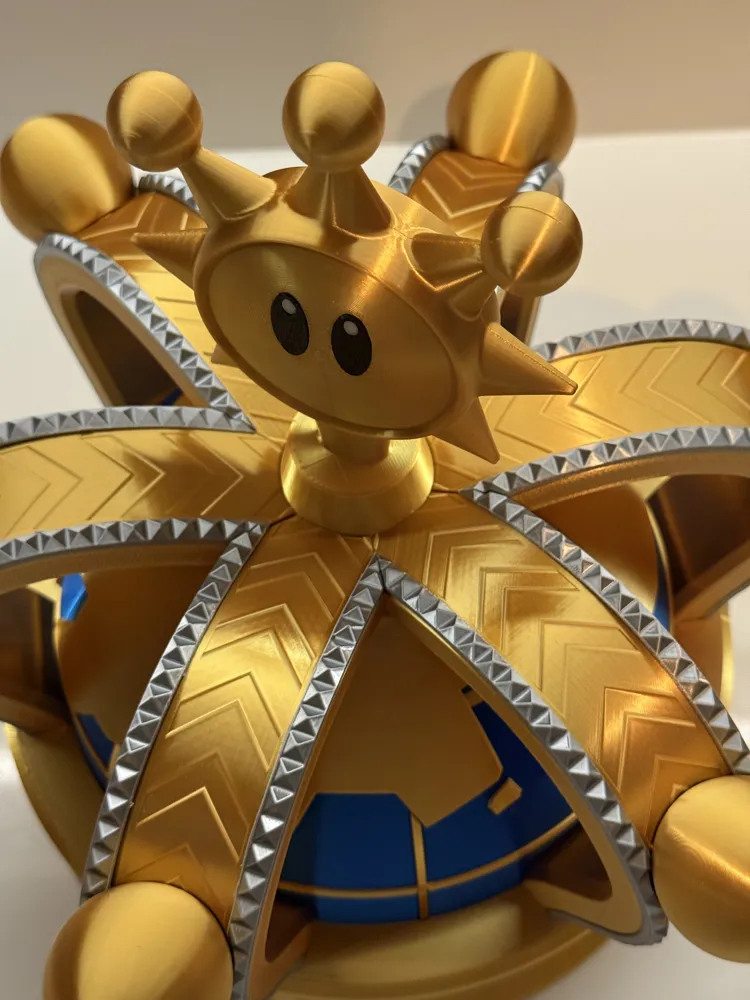
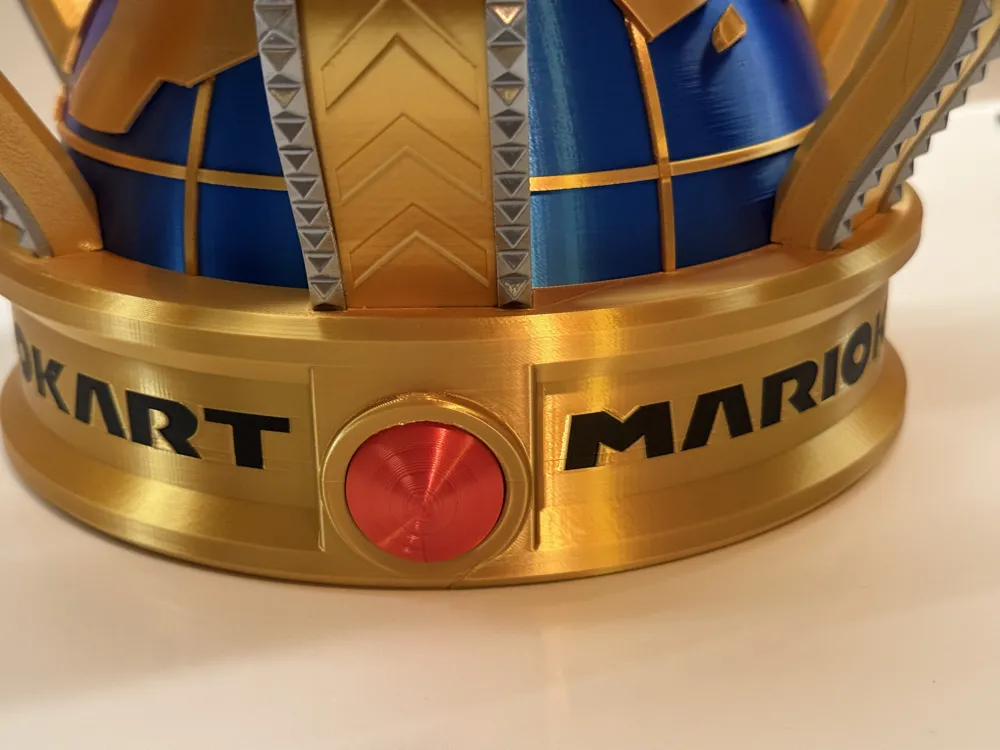
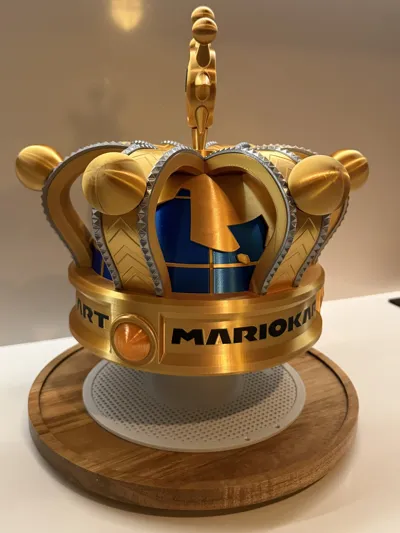
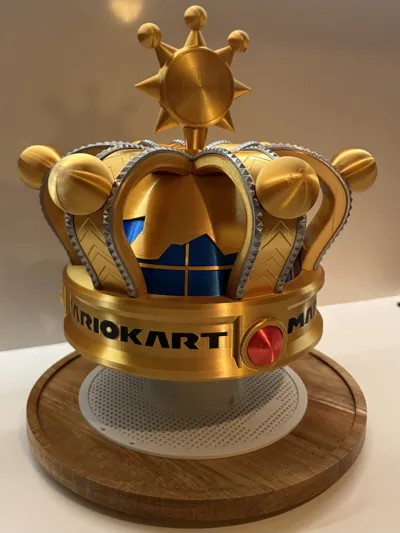
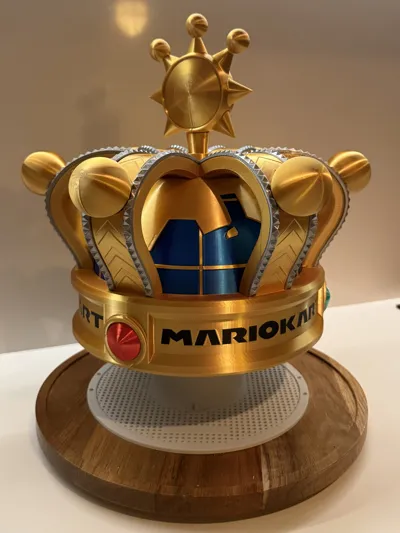
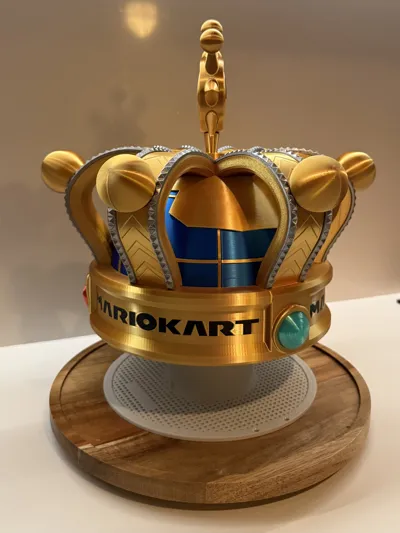
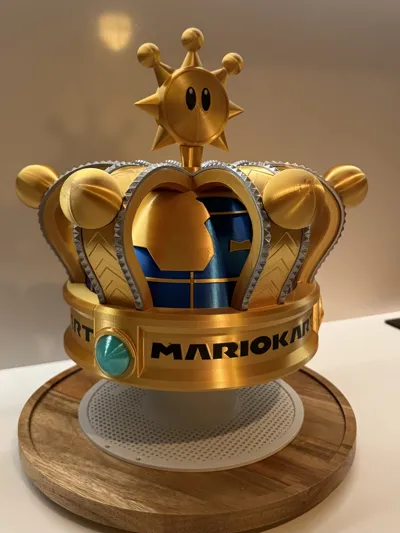
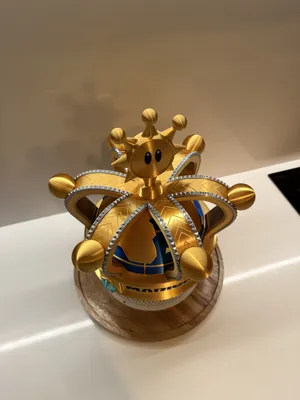
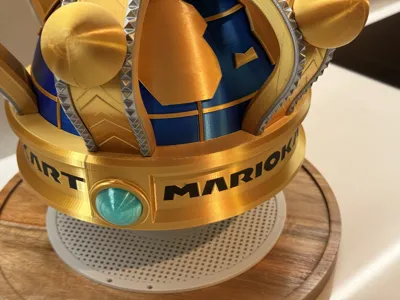
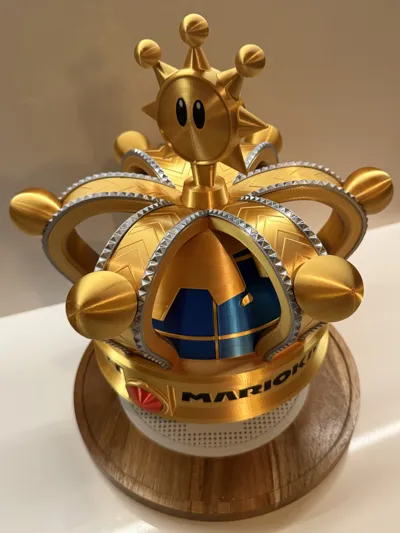
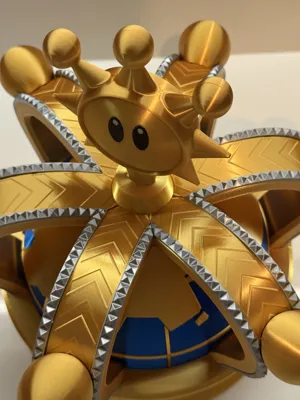
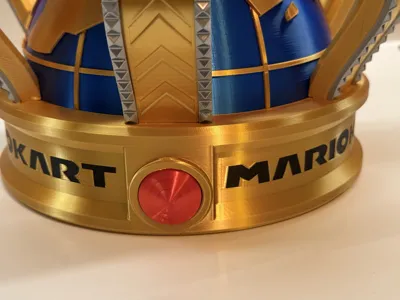
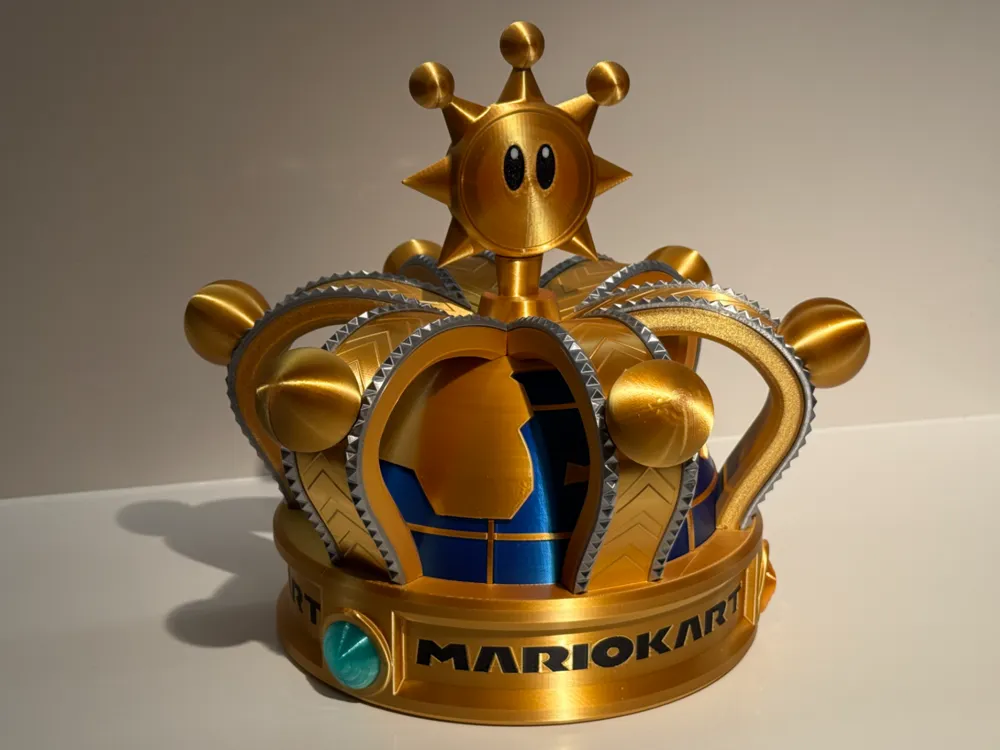
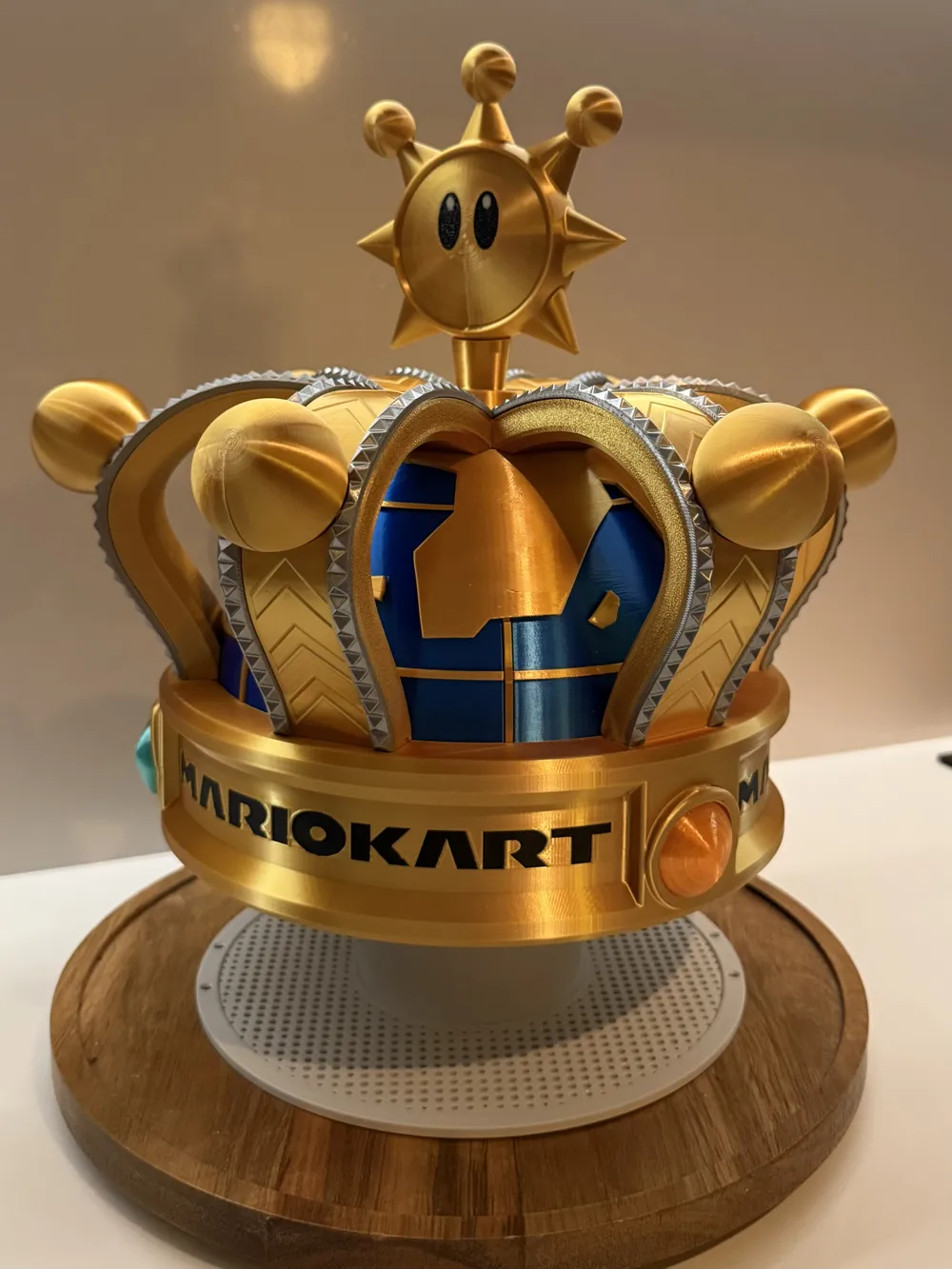
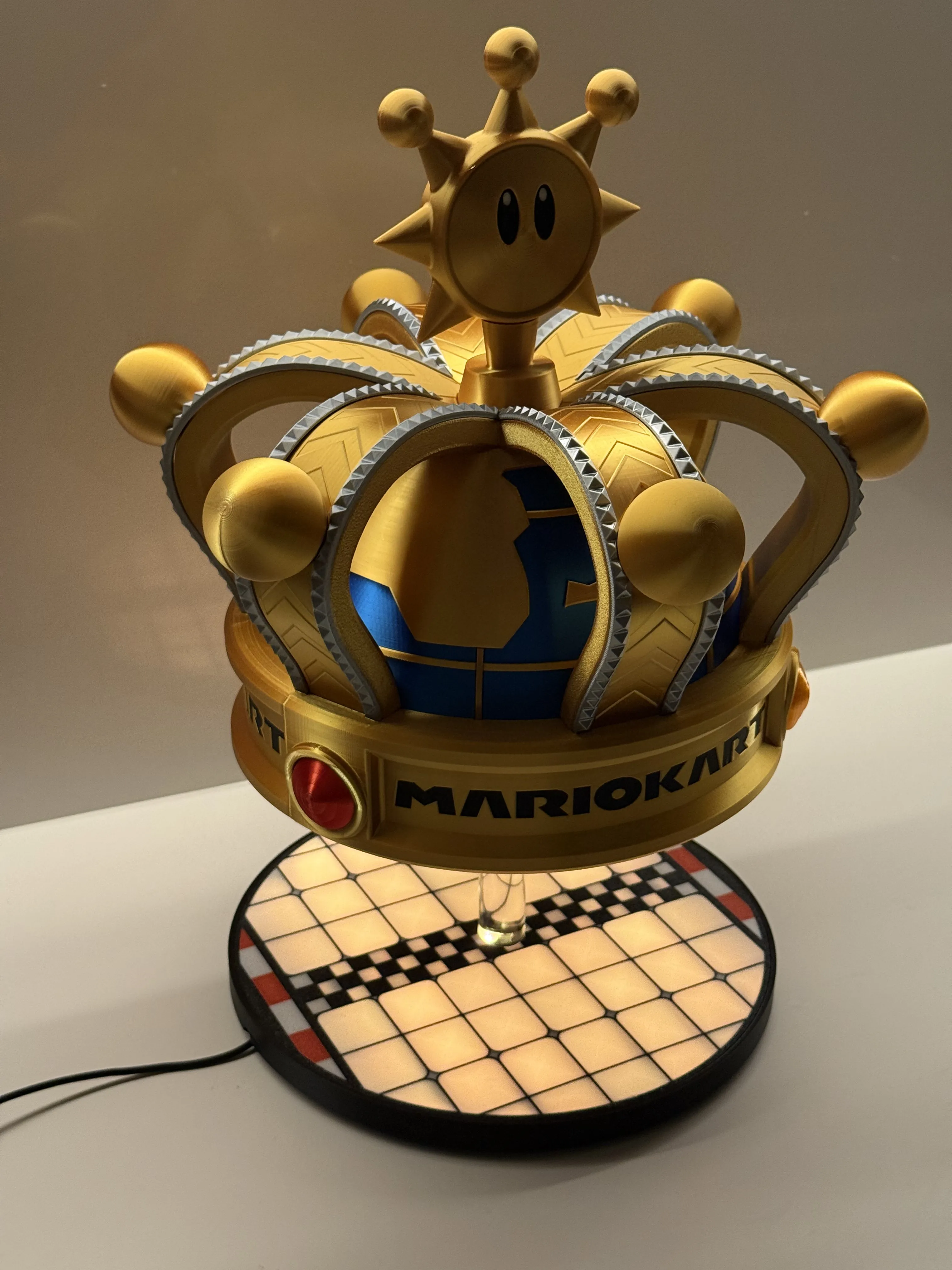
[V2] Mario Kart World Crown - Full size replica
Print Profile(3)

All
P1S
H2S
P2S
H2D Pro
P1P
X1 Carbon
X1
H2D
X1E
A1
H2C
X2D
A2L

[LETTERS WITH AMS] Crown Base
[LETTERS WITH AMS] Crown Base
Designer
15.7 h
1 plate
5.0(22)

[No AMS needed] All parts separated [v2.0.2]
[No AMS needed] All parts separated [v2.0.2]
Designer
54.1 h
9 plates
4.8(91)

[NO LETTERS] Crown Base
[NO LETTERS] Crown Base
Designer
9.4 h
1 plate
5.0(5)

Open in Bambu Studio
Boost
2824
7393
275
247
2.8 k
938
Released 

Bill of Materials

Bambu Filaments
Select all
Translucent Orange (32300) / Refill / 1 kg
Translucent Teal (32501) / Refill / 1 kg
Blue (13604) / Filament with spool / 1 kg
Candy Red (13205) / Filament with spool / 1 kg

Description

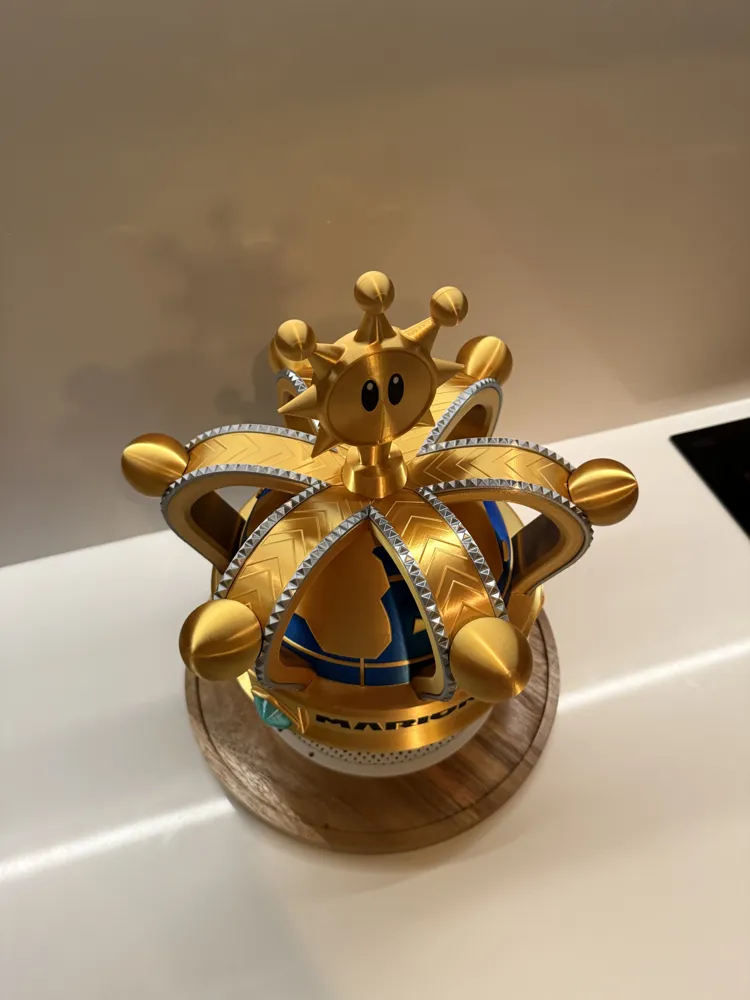
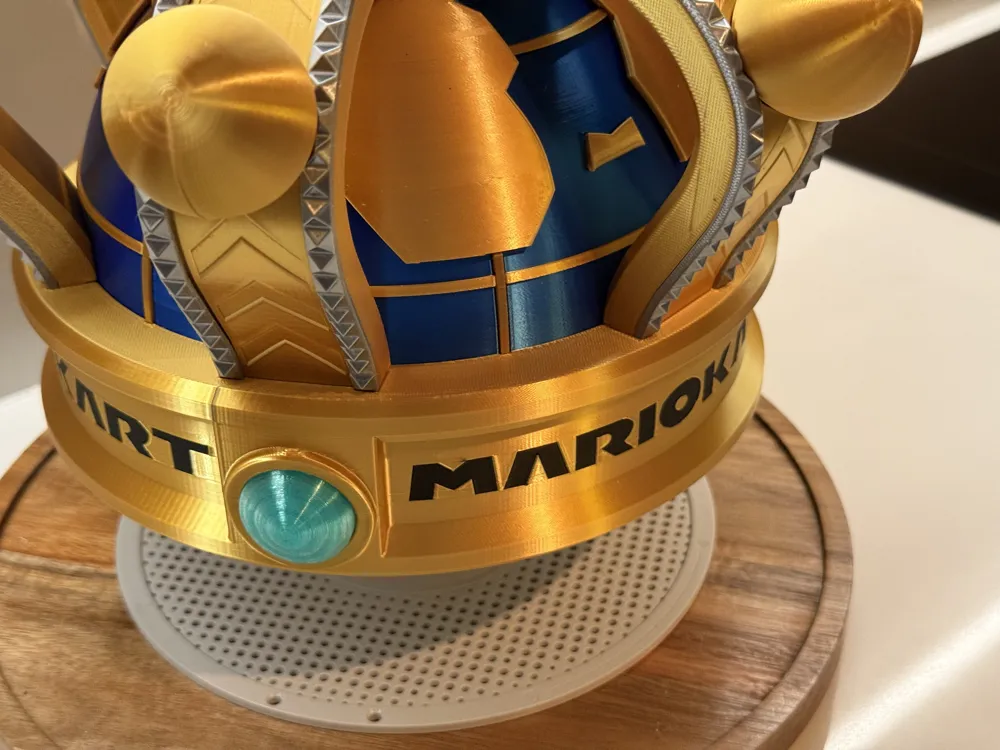
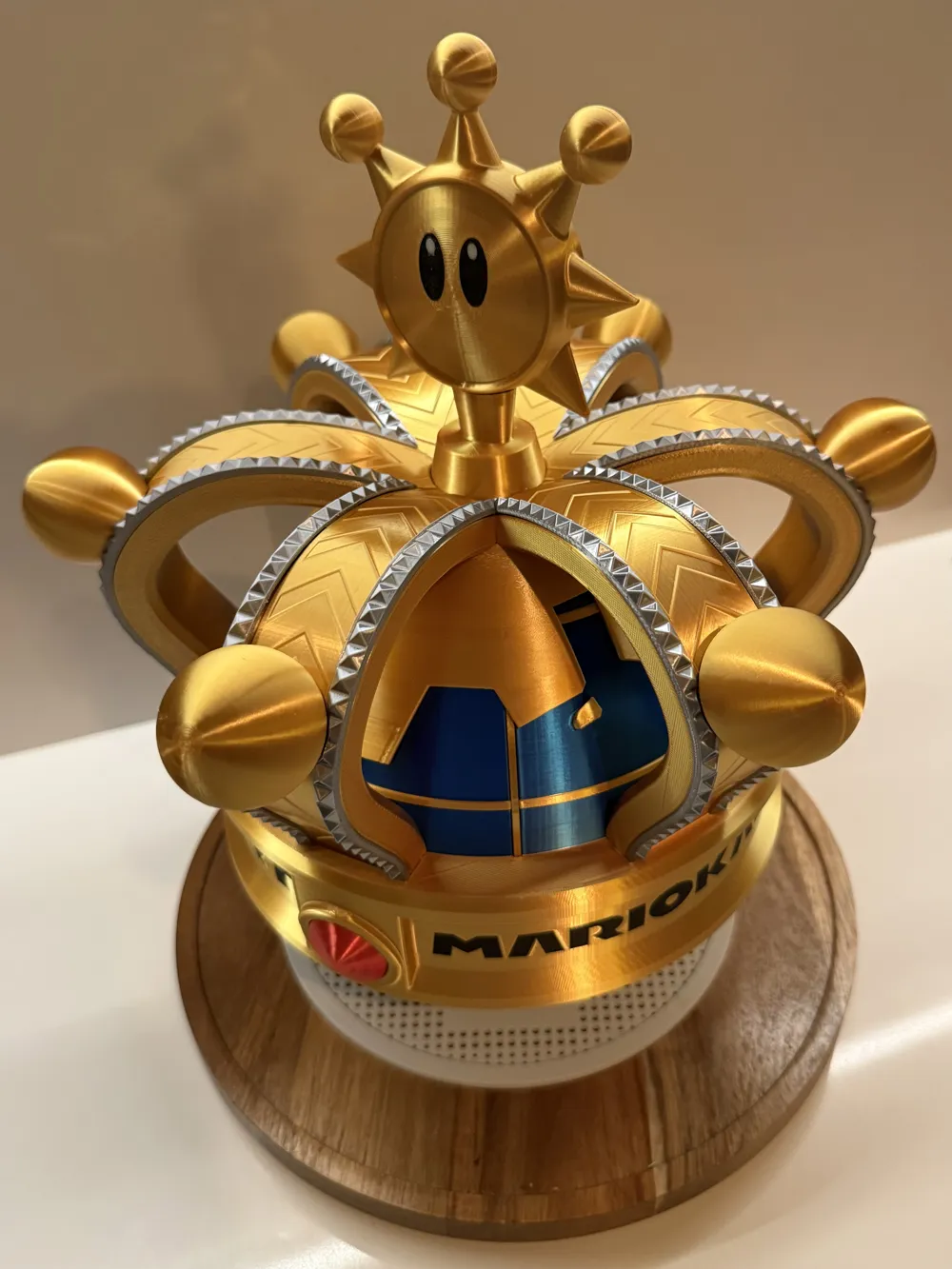
This is a new version of the full-size Mario Kart World Crown I created, where I redesigned every part for easier printing and assembly. 

It is designed as a detailed display piece or wearable prop and can fit an average adult head but can be scaled as needed. In this new version I added some slots at the bottom to be able to add chin straps but keep in mind that the crown is still a bit top heavy and not necessarily super comfortable to wear. 

Check out my new matching Rainbow-Road-inspired display base here


⚠️ Shine Sprite: To print the Shine part, check out the ‘[v2] Mario Kart World Crown’ Print profile I created for Alchemist Industries' excellent model of Shine Sprite - Mario Sunshine  https://makerworld.com/nl/models/494504-shine-sprite-mario-sunshine#profileId-1863861 


Summary of changes compared to v1:

  • Increased tolerances
  • AMS now 100% optional added the letters for the base of the crown on a separate build plate in the [NO AMS] print profile.
  • Better print quality: either by better orientation on the build plate, smaller layer height, adjustments in geometry or a combination of these)
  • Easier print of especially the map part by decreasing overhang on the top part and shortening the longitude lines 
  • Only 6 connector pins for the orbs on the arms/arches 
  • Less supports needed
  • Minimal glue needed only for the shine sprite and the islands (and in case of the [NO-AMS] print profile also the letters for the base of the crown.)


Print Information:

  • Print in parts: Since all the parts of the crown are separate, it makes it easy to print in different colors if desired.
  • ⚠️ Shine Sprite: To print the Shine part, check out the ‘[v2] Mario Kart World Crown’ Print profile I created for Alchemist Industries' excellent model of Shine Sprite - Mario Sunshine  https://makerworld.com/nl/models/494504-shine-sprite-mario-sunshine#profileId-1863861 
  • Map part: Printing at 50% speed is still my advice for optimal results.
  • Layer Heights: Default layer height of 0.12, shine and orbs are best at 0.08. But feel free to adjust to sacrifice a bit of quality for faster print times.


Assembly Information:

  1. Start with the top of the globe by placing/pressing the top of the globe in the map part. Then add the (small) latitude line. You should be able to click it into the top part and make these 3 parts feel like a whole. 
  2. Glue the islands in the bottom part of the globe and glue the two halves of the shine sprite. 
  3. Place the bottom part of the globe in the base and add the big latitude line. Then try out the placement of the top part (from step 1) by loosely placing it on the globe. Make sure the map lines up with the placement of the islands. (see pictures for reference). Now get the smaller (longitude) lines and ‘puzzle’ them in place with the map as a reference to pick the right length. You can lift the top to be able to press in the lines in the bottom globe part where needed. 
  4. Add the top part where the Shine sprite will be placed in at top of the globe.
  5. Add an arm by placing it with a vertical motion on the z-axis from top to bottom. It should be a snug fit. After that you should be able to add the silver jewel strips fairly easy by first pressing the bottom of it in the base of the crown and then it should ‘click’ in place at the top of the arm. If there is still a gap, push it down a little until it's snug on the arm.  Add the orb and repeat for the other 5 arms. 
  6. Click in the gem stones in the base and glue the Shine Sprite in it's holder


💡 I test-printed multiple iterations but mostly with the same filament. Not all of the spools were flow-rate (re-)calibrated. If you notice any problems with tolerances (or print quality) with certain filaments and/or parts, please let me know and I'll try to help out where I can. 


Filaments Used in Example:

  • Tinmorry PLA Silk Gold, Silver – for the arches, crown body, and trim.
  • CC3D PLA Silk Blue, Red  – for the globe and one of the gems.
  • Bambulab Translucent PETG Orange, Teal  - for the other two gems

Comment & Rating (275)

(0/1000)

I keep having an issue with the map. All other parts printed perfectly. I've tried changing a few settings and printing slower, but nothing. Any suggestion for fixing this texture issue? I'm trying to print on an A1. @Thokoop
The designer has replied
6
Reply
Hi, I assume you dried and calibrated your filament? Try with walls at 40-50mms, so super slow.
2
Reply
Replying to @ThingsFromThom :
yeah all the other parts printed great, it's just this one and it's always right where the transition in angle happens. I'll try those speeds and see if that helps. thanks for the quick response.
1
Reply
Replying to @user_2331080332 :
I had best results with these settings (and layer height 0.12) for that part specifically. That texture I also had when I had the top of my p1s closed btw, you're not having your printer in an enclosure where there is no airflow?
1
Reply
Boosted
Print Profile
[No AMS needed] All parts separated [v2.0.2]
Awesome 👍 everyone at home is delighted thanks for sharing
Show original
profile
16
Reply
There is a geek 👍👍👍👍👍
(Edited)
Show original
1
Reply
Is that 100% size or did you scale it up? looks awesome.
0
Reply
Boosted
Replying to @Walletclan :
100%
0
Reply
Like many others, I really struggled to print the map. I honestly thought I would run out of gold filament before I finished printing all the pieces, so I had to switch to silver to do some tests, but I finally printed it pretty much perfectly. My first print wasn't even that bad compared to the ones that came after it, but it looks like it suffered from heat creep causing a layer shift and it only got worse from there. I tried running the printer at 50% speed, but in the end I ran it at 100% speed, slowed everything down in the slicer and turned the fan up to 100%. Using Sunlu Gold Silk PLA+ using the following settings and the ones shown in the images - Plate 60c - Nozzle 220c - Max volumetric speed 6 mm³/s Hopefully this helps anyone else having issues! First and second images are the final result. Third image is my first attempt and fourth is the one that came after.
1
Reply
Did you use the bambu silk gold pla?
0
Reply
Replying to @user_810659616 :
I used Sunlu Gold Silk PLA+
0
Reply
Thank you, I have bambu and I'm goimg to use your settings. Map is last part to print and got stringing so with it. Everything else printed fine
0
Reply
Boosted
this is great!! has anyone created a display stand for this yet?
(Edited)
The designer has replied
0
Reply
Thanks. Do you mean something like this? I can design one :)
2
Reply
Boosted
Replying to @ThingsFromThom :
A mario type stand would be amazing to show this off
0
Reply
Replying to @zicster :
I actually have a cool idea for it. I’m working on a prototype and let you know when it’s ready.
0
Reply
I can't seem to get a smooth print on the map part as a few others have had. I tried using the suggested settings of a few members here in addition i also tried - leaving the top open for flow - making the part adaptive - slowing outter and inner walls to 25, 30, 35, 40, 50 I have attached an image for reference. I am printing a small section just to test. Does anyone have any other suggestions? Thank you
The designer has replied
0
Reply
Hi, Which filament brand is it and what nozzle temperature are you using? And what are your fan settings?
0
Reply
Replying to @ThingsFromThom :
Hi, Thank you for replying! I am using bambu silk gold, nozzle temp is 210. I didn't change my fan settings from default so its at 100%. It sounds like I should change my fan settings.
0
Reply
Definitely worth experimenting a bit with the fan settings. The first couple layers seem to be fine, so it’s probably something related to the temperature after those initial layers. I think 210 is on the lower end of the recommended settings for that filament. So you could try 220-230. Silk PLA is quite sensitive to cooling balance, for me it also took a while to get consistently good results. But once I had dialed everything in it looks really great. Also flow rate calibration is highly recommended if you haven’t done so already.
0
Reply
I can't get the "jewel arms" to print correctly, they keep doing this and peeling up off the plate... please help
The designer has replied
0
Reply
Could you split these plates up, so you have less parts per plate? Then you can try to position them more central on the build plate. It’s also best to wash the plate with dish soap and warm water between prints (in case you didn’t do that yet)
1
Reply
Replying to @ThingsFromThom :
I can split it if this print fails, I raised the hotend to 230 c because I'm using silk pla and I read something about silk needs to be higher, that and I slowed down the print speed to 50% and blocked my ceiling fan from hitting it and it seems to be doing ok. Thank you so much for responding
0
Reply
I got the jewel arms printed correctly but now I'm having trouble with the tiny pieces of the map
1
Reply
Boosted
Print Profile
[No AMS needed] All parts separated [v2.0.2]
Fantastic model! One note, though: out of six balls, one was printed with some odd lines near the base. I later noticed that the adaptive layer height modifier in the profile had been applied to only five of the six balls. Not a big issue, easy to fix. Other than that, the entire printing and assembly process went surprisingly smoothly. The only small problem was with the pegs: they didn’t fit into the ball sockets. When I reprinted them slightly smaller, they became a bit loose in the arm sockets. I solved that with glue. Honestly, I expected worse.
The profile uploader has replied
profile
1
Reply
Boosted
I also had a minor issue installing one of the arms, which dislodged a peg from the Globe Base Top, but that was probably just bad luck. The socket for the Top part of the globe and the jewel sockets were a bit too tight, so I couldn’t align the Top perfectly because it stuck. Personally, I’d rather use glue than risk breaking something. One of the jewels also didn't fit properly and stuck. But it might work better with different filaments or more precise calibration. I used Sunlu Silk PLA+ for the gold and silver parts and Bambu Neon City for the globe.
0
Reply
Replying to @Teaholic :
Hey, Thank you for your detailed feedback, and the boost of course. I fixed the adaptive layer issue, must've been a leftover from testing multiple variations. The tolerances are indeed always a bit varying with different kinds of filaments. For me it is now just tight enough that I don't need glue and without having to use too much force snapping it in place. Btw, did you place the top/shine socket first and then the arms? (because in that case it is for sure too tight indeed)
(Edited)
1
Reply
Boosted
Replying to @ThingsFromThom :
I placed the Top into the Globe Base top-first, then started adding the arms (like in the instructions). I didn’t think about alignment at that point, but later I figured it would make sense to align it to face along one of the arms. But it was too late because it got stuck.)) I think it would’ve been possible if I had thought about alignment beforehand. You know, these silk filaments are more brittle than regular PLA, so I'm afraid to apply too much force. I also had a small mishap with one of the islands, the one close to the big latitude line. Maybe I glued it in the wrong direction, but it blocked me from placing the latitude line, and I didn’t notice it until later. I had to chip a bit off with a Dremel and a craft knife.)) Anyway, I’m not criticizing, I’m sure if I do it a second time, the assembly will go much smoother. But it could be helpful if you had a short assembly video.
0
Reply
Ill did open the file, And I am missing the top part I guess?
2
Reply
Ill needed to read better (did not understand the shine part, thought it was about printing the filament shiny :) ) But Ill have found it https://makerworld.com/en/models/494504-shine-sprite-mario-sunshine#profileId-1863861
0
Reply
Print Profile
[NO LETTERS] Crown Base
Super.
3
Reply
This will be perfect for whoever wins my office’s annual Mario Kart tourney. I had the same issue everyone else had with the map too; printed that part maybe 4 times.
0
Reply

License

This user content is licensed under a Standard Digital File License.

You shall not share, sub-license, sell, rent, host, transfer, or distribute in any way the digital or 3D printed versions of this object, nor any other derivative work of this object in its digital or physical format (including - but not limited to - remixes of this object, and hosting on other digital platforms). The objects may not be used without permission in any way whatsoever in which you charge money, or collect fees.