
Luke Skywalker's ANH Hilt
Print Profile(4)


Description
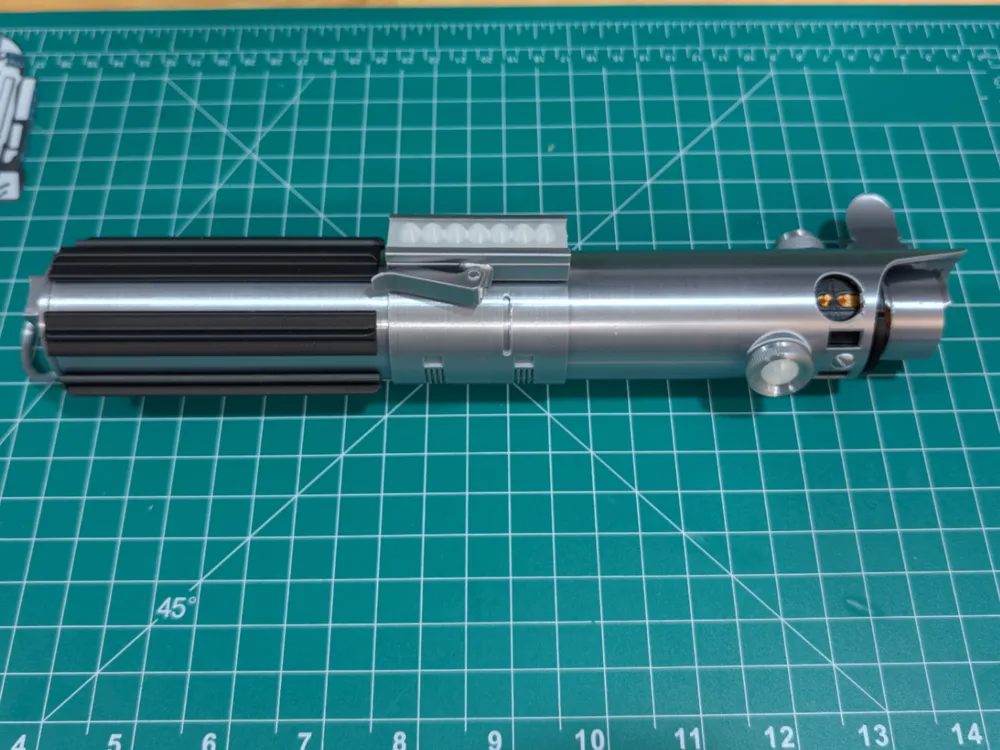
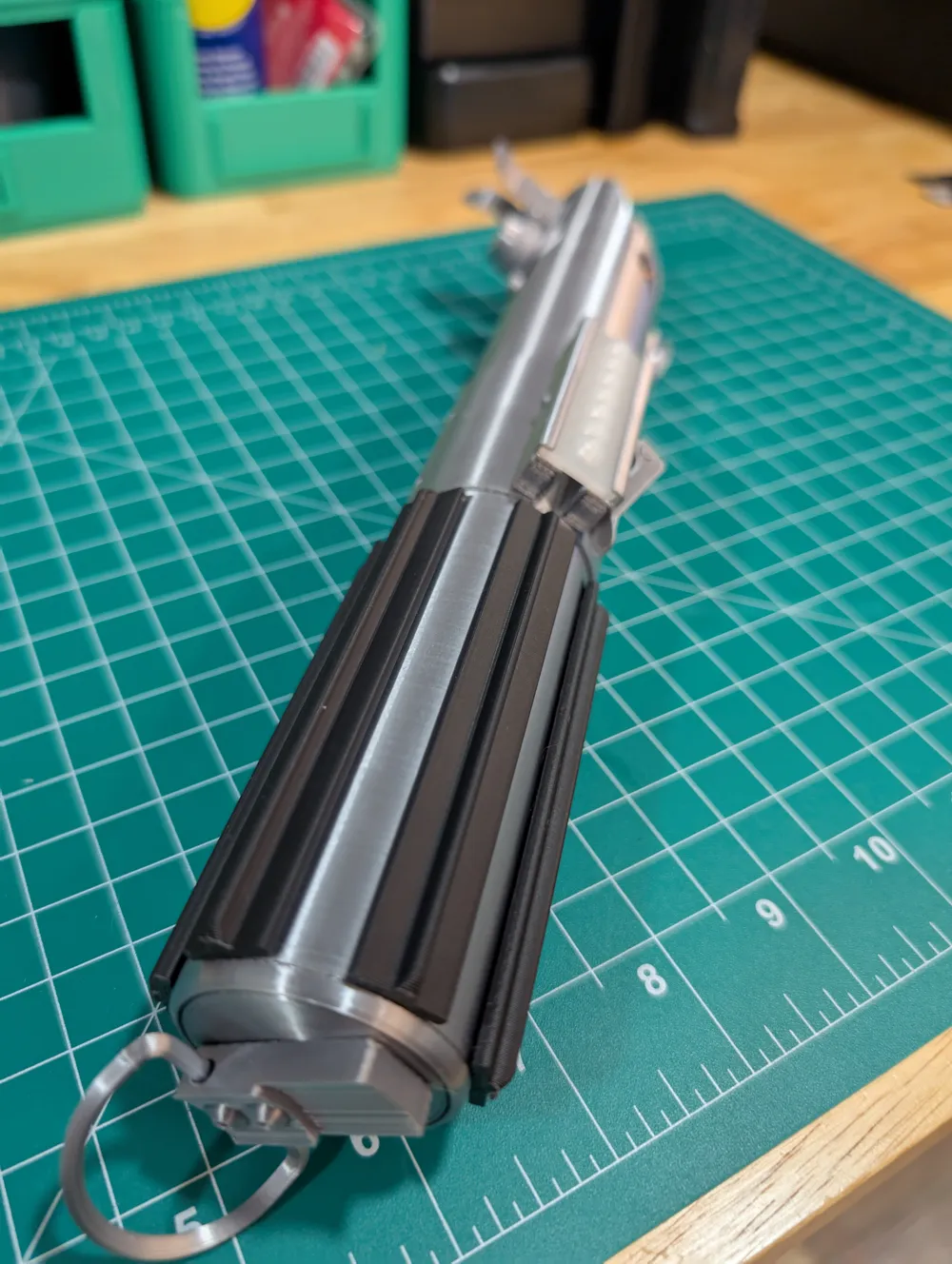
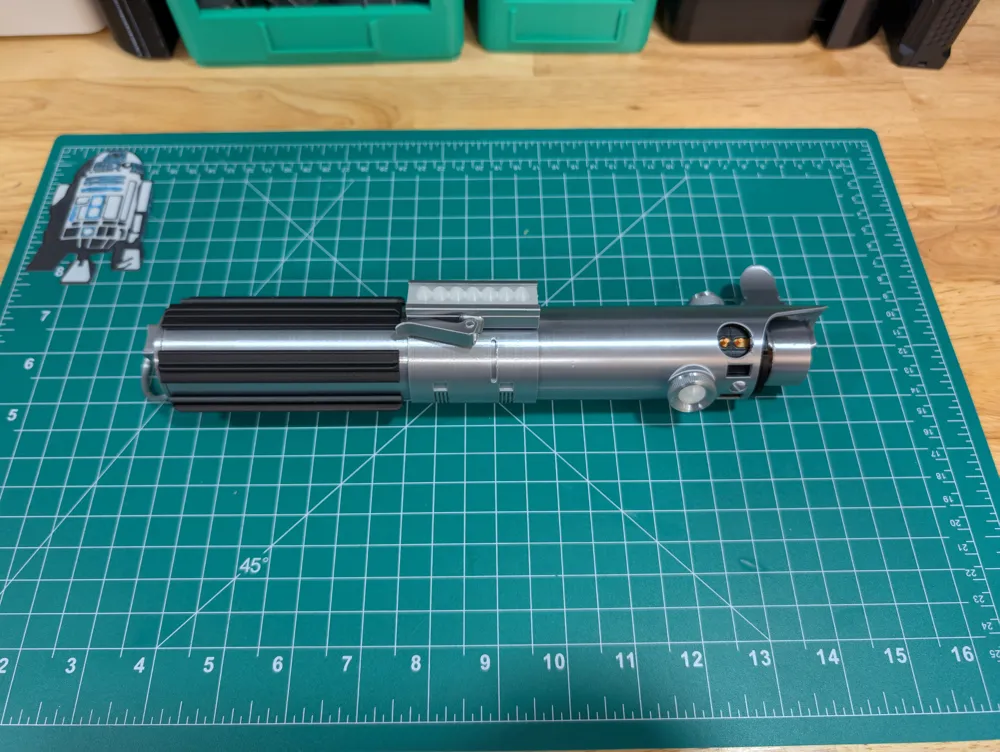
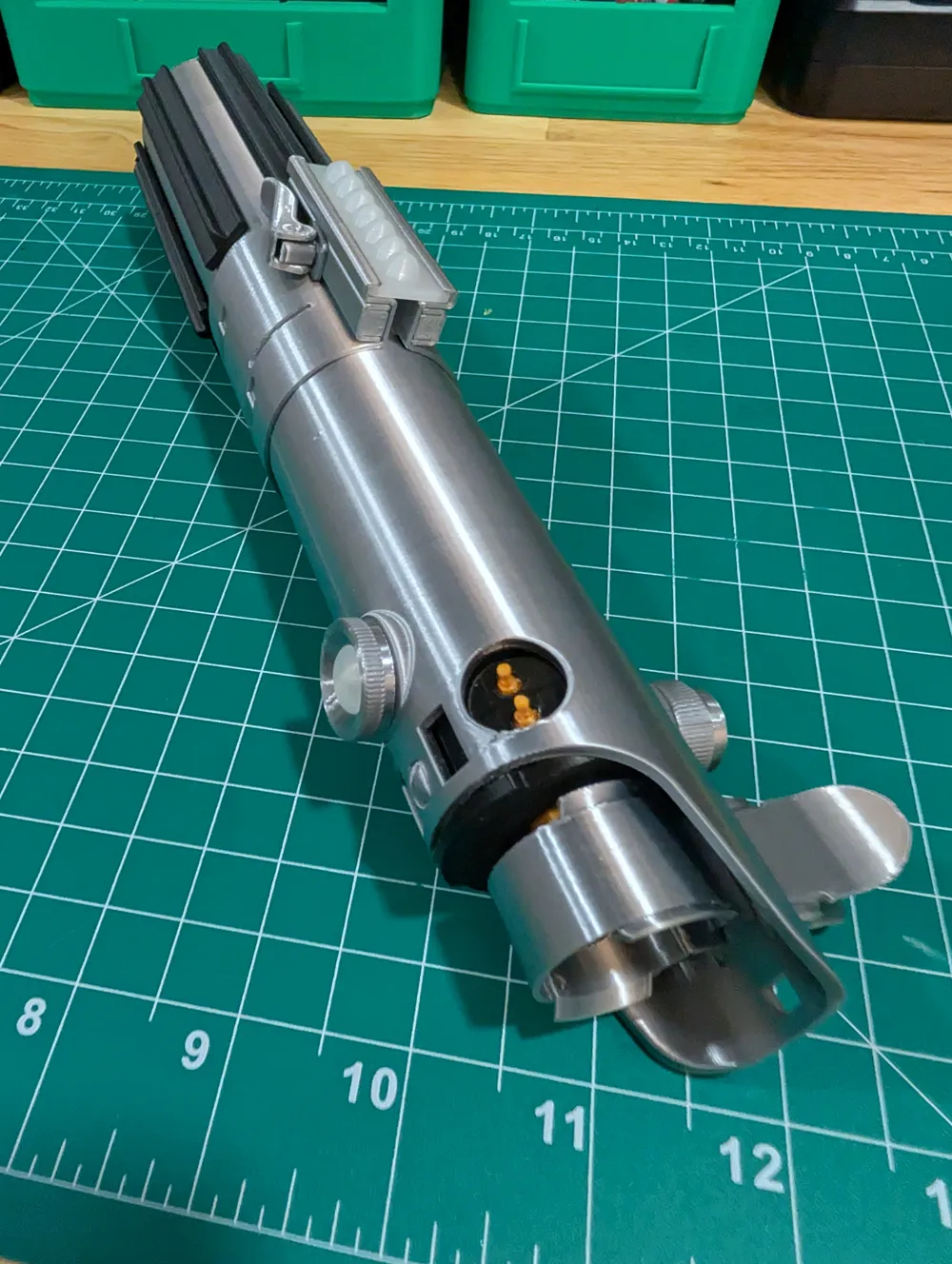
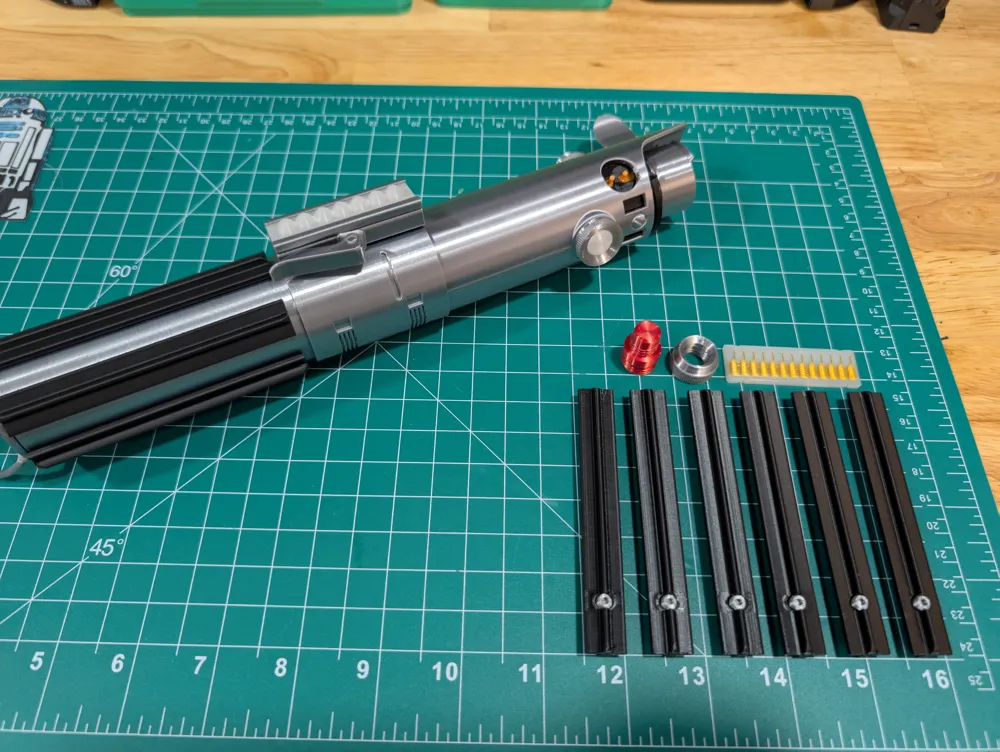
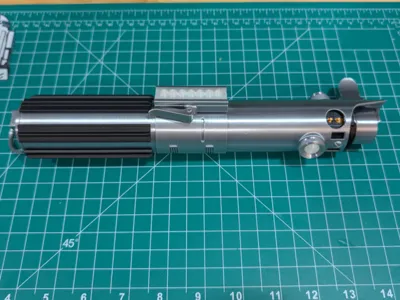
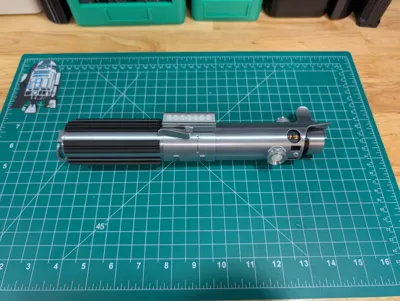
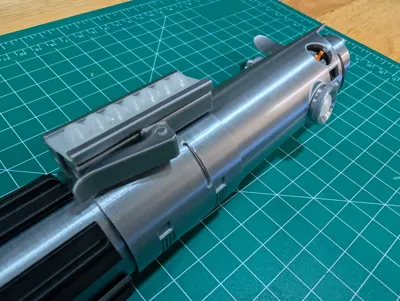
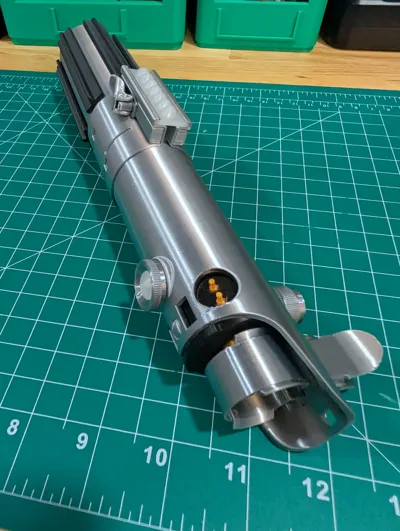
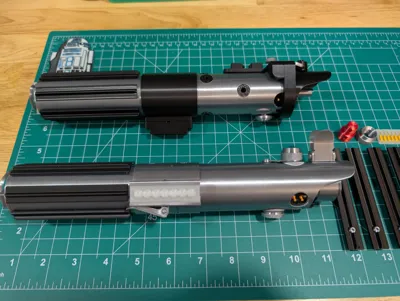
This is the OG of lightsaber hilts. Luke Skywalkers lightsaber passed down from Ankakin and gifted to him by Obi-Wan. This lightsaber prop was based off of a Graflex 3-cell flash handle used on cameras in the 1940s. Props goes out to Roger Christian for designing the greatest SciFi prop ever created!
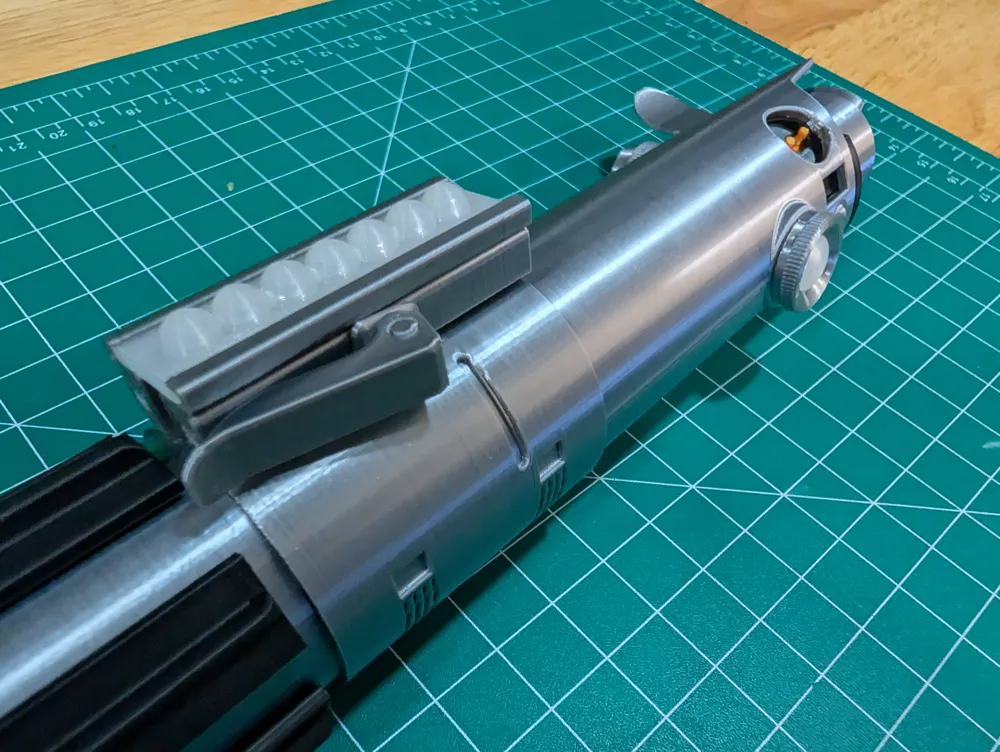
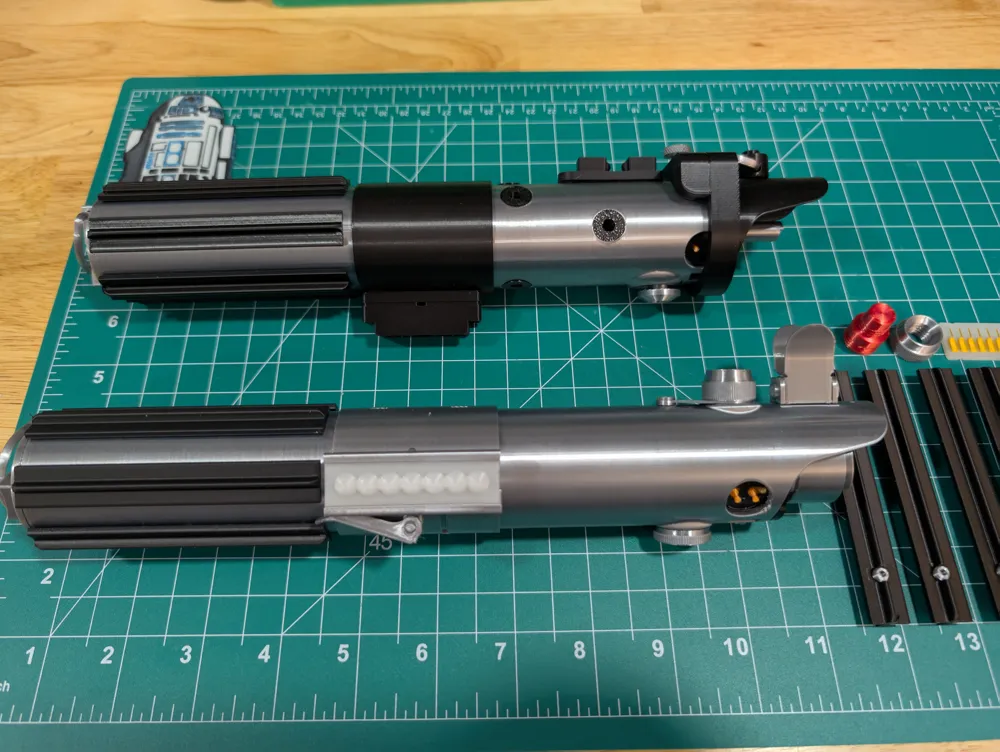
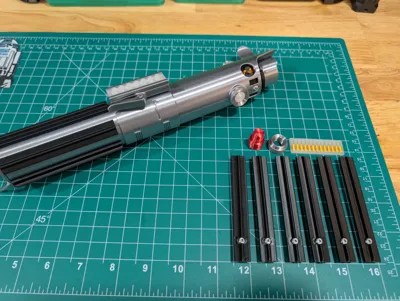
This specific hilt stayed with Luke through EP4 and EP5, however, there are a few differences. The original ANH version has a glass ‘eye’ the front, and a calculator bubble for the activation panel(the same used on Obi-Wans orginal hilt). In ESB, the glass eye was replaced with a secondary red button, the activation bubble was replaced with a circuit board, and the t-track grips were riveted. If you would prefer that model, it can be found here: https://makerworld.com/en/models/1799238-luke-skywalker-s-esb-hilt#profileId-1927080
If there is interest, I will post profiles to convert between the two or mix them like Disney did. Because I am lazy, I am recycling the instructions below from Lukes ESB Hilt since assembly is almost identical.
I tried to do this hilt justice. Schematics were pulled from the interwebs, my own Disney saber for reference, as well as a plethora of Graflex flash cell pics. I tried to make this easily printable so I had to make certain design choices along the way. If you are interested, I will have the ANH version of this saber posted in a couple days.
Before you get started, please read everything below. This saber has a couple VERY DELICATE PARTS:
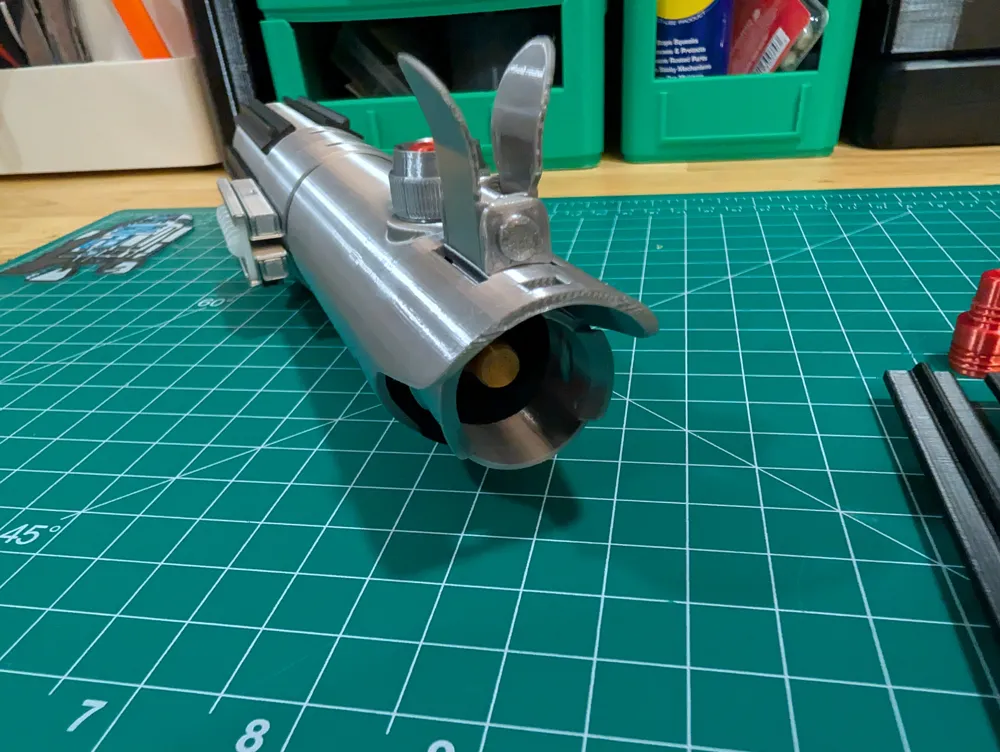
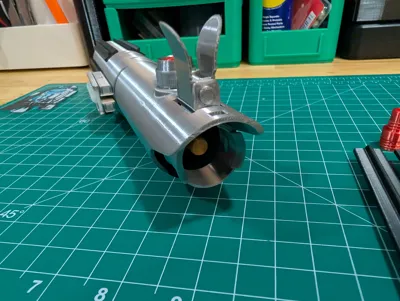
- Silk PLA is brittle and has horrible layer adhesion - especially with small parts. On this saber, the shroud and ‘bunny ears’ are especially delicate. Treat those two parts like glass when you are assembling.
- Silk PLA is brittle; The bunny ears, shroud, and the square hole in the upper hilt must fit perfectly together. Take EXTRA care in removing all of the support material and test fit the parts before final assembly.
- Silk PLA is brittle. This will look great on your shelf or bookcase - I would not recommend this hanging from your belt for cosplay. If you feel you must (and I don't blame you), I would recommend printing the bunny ears and shroud out of regular PLA and spray painting it.
Filaments Used:
- Ziro Silk PLA - Silver
- Ziro Transparent PLA
- Sunlu Silk PLA - Gold
- Elegoo PLA - Black.
- CC3D Silk PLA - Red
Assembly:
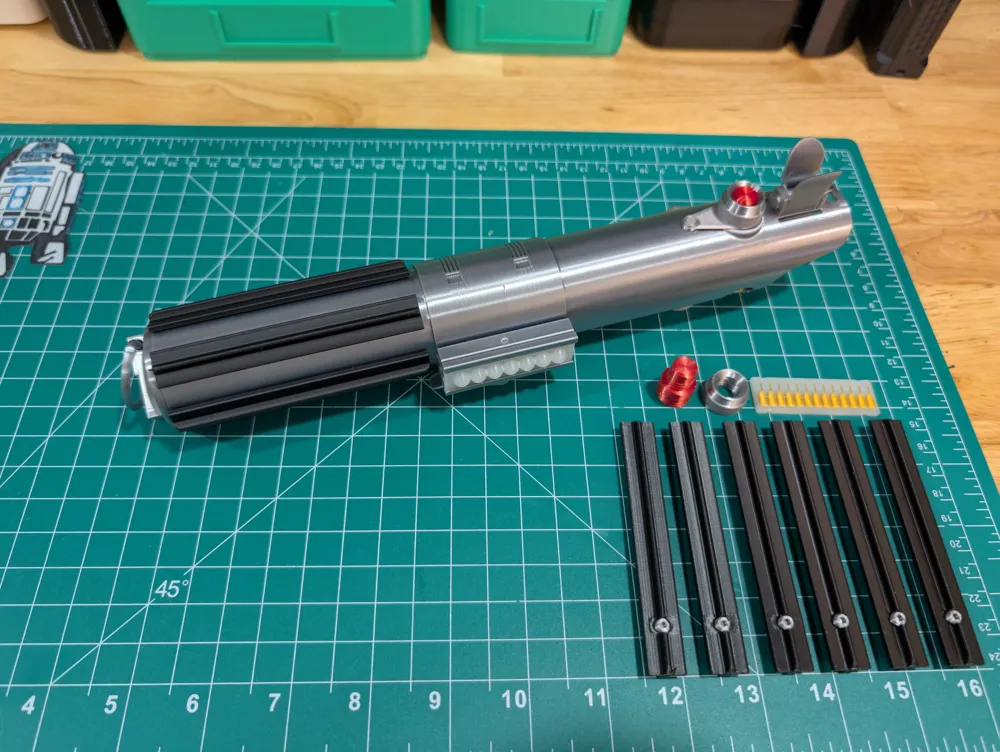
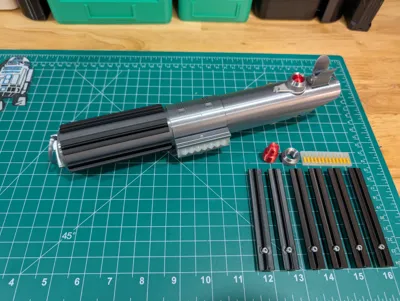
Assemble the 3 hilt sections using the hilt bolt. Note that there are orientation tabs between the upper and mid sections of the hilt.
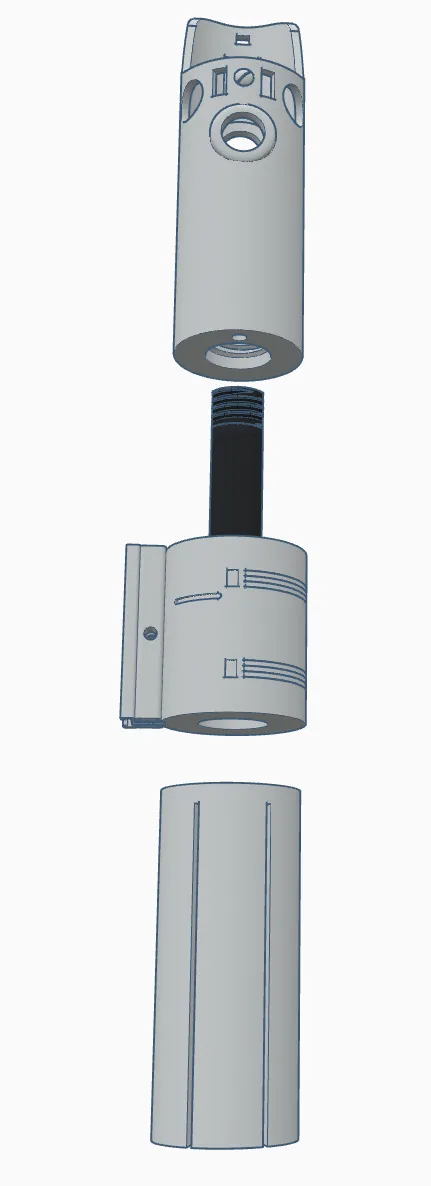
Insert the emitter plug and secure it with the front button and button collar. You can then insert the charging pins and pin blocks. Complete the assembly with the emitter top cap secure with the emitter pin.
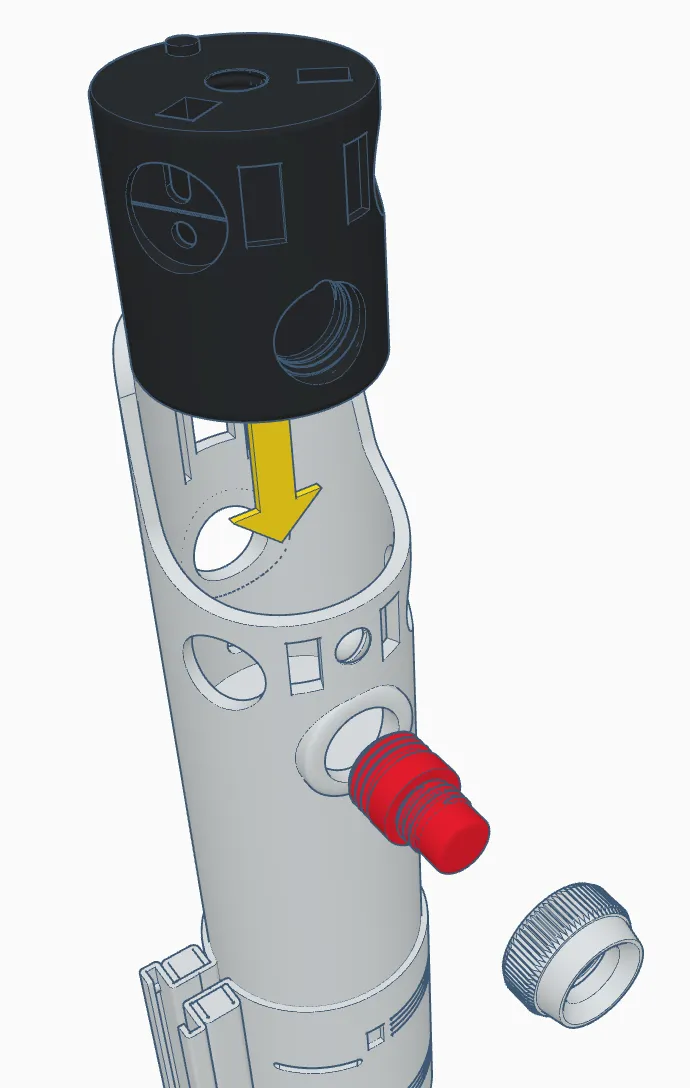
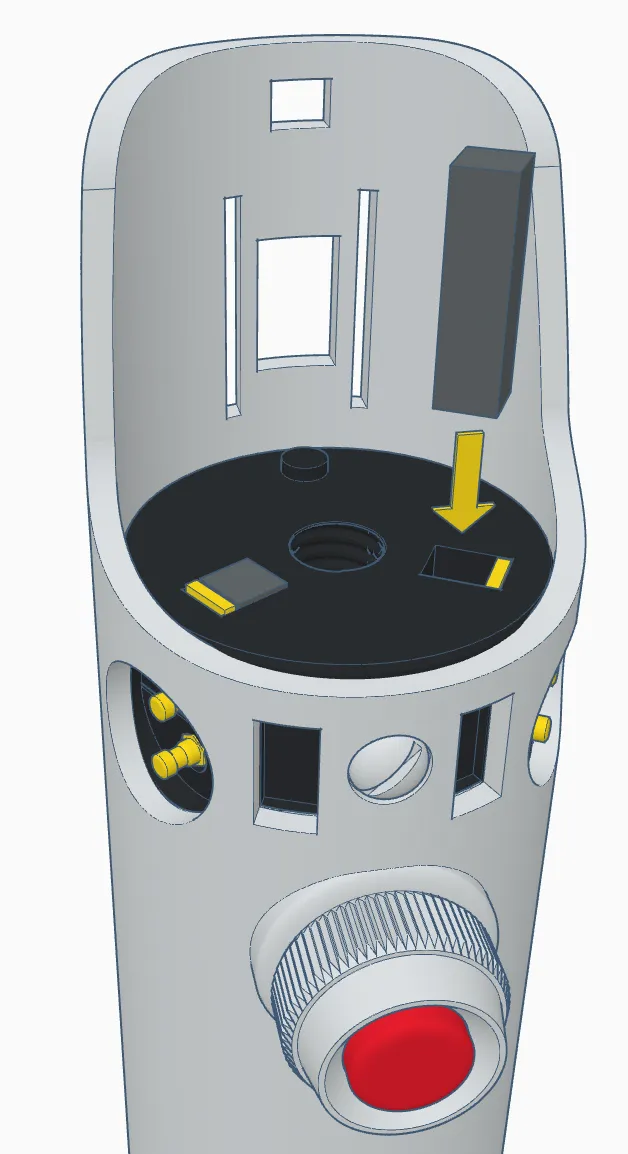
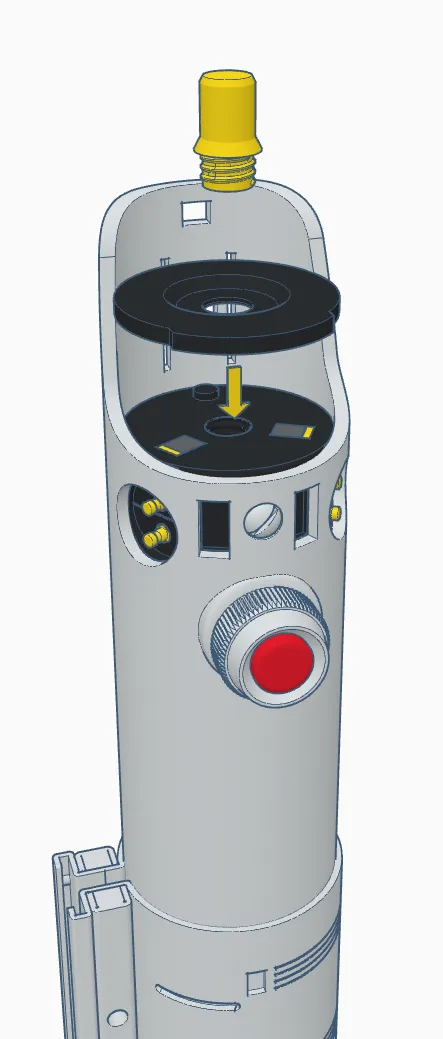
For the mid section, slide the activation panel into the clamps. It will lock into place with the notches. Then assemble the clamping lever and press fit it into the clamp.
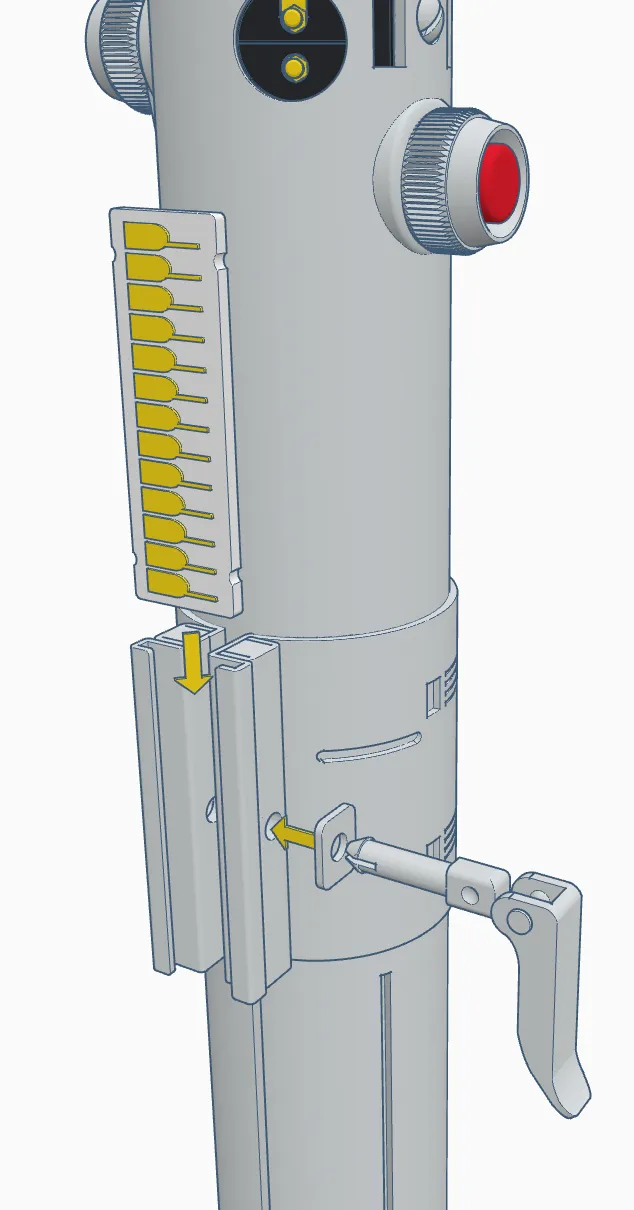
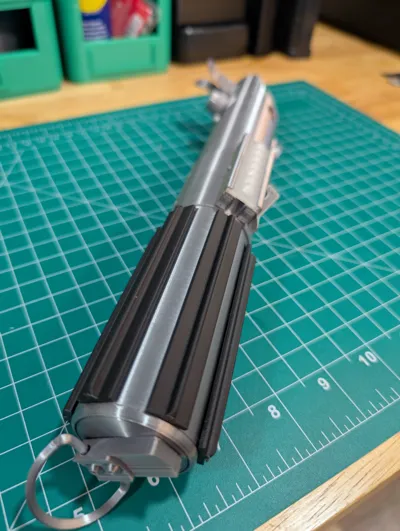
Press the ‘screw heads’ into the grips from the rear, then slide each of the grip t-tracks into the lower hilt.
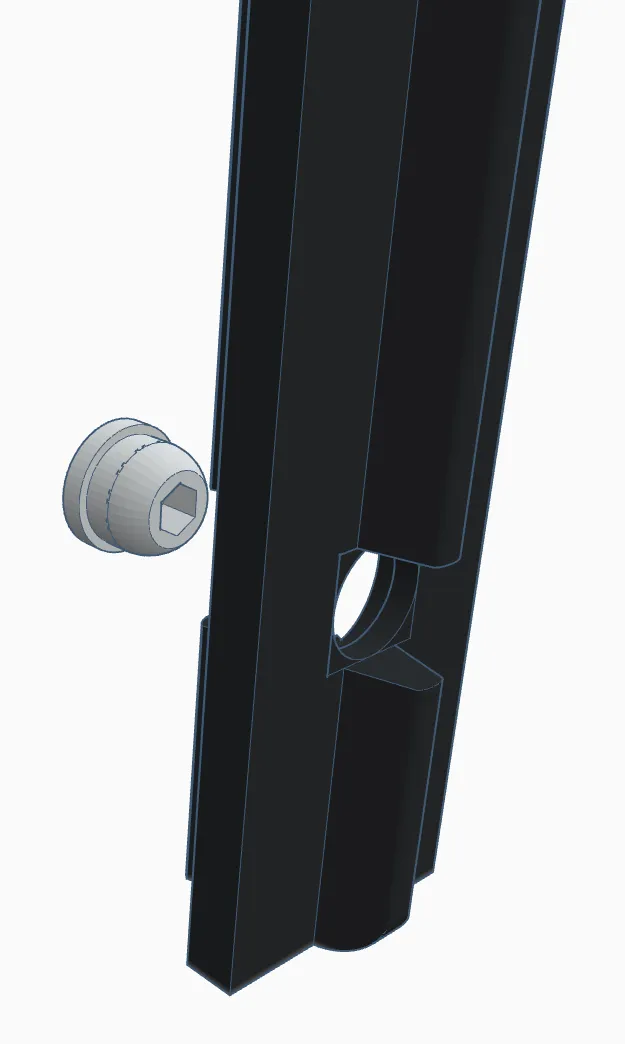
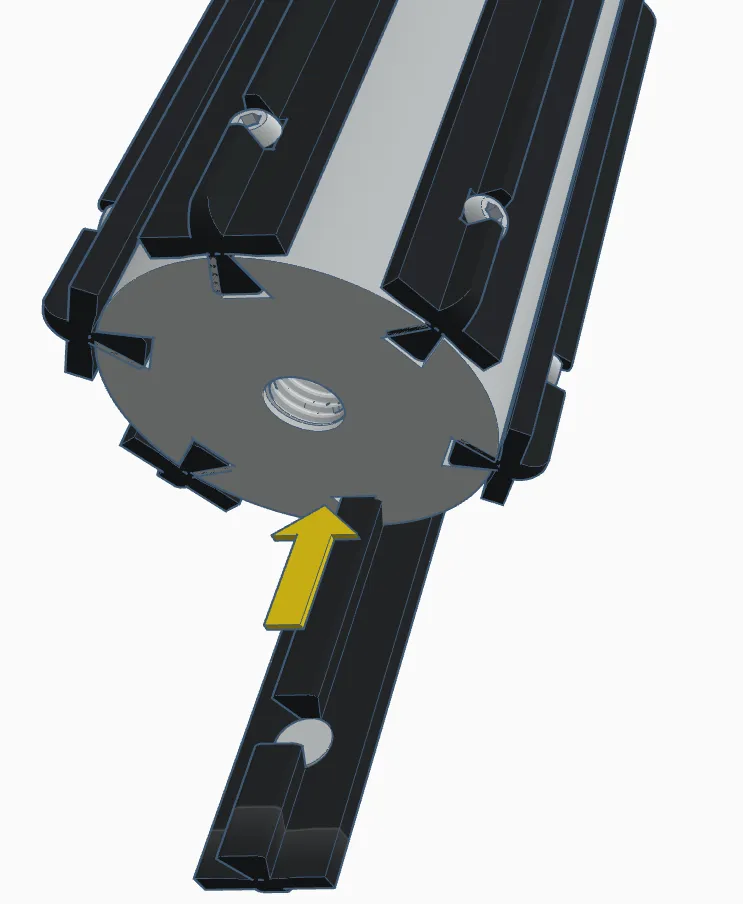
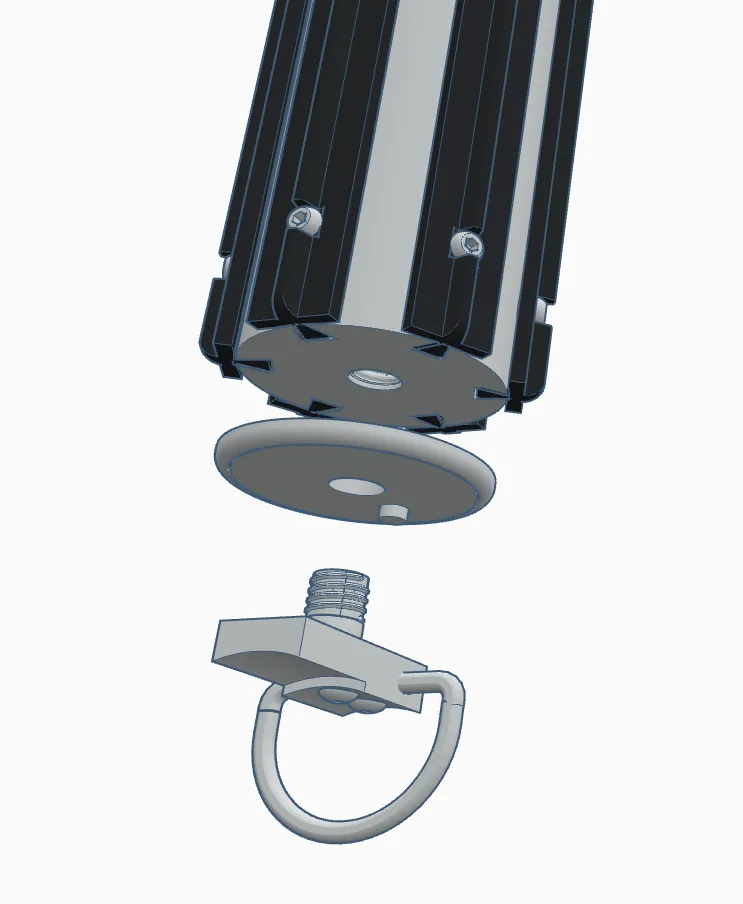
Secure the grips by installing the lower cap assembly. Note that the D-Ring will need to be snipped before installing.
Now for the delicate part. Gently install the shroud and bunny ears as shown. If you feel resistance, STOP, LOOK, and pull out the file if needed. The shroud assembly will be secured with the other two push pins.
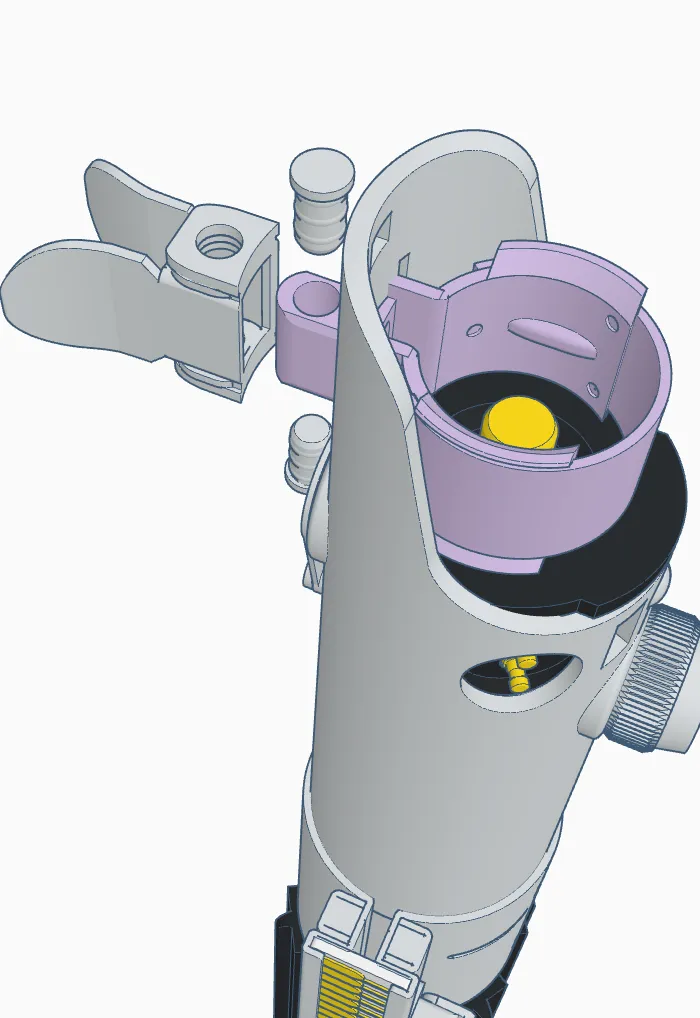
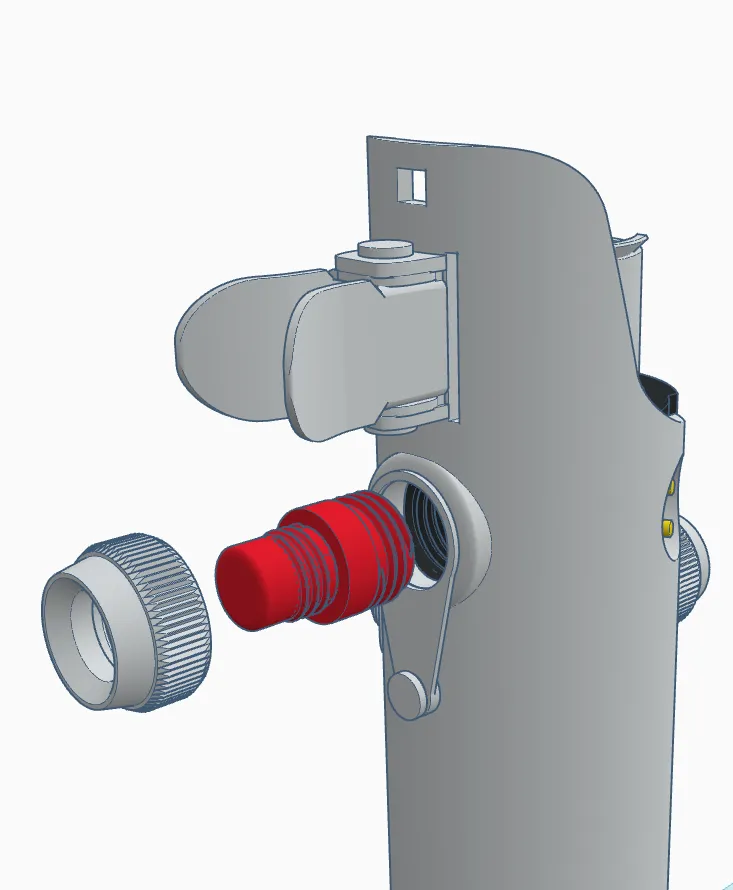
At this point, you're either jumping for joy or cursing my name. Either way, you're almost there. Last step - install the second red button and collar to complete the build.
Enjoy!
Boost Me (for free)
If you like my work, consider giving me a boost!
Or you could always…

License



Comment & Rating (39)