
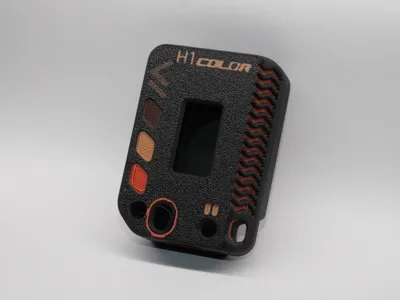
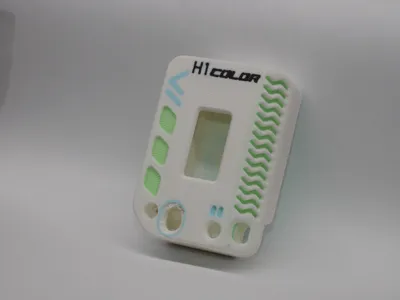
H1 COLOR - Remix of H1 case for Heltec V3
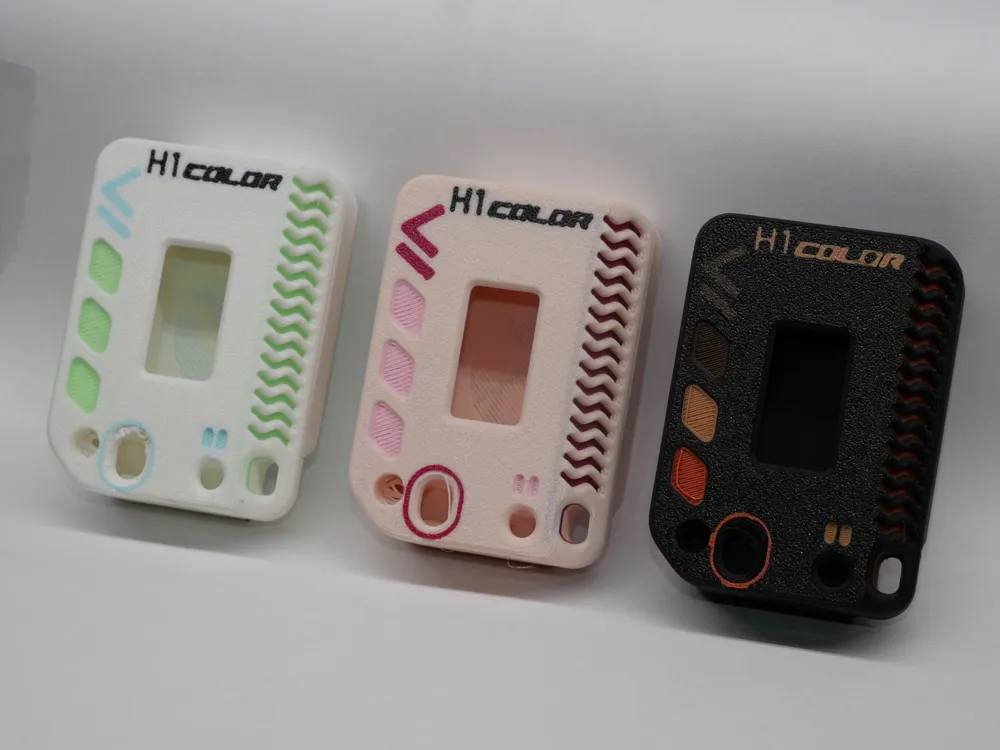
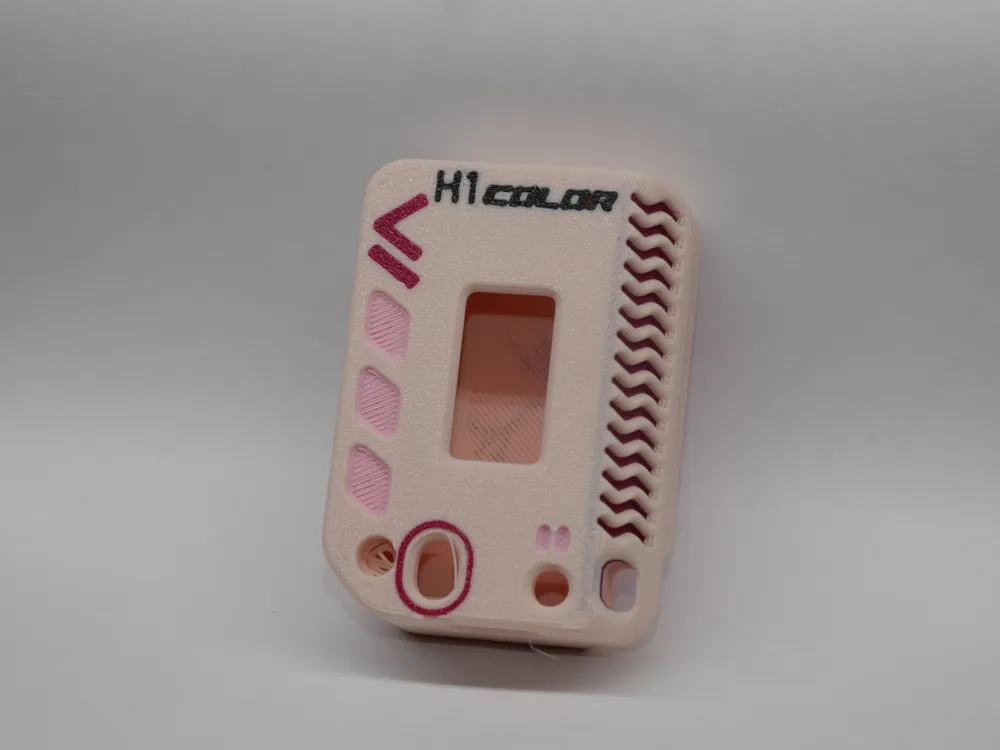
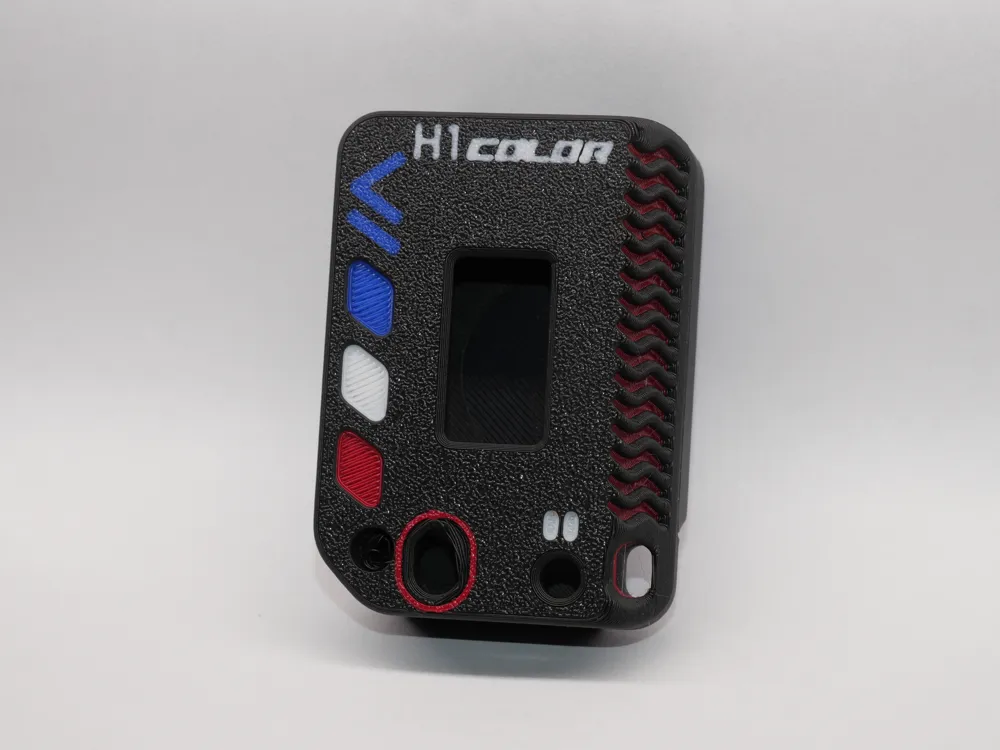
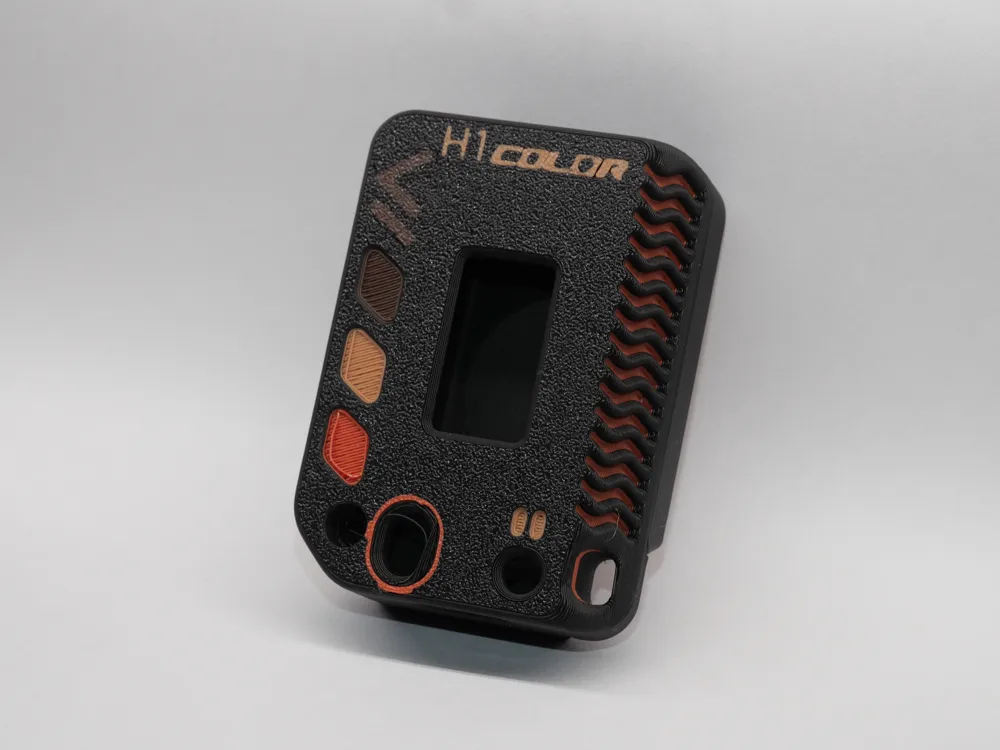
Print Profile(1)
Description
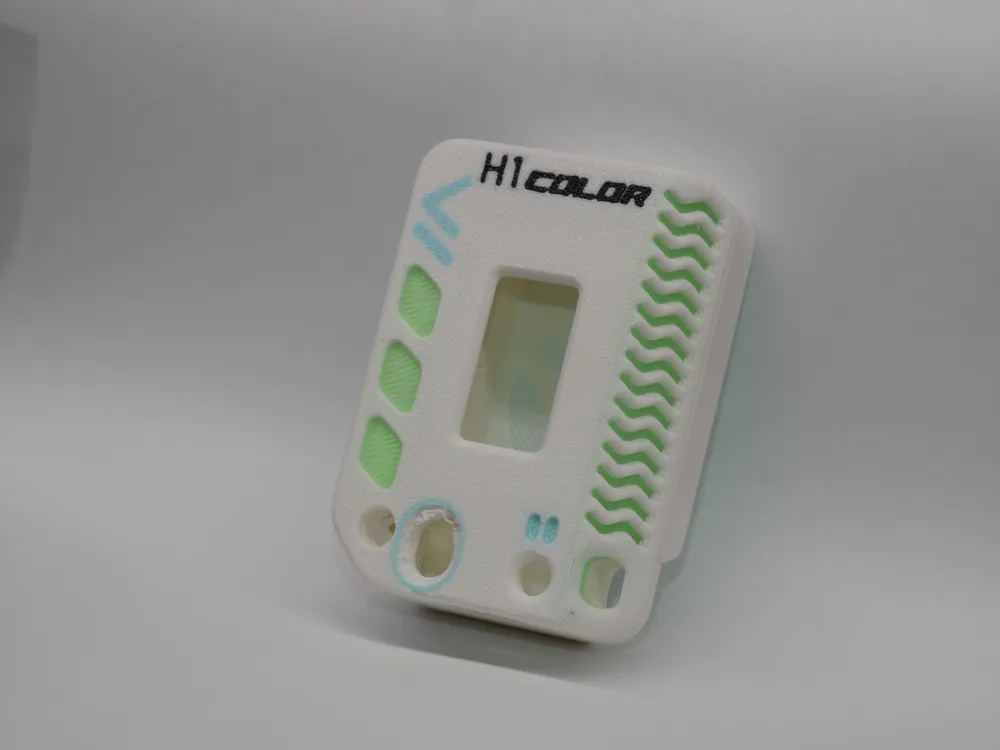
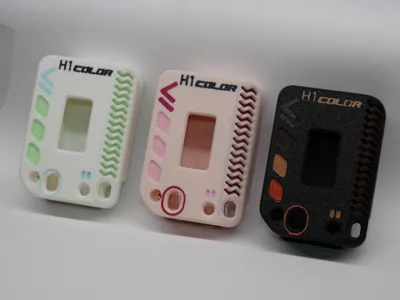
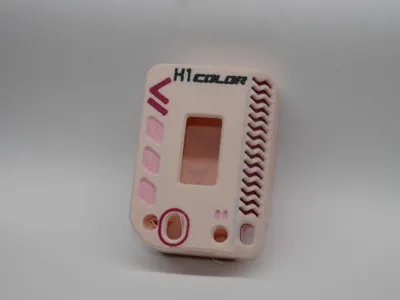
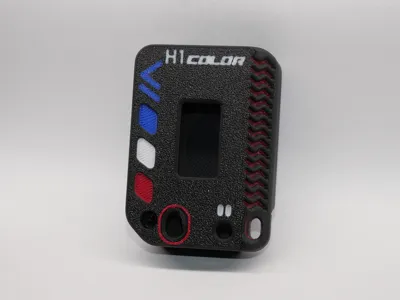
Create Your Own Customized H1 Heltec V3 Case (H1 COLOR)
This is my H1 COLOR remix of the Muzi Works H1 Case for the Heltec V3, designed to let you build a case that’s actually colorful, customizable, and fun to carry every day.
Assembly: Please refer to the official Muzi Works PDF for full assembly instructions.
Why I Made This
I created this remix to add a little more personality and color to the Meshtastic hobby.
I’m still fairly new to Meshtastic myself, but when I talked with my significant other about carrying her own node, we noticed most existing case designs were either:
not very colorful or visually appealing
or
- looked a bit too “technical" or “rugged”
So I designed the H1 COLOR version to keep everything great about the original Muzi Works H1 from small form factor and clean, compact design while making it more customizable and easier to make your own.
Color Customization
The H1 COLOR version includes 15 separate color zones, allowing you to customize the look using any filament colors you already have loaded in your printer.
Compatibility
This frontplate is compatible and interchangeable with the original Muzi Works model:
Muzi Works H1 – Case for Heltec V3 running Meshtastic
It is also compatible with my own decorative versions of the H1 backplate:
Flag Backplates for H1 Case
Pattern Backplates for H1 Case
Boost Me (for free)
Did you like this model? Please consider giving it a Boost.
Even if you can’t boost, liking, saving, or following is greatly appreciated!!
How to Customize Colors (Bambu Studio / Bambu Slicer)
- Load the model into Bambu Slicer.
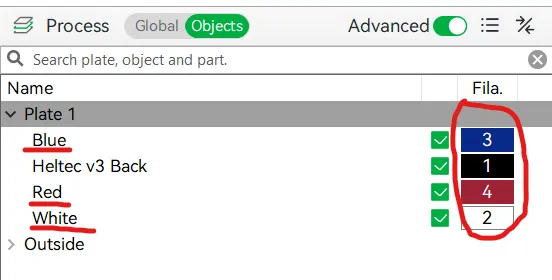
- Under the Prepare tab, scroll down in the right sidebar and select Objects.
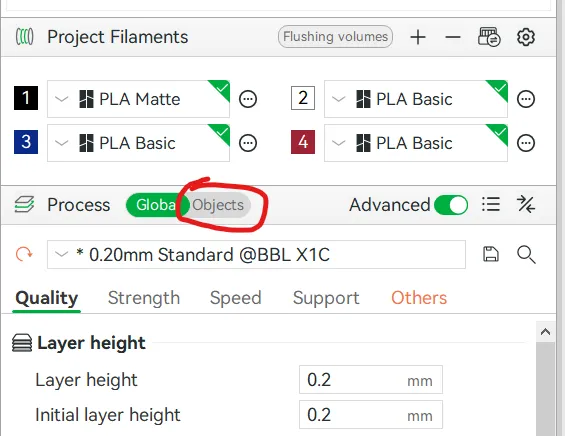
- In the Objects list, you’ll see separate sections that can have their colors assigned.
- These may be labeled by the example color used in documentation, or by a description of the section.
- Click the color box on the right side and select the filament color you want (matching what is loaded in your printer).
This remix is based on


License



Comment & Rating (2)