
Magnetic Memory Game
Print Profile(1)
Bill of Materials


Description
– English version below --
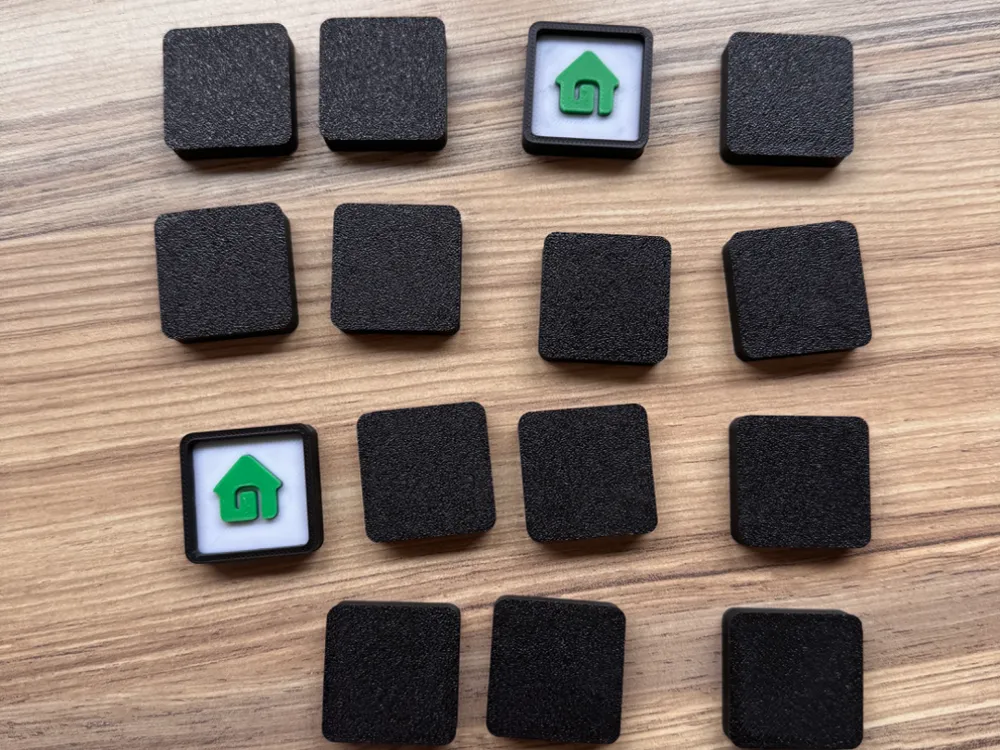
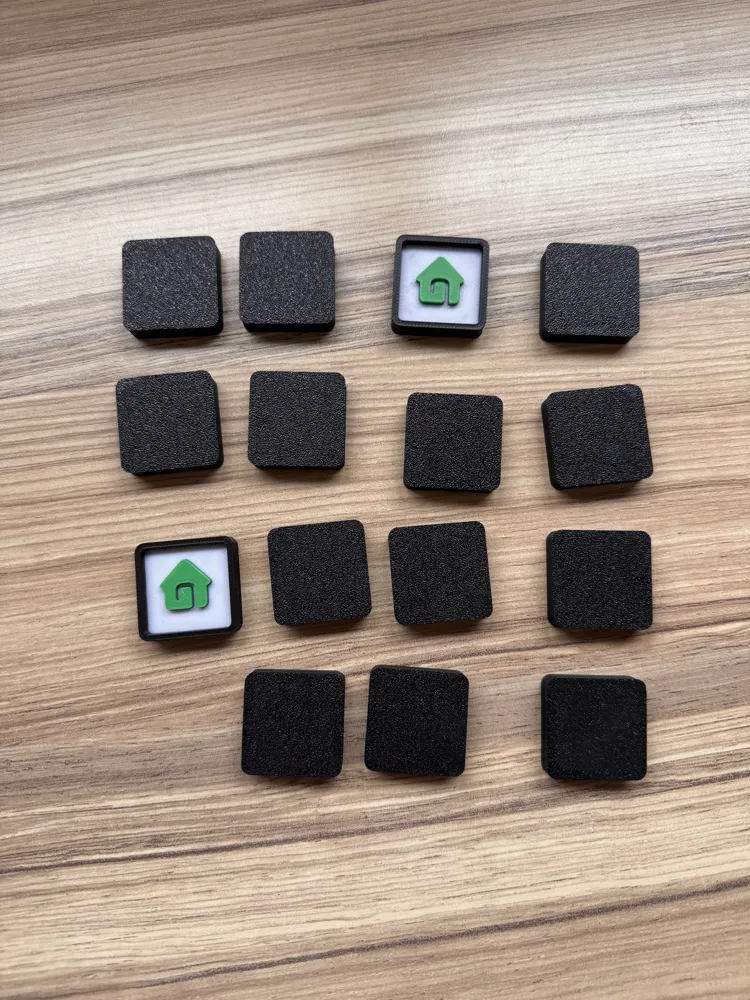
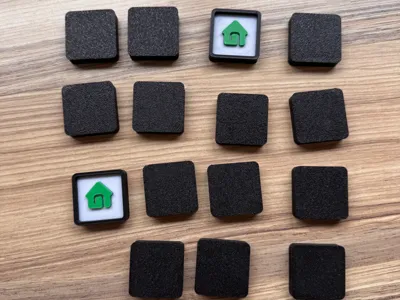
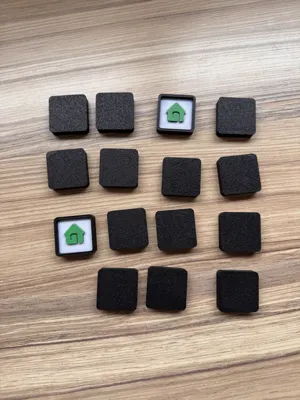
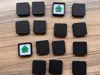
This is a memory game. The objects are 30 × 30 × 8 mm
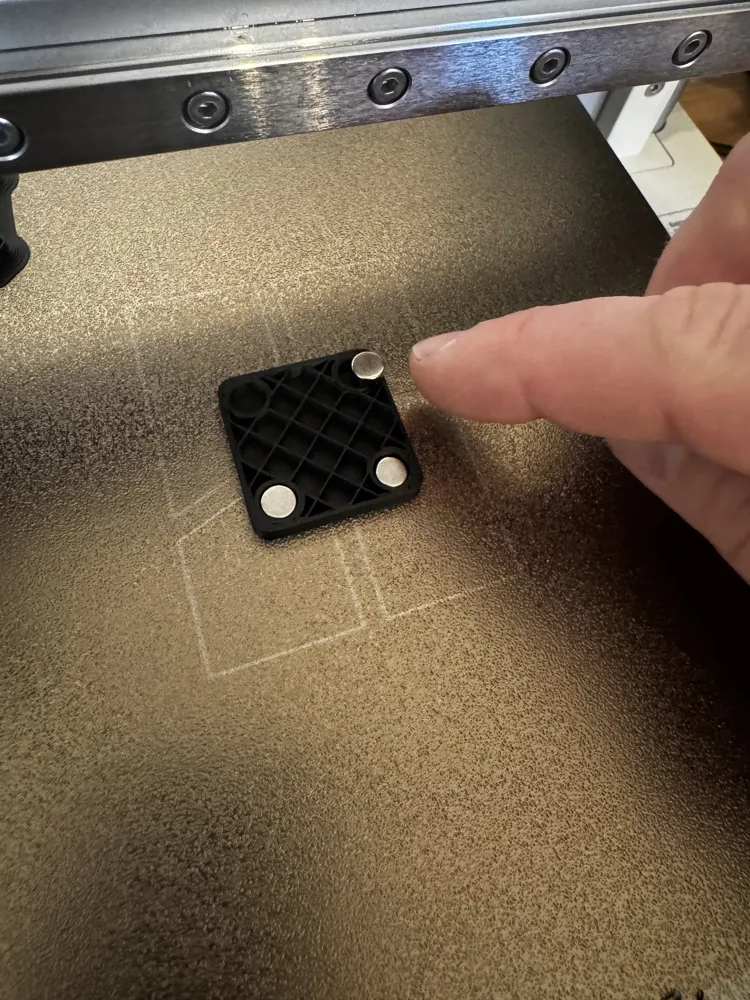
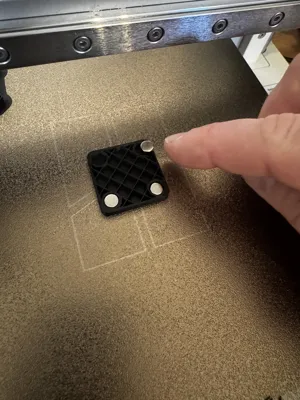
The objects allow internal magnets to be inserted
This means the magnets are not visible from the outside, they do not add extra thickness, and there is no need to glue magnets on
The magnets are standard round magnets, 6 mm diameter and 3 mm height
Procedure
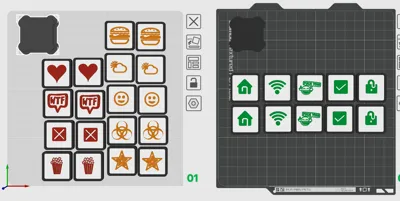
- The pause should already be set correctly in the 3mf file and should be located at layer 18. This should be visible in the “Slice Plate” menu. If it is not, please add the pause by dragging the green marker on the right bar to layer 18 → right click → Add Pause
- Start the print. The printer will pause at layer 18
- Then insert the magnets. To play the memory game properly on a magnetic board, all four magnets must be inserted
- Then continue the print (this can be done directly on the printer display)
If you do not want the objects to be magnetic, you can either remove the pause directly in the slicer menu or simply press resume print when the pause occurs
Possible Adjustments
Adjusting the Size
The objects can be scaled to any size. It is best to place one object on its own plate
Note: The magnet holes will scale as well
- Click the second icon “Add Plate” in the symbol menu
- Move one object onto the new plate
- Click “Scale” in the symbol menu and enter the new dimensions
Note: You may want to disable “uniform scale” so the height does not increase proportionally
Adjusting the Color
- In the left menu under Process, click “Objects”
- Then click the object you want to change on the plate. It should now also be highlighted in the left menu
- Open the dropdown menu there. This allows you to change the color of the object and the text separately
(The icons are basically a special font) - To change the white color underneath the text/icons, select the object and click “Color Painting” in the symbol menu
- Then select the color and click the “Fill” icon
Important: enable “Edge detection.”
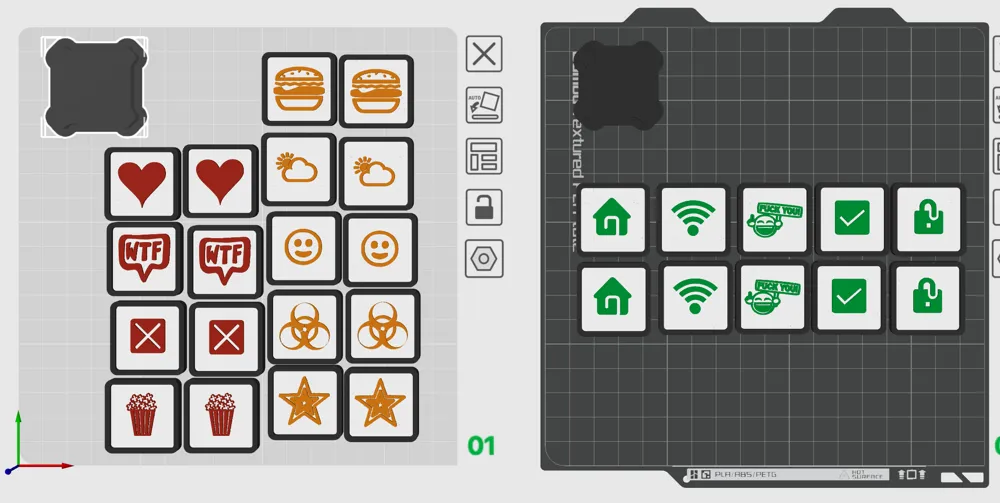
Adjusting Text / Icons
To add additional symbols, the font can be changed. In my case, I downloaded free fonts with icons from the internet and installed them on my system. After restarting Bambu Lab, the software recognizes the fonts and they can be selected
Then change it as follows:
- Double-click the text. If that does not work, find the object as described in the color section → select “text_shape” and click “Text Shape” in the toolbar
- Now basically everything can be adjusted as needed
Boost Me (for free)
Like it -> Boost Me
License



Comment & Rating (0)