
Easter Basket with Bunny Ears


Print Profile(4)
Description
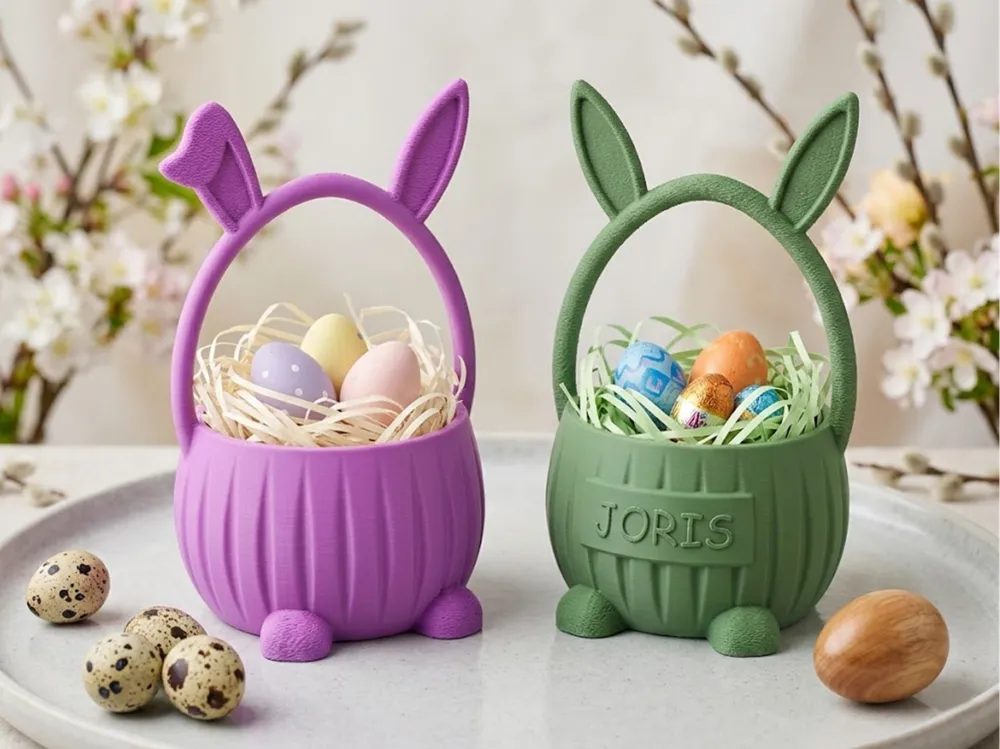
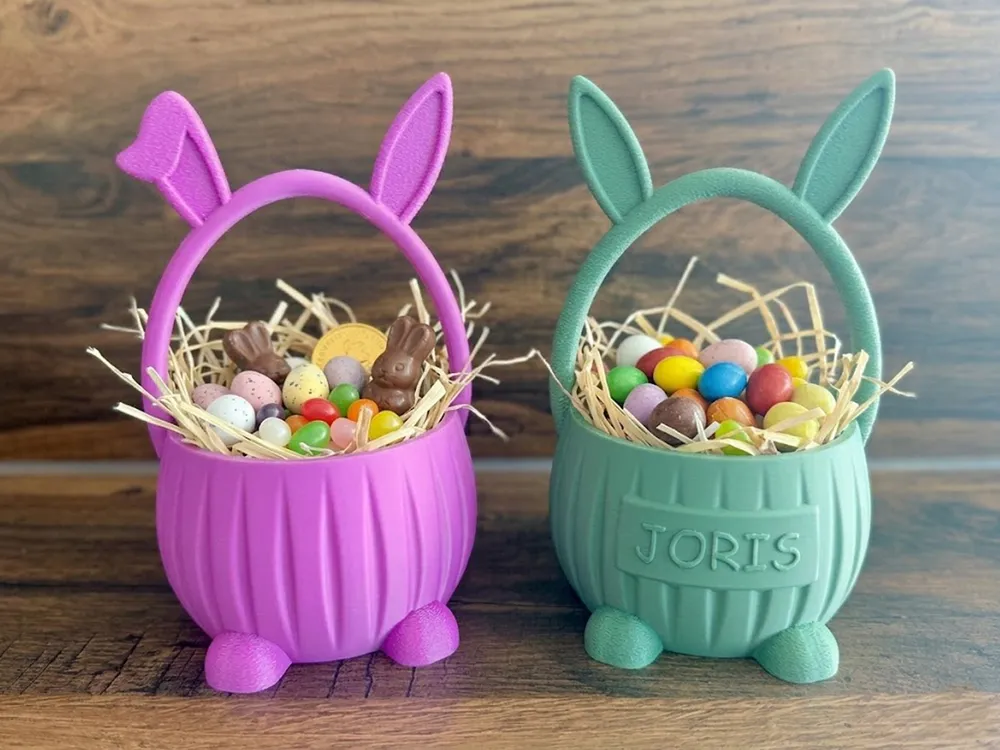
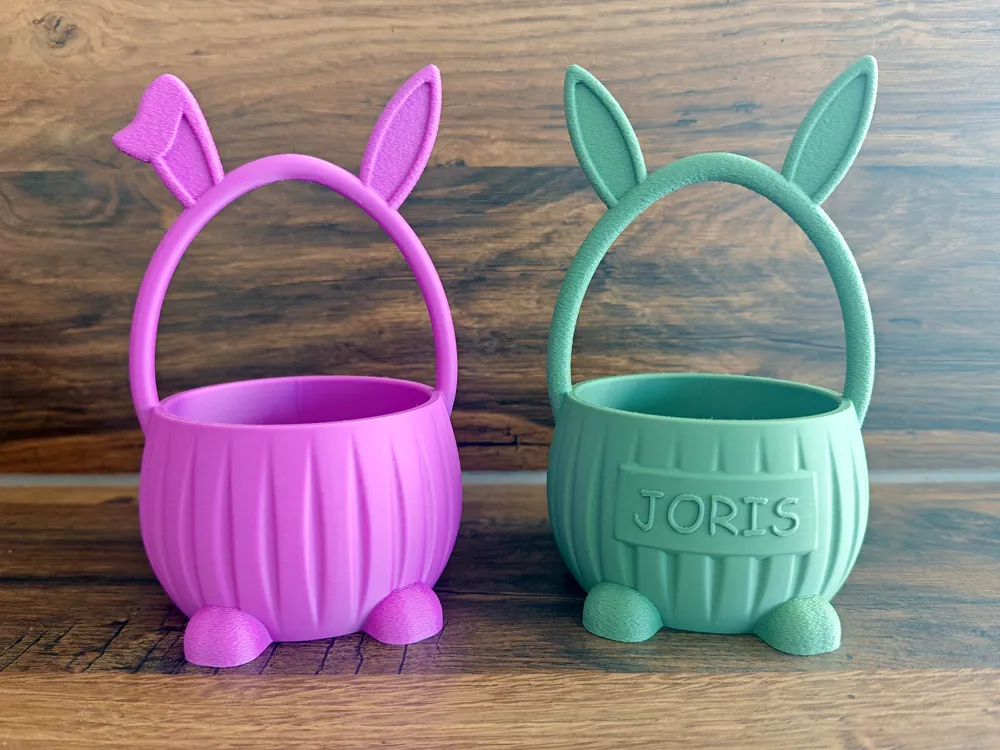
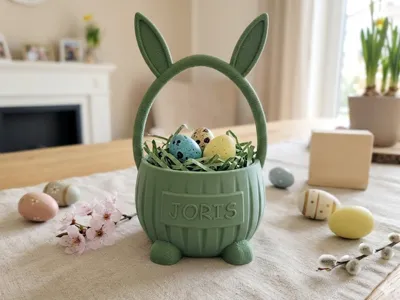
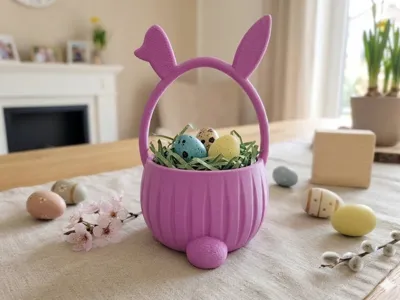
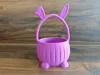
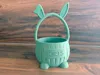
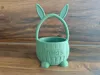
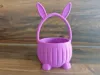
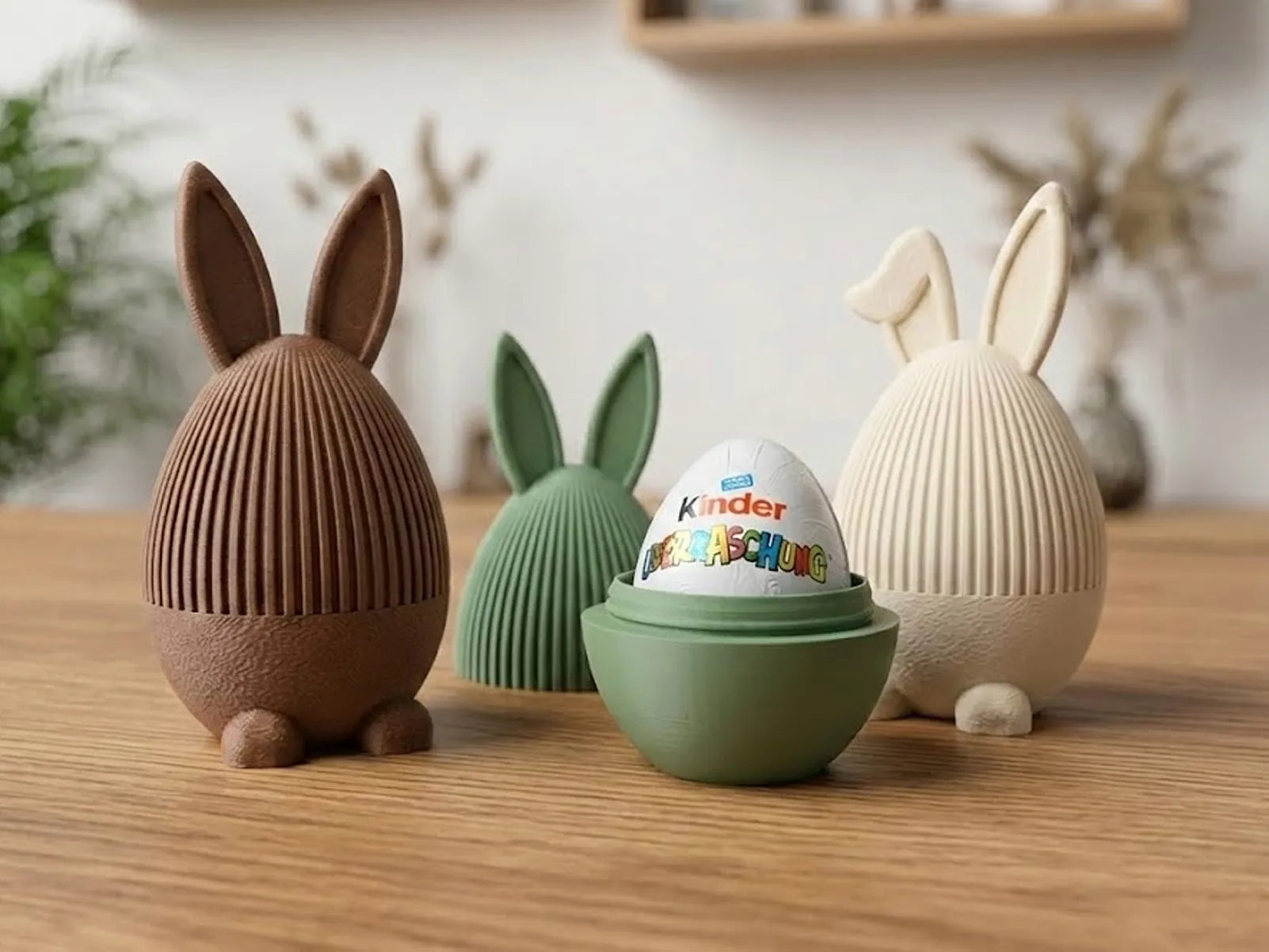
Surprise your kids or loved ones this Easter with these cute, 3D-printed Easter baskets. They're perfect for egg hunts and small gifts. You have full control over the design: choose your preferred bunny ear style and add a personalized name!
Key Features
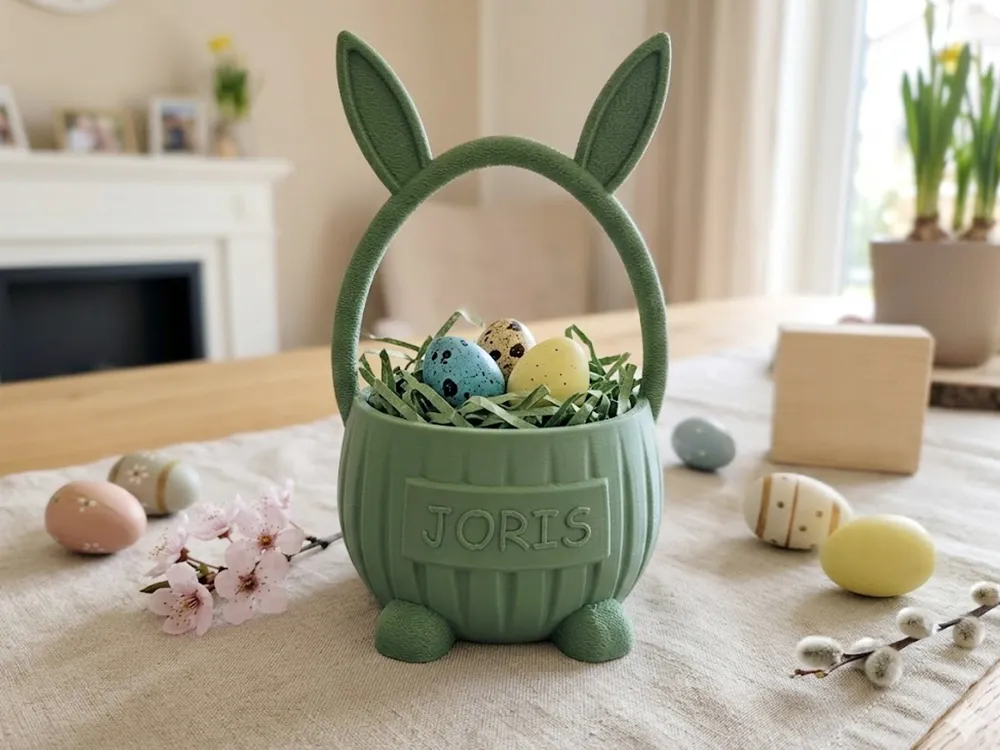
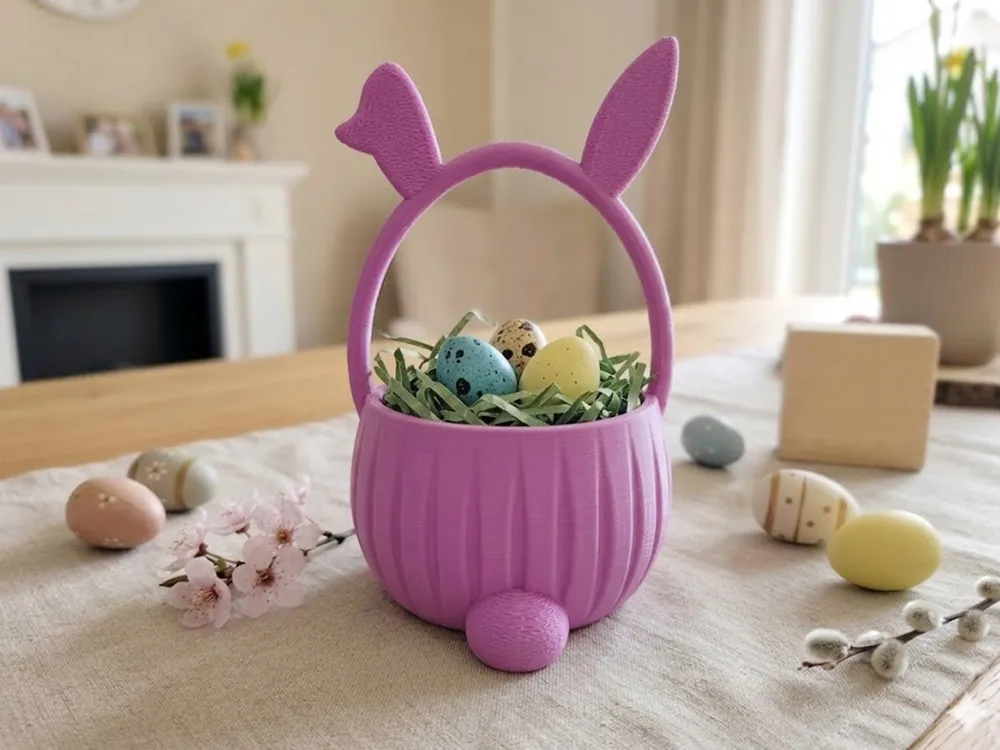
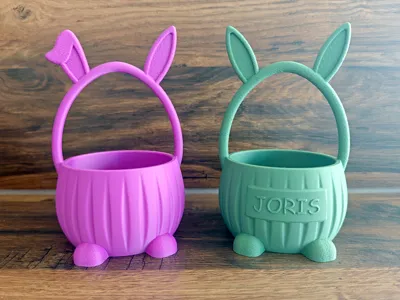
- Two Bunny Ear Styles: Choose between the version with one floppy ear or the version with straight ears. Both options are in the Profiles!
- Fully Customizable: Add a name directly onto the flat panel on the front of the basket. It's super easy to do within the slicer.
- Textured Details (Fuzzy Skin): Each basket comes with predefined Fuzzy Skin zones for a great tactile feel:
- Baskets WITH a name: Fuzzy Skin is applied to the ears, tail, feet, and the handle.
- Baskets WITHOUT a name: Fuzzy Skin is applied to the ears, feet, and the tail.
- Note: You can easily toggle these settings in the slicer using the painting tool.
Instructions
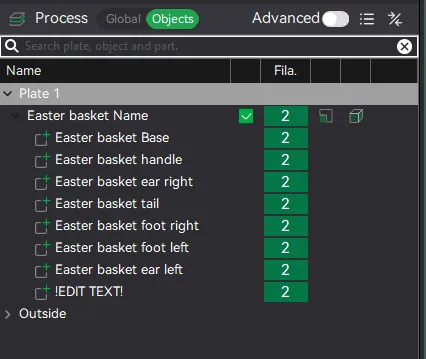
1. How to customize the name in Bambu Studio
It's very simple! To personalize the name on your basket:
- Select the Object (the basket) in the 3D viewport.
- In the left sidebar, switch from "Global" to the "Objects" tab.
- Locate the item named "!EDIT TEXT!".
- Right-click on "!EDIT TEXT!" and select "Edit Text".
- Type in your desired name, and the model will update automatically!
2. How to adjust Fuzzy Skin
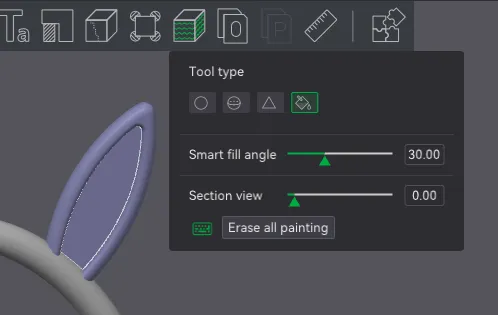
If you want to add or remove the texture from specific parts:
- Click on the object.
- Open the "Fuzzy Skin Painting" tool (found in the top toolbar or under the "Actions" tab).
- Use the Fill Tool to add or remove the texture as you like with left or right mouse Button.
Feel free to check out my other Easter prints as well:
Boost Me (for free)
Thank You!
License

You shall not share, sub-license, sell, rent, host, transfer, or distribute in any way the digital or 3D printed versions of this object, nor any other derivative work of this object in its digital or physical format (including - but not limited to - remixes of this object, and hosting on other digital platforms). The objects may not be used without permission in any way whatsoever in which you charge money, or collect fees.


Comment & Rating (339)