
Silly Goose License
Print Profile(7)
Description
UPDATE: Now with editable text for the Name, License ID, Expiration, and Bottom Text (see the Editing Instructions below)
The license has also been broken out into several more sub-parts for more colors (if you have access to more than one AMS).
UPDATE 2: I have turned this model into a credit card tap-to-pay sleeve.
I have also made a brand new credit card sleeve: GoosePay!
https://makerworld.com/en/models/3029533-goosepay-tap-to-pay-credit-card-sleeve#profileId-3404762
Feel free to check them out. Thank you for your support :)
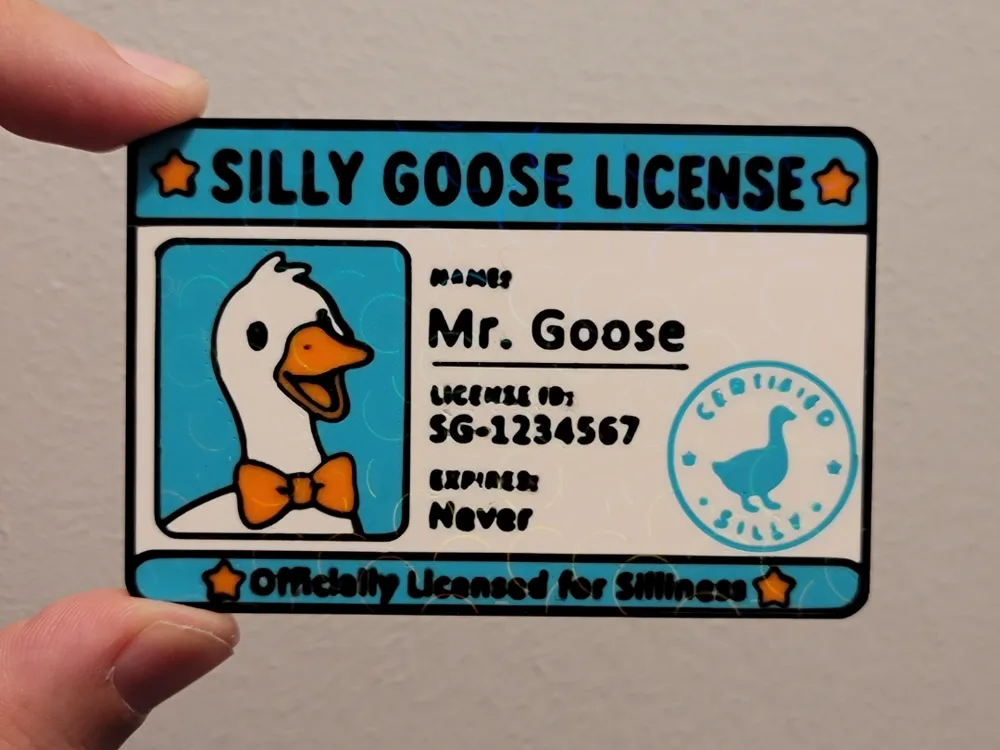
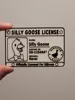
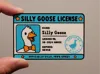
You may be a silly goose, but do you have the credentials to prove it?
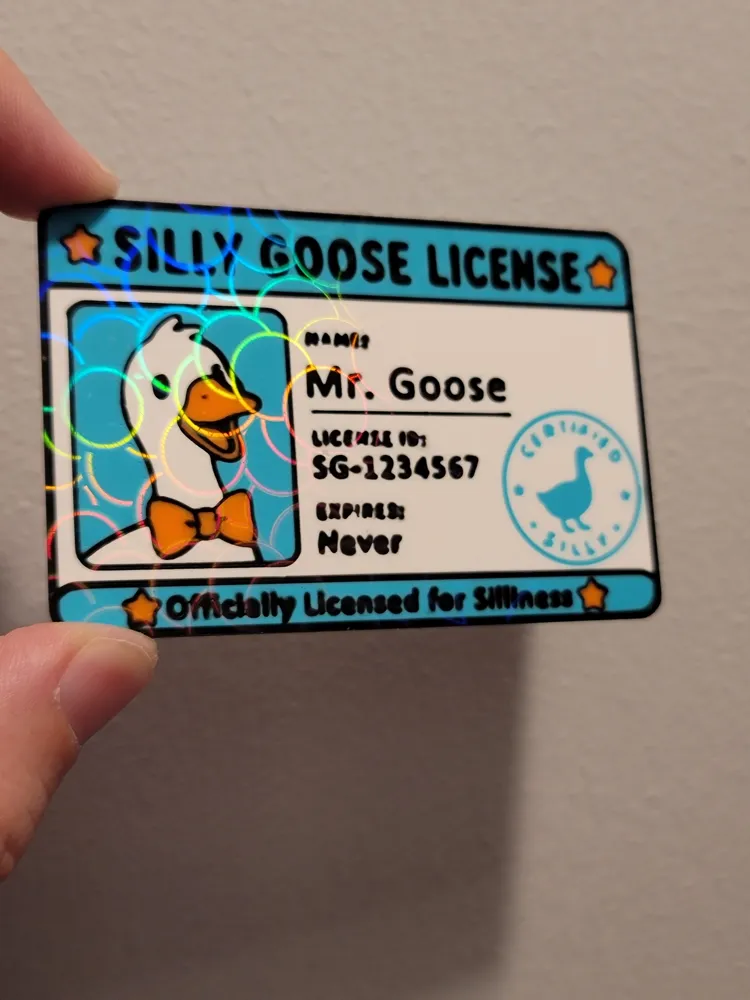
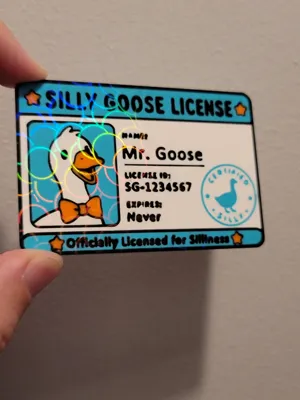
Well, now you can! This is a simple ID for any silly goose.
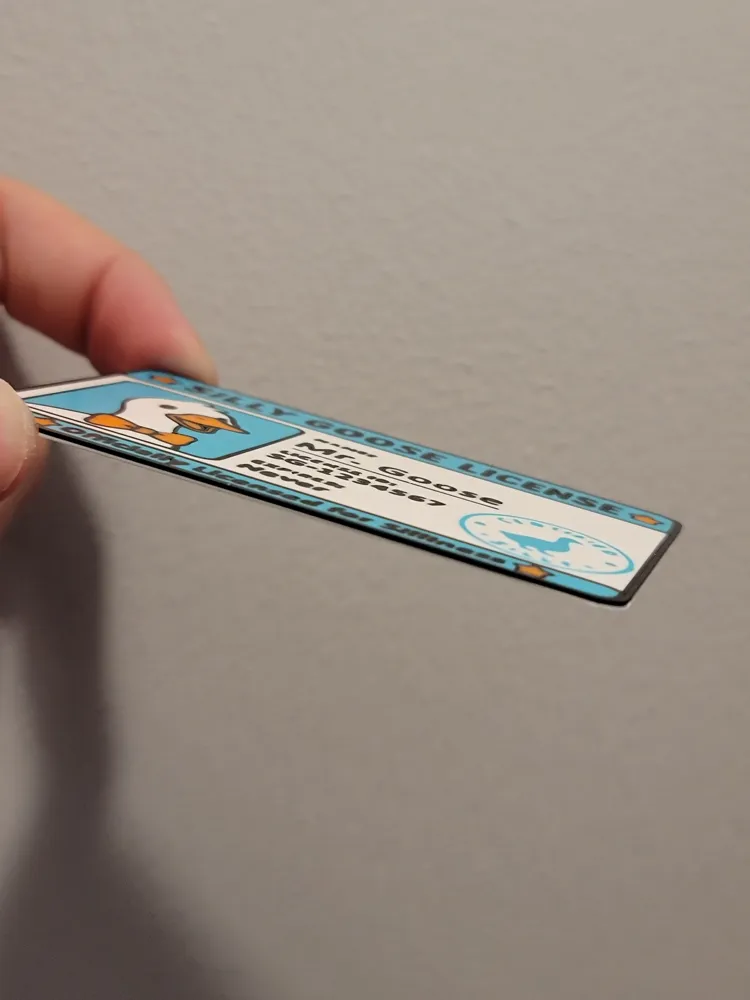
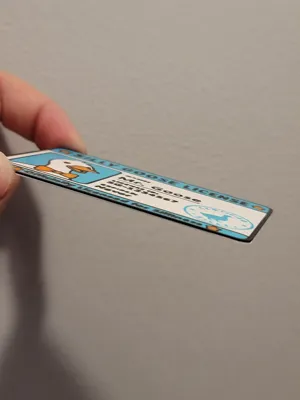
This ID card prints face down for the best surface quality. It is the same size as a real ID (85.6mm x 56mm). It is also only 1mm thick, so it will fit in any wallet with ease!
It can be printed with a 0.4mm nozzle (as shown in the main picture) but I highly recommend a 0.2mm nozzle to get those fine details. Just be sure your print plate adhesion is top notch, or those small details will come right off the plate.
AMS is required
Editing the License Text Modifiers
In the future, the goal is to edit the text via OpenSCAD and Makerlab, but for now, it makes use of Text Modifiers in Bambu Studio. Here is how to edit those:
- Open the project in Bambu Studio
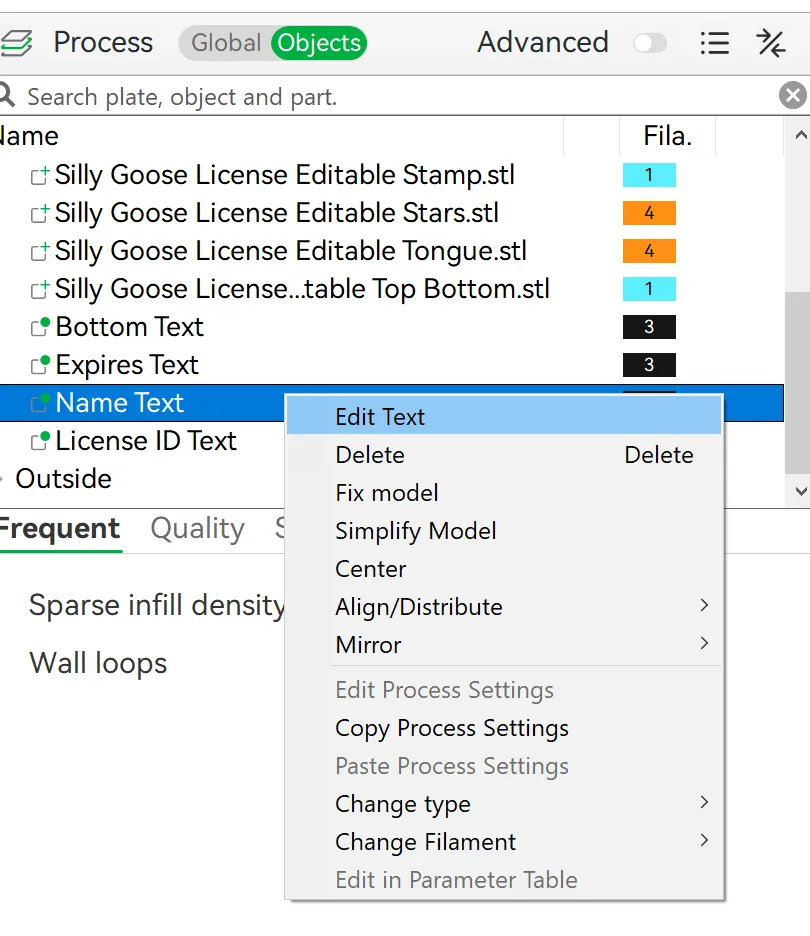
In the Objects Tab, find the text you would like to edit, right-click it, and click Edit Text.
In the Input Text field, enter the text you would like to use
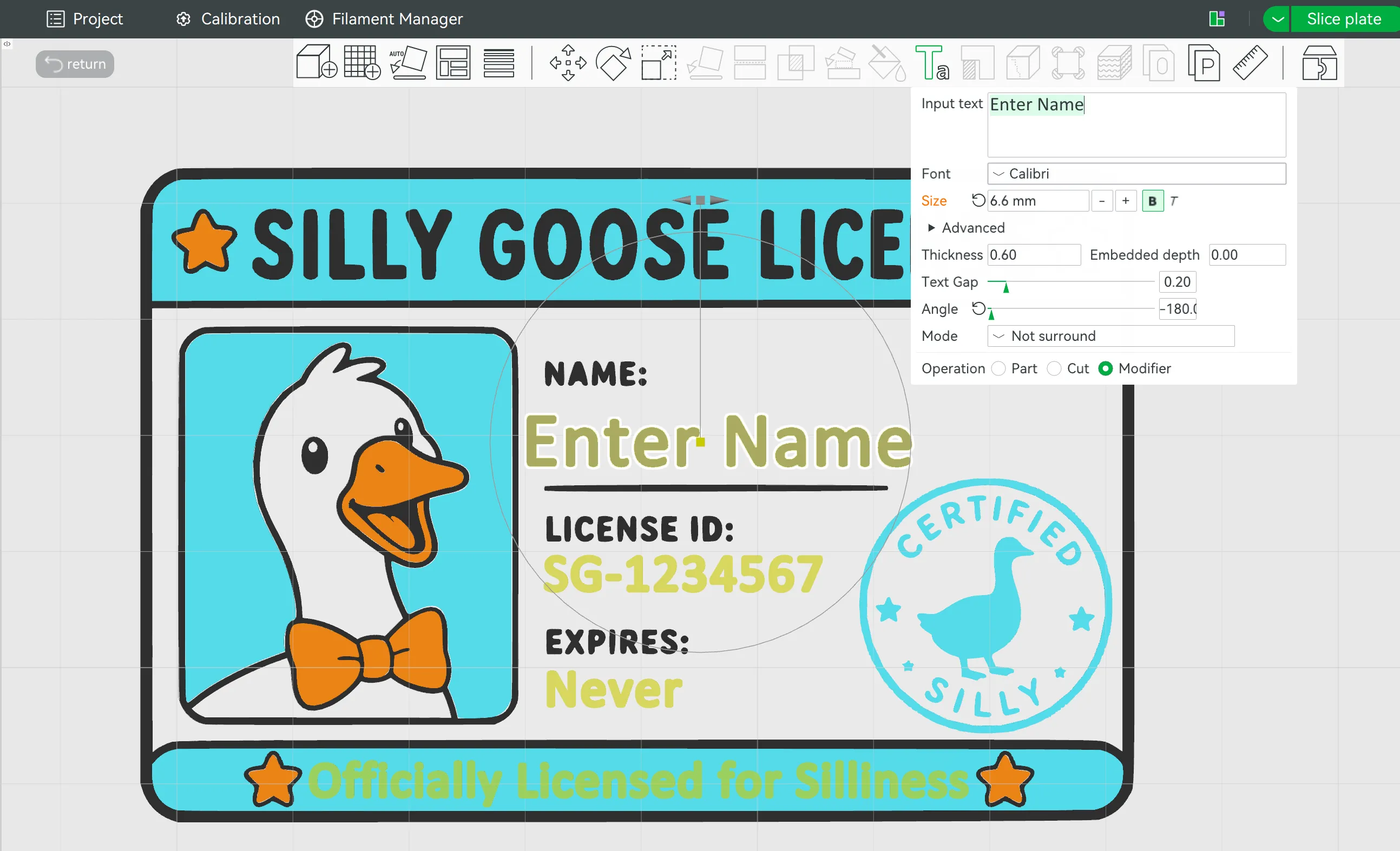
As you edit the text, it may move out of alignment with the other text (as the modifiers are center-aligned).
Click the Yellow Cube in the center of the text and drag it left or right to properly align it.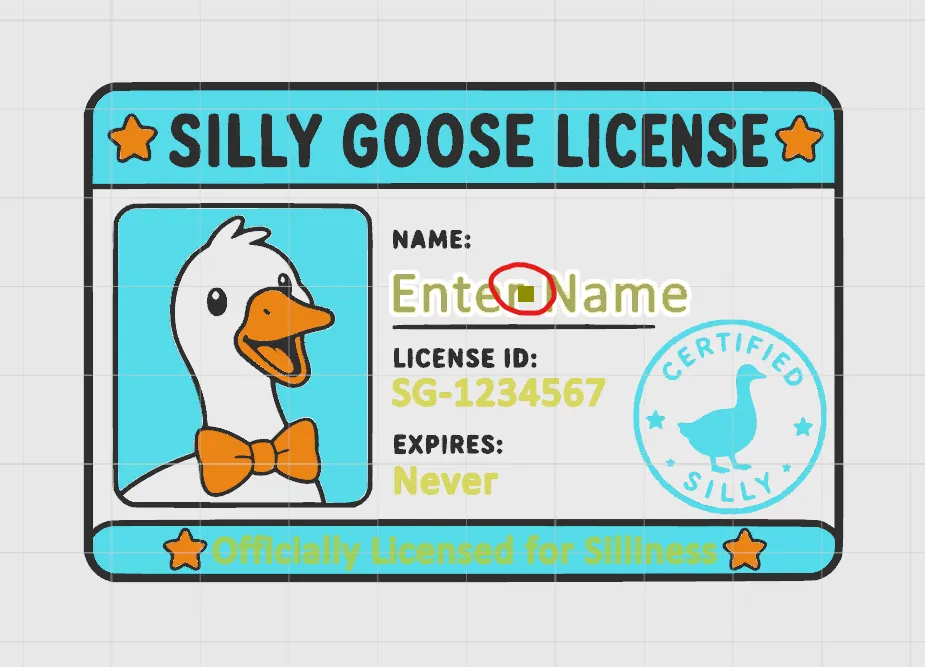
If your name or other text does not fit in the space, feel free to adjust the Font Size to fit
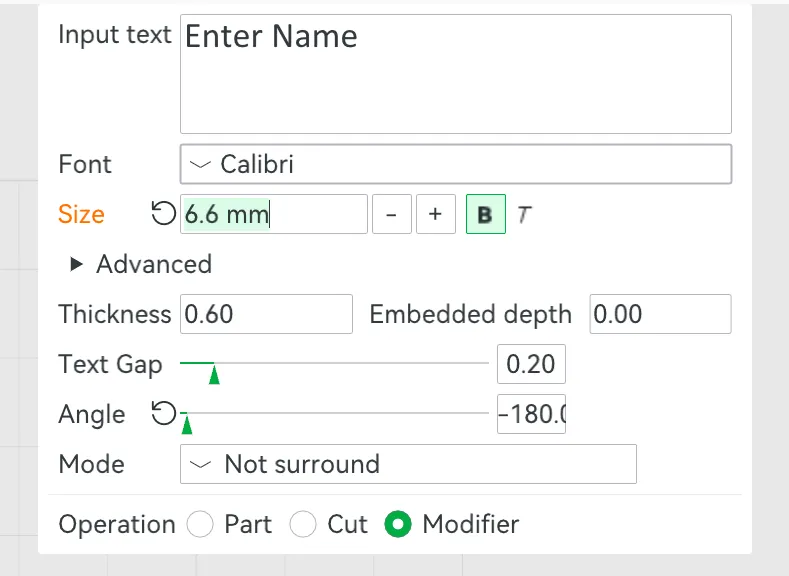
- Feel free to adjust the other text fields to your liking! Happy printing and stay silly!
Disclaimer: Not responsible for anyone who gives this ID to law enforcement. They may not find this as silly as you.
License



Comment & Rating (56)