
Lithophane Folding Fan Generator
Print Profile(5)
Description
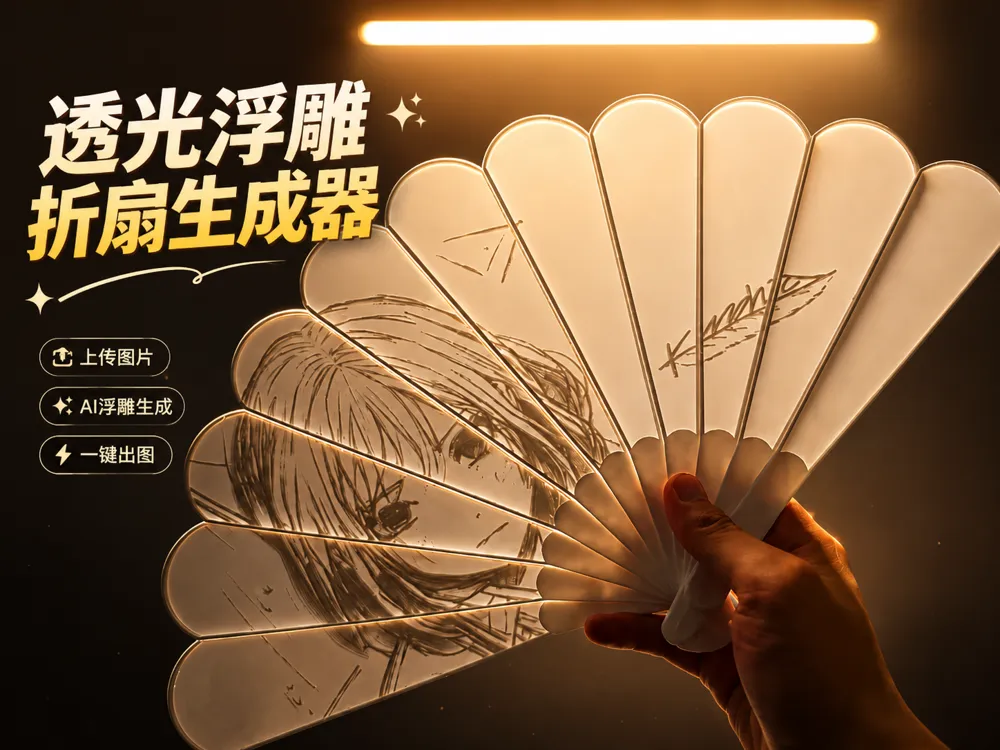
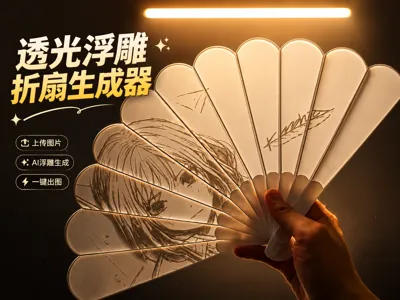
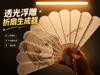
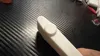
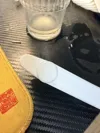
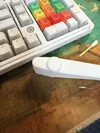
I made a lithophane folding fan generator with AI~✨
Upload an image, simply adjust its position and lithophane parameters, and you can generate a folding fan model suitable for 3D printing.
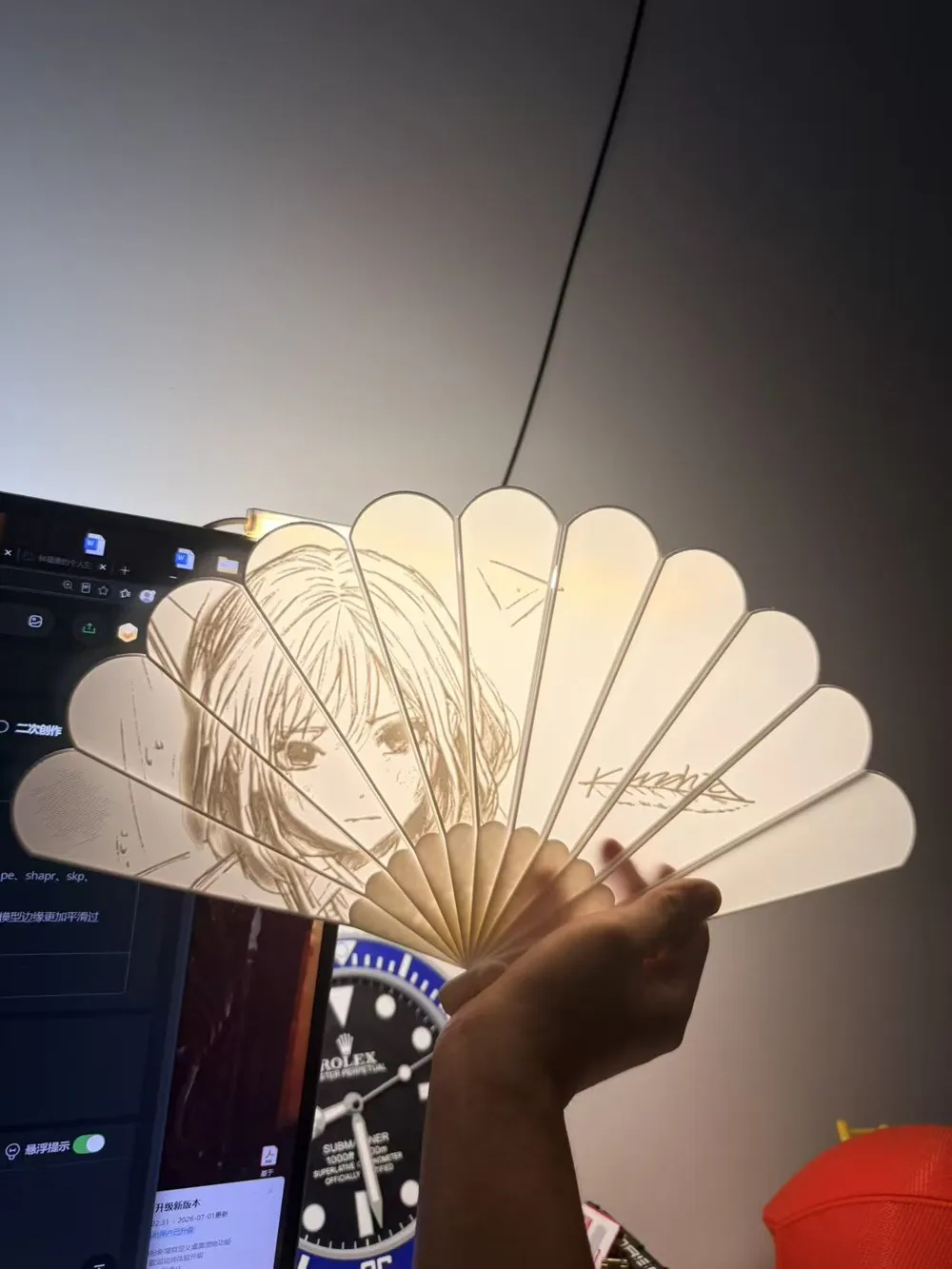
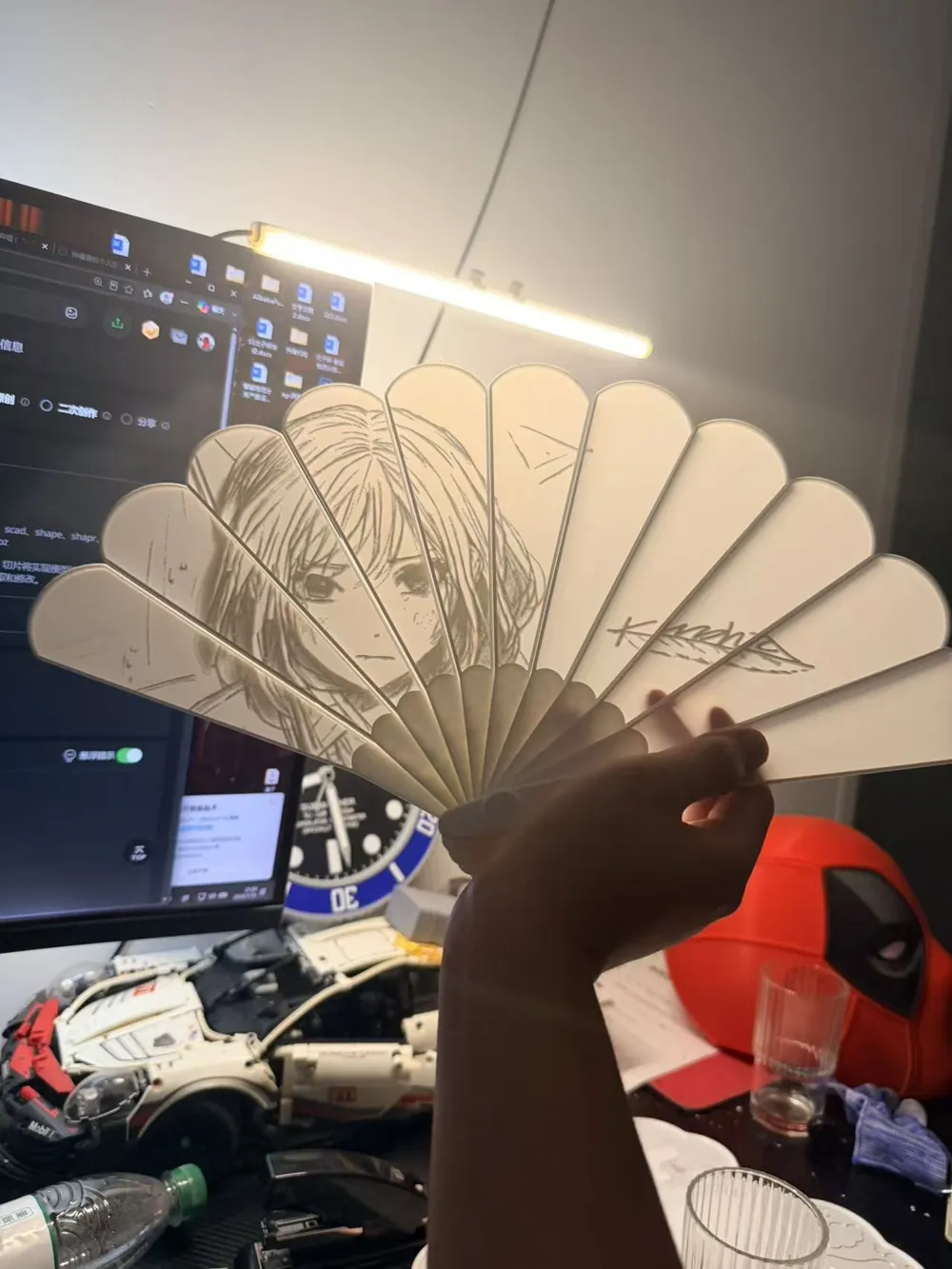
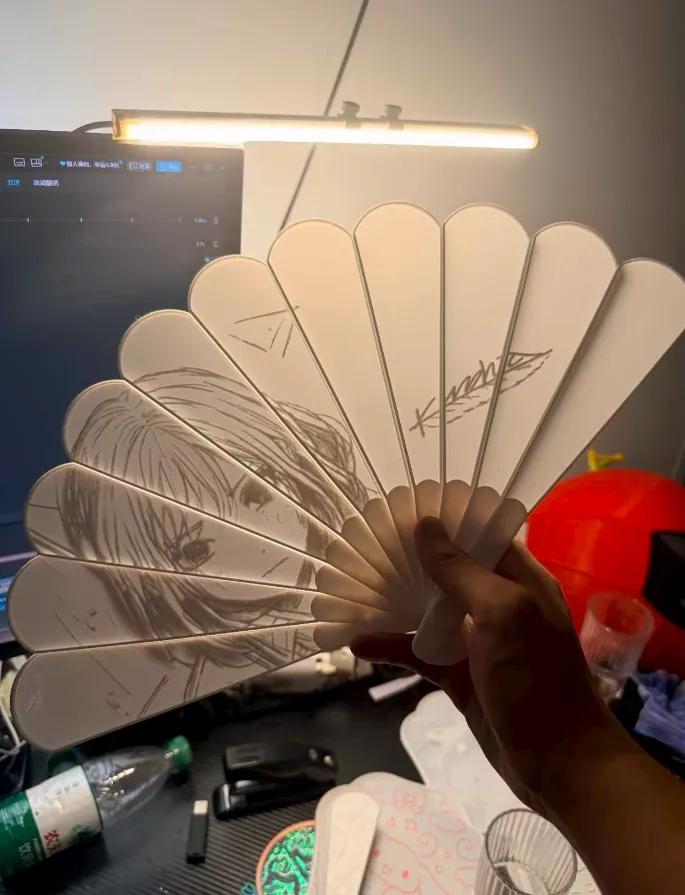
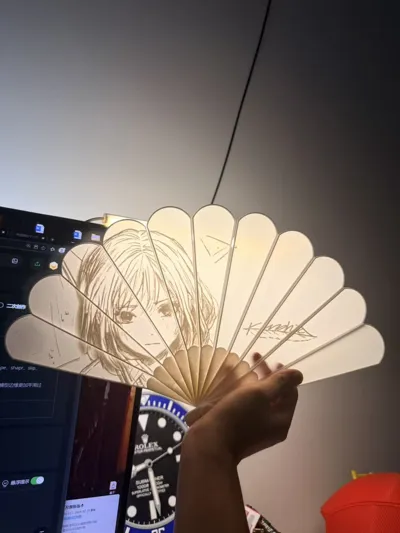
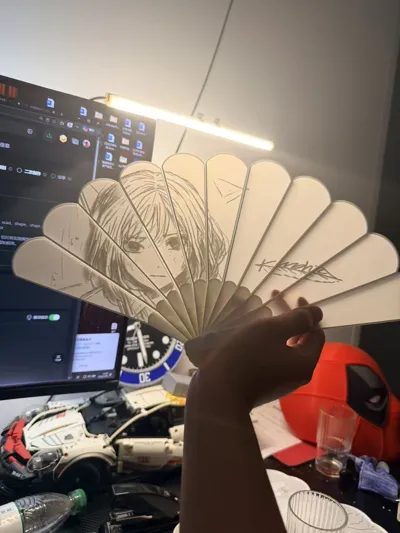
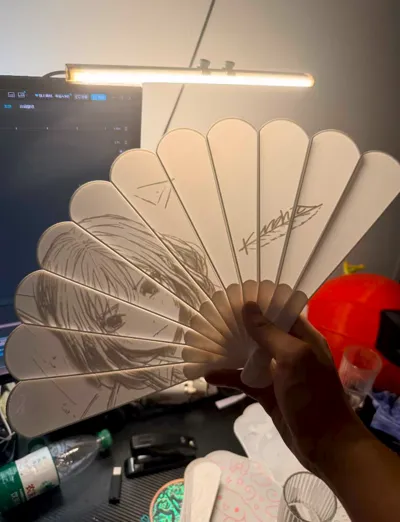
After printing, you can see the embossed texture on the fan blades in normal light; when placed in front of a light, the image will show light and dark gradients through different thicknesses, creating a lithophane effect.
You don't need to create the lithophane yourself, nor manually split an image into multiple fan blades, making it more suitable for beginners creating their first lithophane folding fan.
Download link: (You can message me to get it; I'll send it when I see it. Currently, it cannot be uploaded due to format issues, and MW might update later. If possible, please send me a boost voucher💖)
Boost Me (for free)
Likes and boosts motivate me to continue maintaining this tool and creating more useful gadgets for 3D printing 😘
⚡ Get Started in Three Steps
1️⃣ Choose image upload method: single page upload or full page upload
2️⃣ Adjust image position, scaling, and lithophane parameters
3️⃣ Export the model and import it into Bambu Studio for slicing and printing
For first-time use, it's recommended to generate and print only one fan blade. After confirming the lithophane effect, then print the complete folding fan.
Filament recommended: Jade White PLA
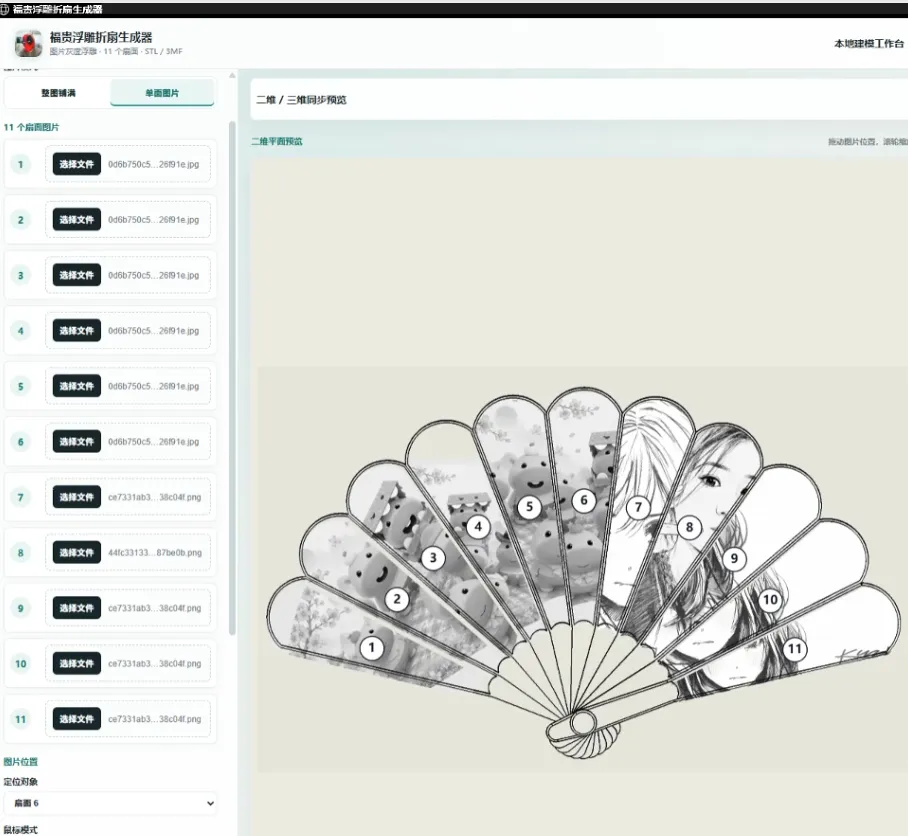
🎨 Single Page Upload
Single page upload is suitable for adding an image to a specific fan blade individually.
You can select individual fan blades and set different patterns for each, for example:
- Place different text on each fan blade
- Create continuously arranged small patterns
- Adjust a specific fan blade individually
- Test the lithophane effect of an image
- Create folding fans with different content combinations
After uploading the image, you can adjust the position and size of the pattern on the current fan blade.
This method offers greater flexibility, suitable for users who want to design each fan blade individually.
🖼️ Full Page Upload
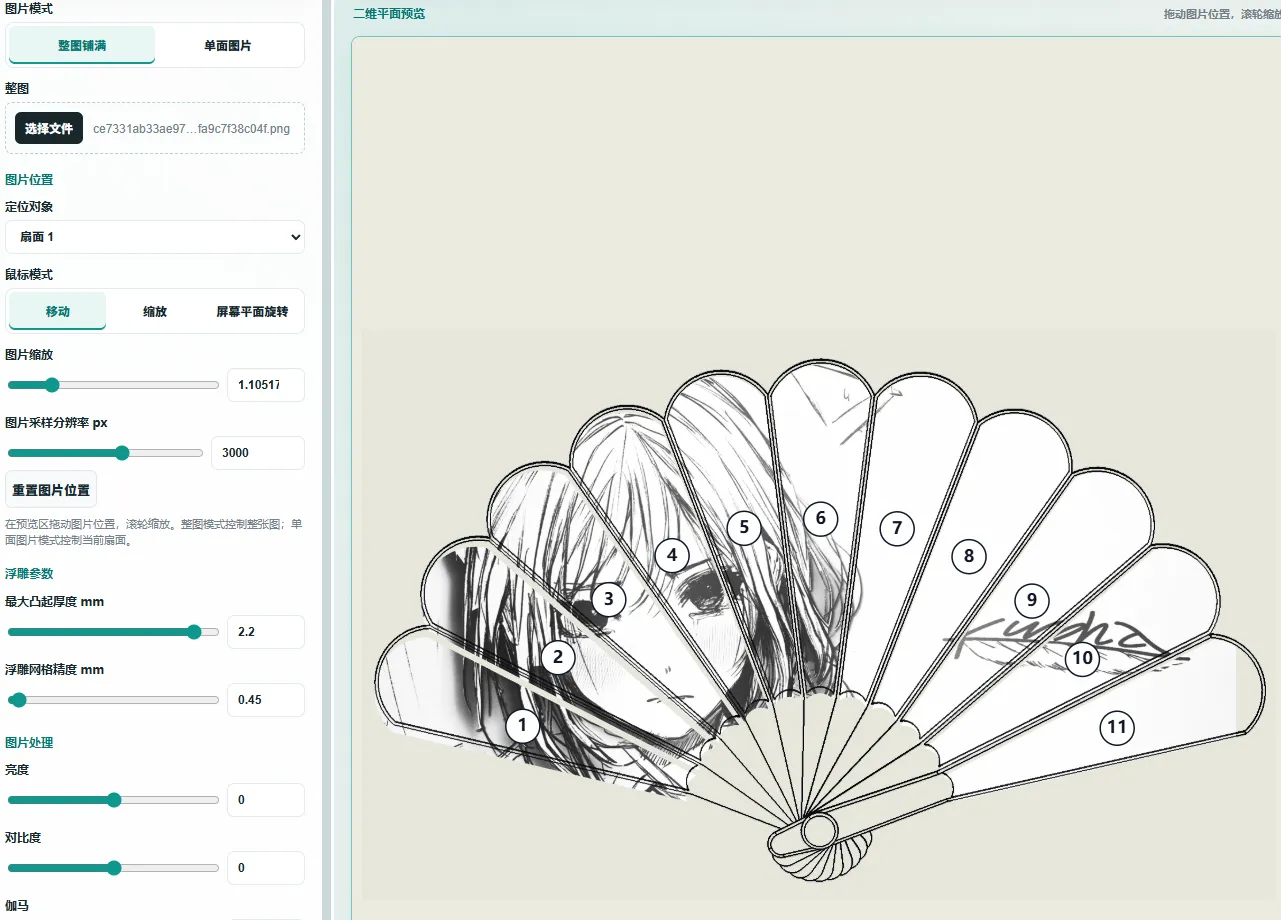
Full page upload is suitable for creating a complete image that spans the entire folding fan.
Just upload an image, and the generator will automatically distribute the image across different fan blades according to their positions.
When the folding fan is fully opened, multiple fan blades will together form a complete pattern.
Suitable for creating:
- Portraits
- Anime images
- Landscape images
- Traditional Chinese style artwork
- Illustrations and line art
- Horizontally composed images
You don't need to manually cut the image into a dozen pieces or calculate positions for each. The generator will automatically handle image segmentation.
🔄 Automatic Bending of Horizontal Images
Normal horizontal images are straight, but when a folding fan is opened, all fan blades are arranged in a fan shape around the pivot.
If a horizontal image is simply cut evenly, issues such as:
- Mismatched left and right edges of the image
- Distortion of figures and patterns
- Obvious gaps between fan blades
- Center image normal, but sides stretched
- Unnatural overall composition when the fan is opened
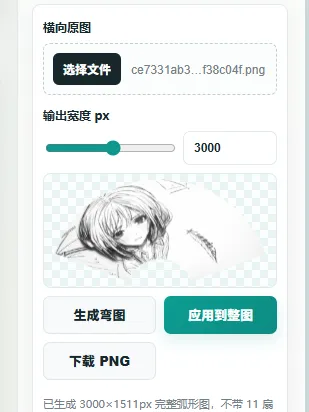
Therefore, the generator includes an image bending function.
It can automatically bend a normal horizontal image into a circular image that fits the opened shape of the folding fan, and then distribute the image to each fan blade.
The process can be simply understood as:
Upload Horizontal Image → Image Auto Bending → Fit Folding Fan Shape → Distribute to Different Fan Blades
This way, when the folding fan is opened, the image will spread out more naturally around the center, and the pattern transitions between fan blades will be more seamless.
✨ Lithophane Effect
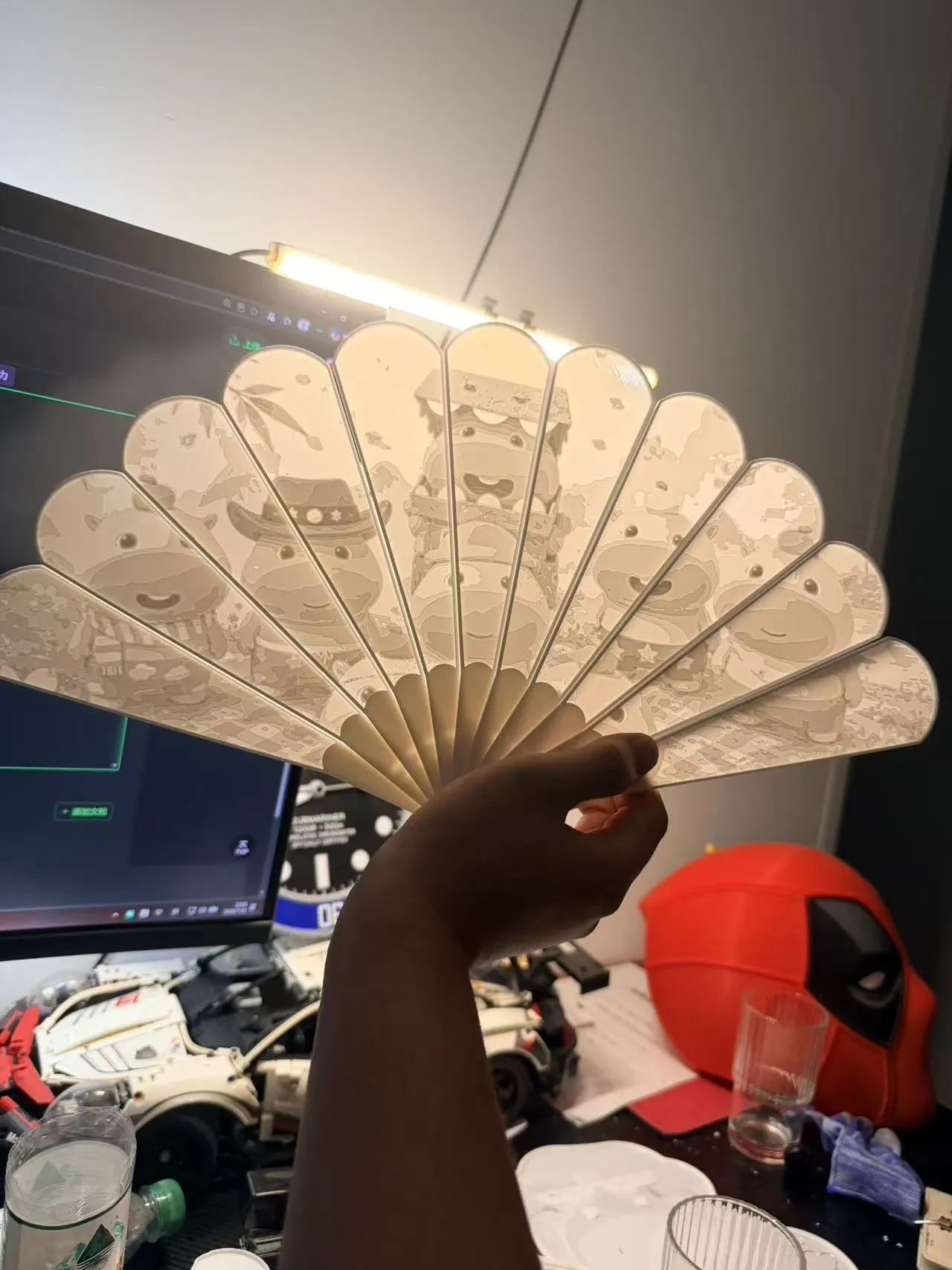
The generator creates embossed structures of varying thicknesses based on the light and dark areas of the image.
After printing:
- Thinner areas allow more light through
- Thicker areas allow less light through
- Embossed texture is visible under normal light
- Light and dark gradients of the image are displayed when held against a light source
It is recommended to choose images with clear subjects and strong light-dark contrast for a more pronounced lithophane effect.
For portraits, you can appropriately increase the contrast beforehand to prevent facial details from appearing too flat.
🛠️ Main Parameter Descriptions
| Parameter | Function | Usage Advice |
|---|---|---|
| Upload Method | Choose single page or full page upload | Select full page for complete images, single page for individual patterns |
| Image Position | Adjust pattern position on the fan blade | Try to avoid placing faces on fan blade seams |
| Image Scaling | Adjust image size | Prioritize keeping the main subject complete |
| Image Bending | Convert horizontal image into a circular image suitable for folding fans | Recommended to enable for full-page horizontal images |
| Lithophane Depth | Control image height levels | Suggested to test with default values first |
| Base Thickness | Control fan blade strength and translucency | Thinner allows more light but reduces strength |
| Invert Light/Dark | Invert the thickness relationship of the image | Switch if the lithophane effect is opposite to desired |
| Detail Level | Control image detail retention | Not recommended to set too high if the image is cluttered |
If other parameters are unclear, you can keep the default values first, then print a test and adjust gradually.
💡 Image Selection Tips
- It is recommended to use images with clear subjects and strong light-dark contrast
- Horizontal images are more suitable for full page upload
- Avoid placing important figures and text on fan blade seams
- If the image background is too complex, you can process it simply first
- Black and white photos, anime line art, and high-contrast images usually yield better results
- After image bending, there will be some changes on the left and right sides; please check the preview before exporting
- For first-time creation, it is recommended to print one test fan blade first, rather than printing the entire fan directly
🖨️ Printing Recommendations
It is recommended to use transparent PETG and Jade White PLA. Lighter materials generally make it easier to showcase the lithophane effect.
The translucency varies depending on the brand, color, and material of the filament. It is recommended to adjust the base thickness and lithophane depth according to your specific filament.
Before printing, you can choose one fan blade for testing:
- Check image orientation
- Check if lithophane light and dark areas are correct
- Check fan blade strength
- Test the lithophane effect in front of a light source
- Confirm parameters before printing the complete model
📦 Usage Workflow
1️⃣ Upload image
2️⃣ Select single page or full page upload
3️⃣ Adjust image position and scale
4️⃣ Enable or disable image bending
5️⃣ Adjust lithophane depth and fan blade thickness
6️⃣ Preview the generated effect
7️⃣ Export model
8️⃣ Import into Bambu Studio for slicing and printing
9️⃣ Assemble after printing is complete
🙏 Model Source Description
This tool uses the folding fan frame model shared by open-source master @安迪圣剑.
Based on the original frame model, I added:
- Image upload and processing
- Single page image settings
- Full page image distribution
- Horizontal image bending
- Automatic fan blade segmentation
- Lithophane generation
- Model export function
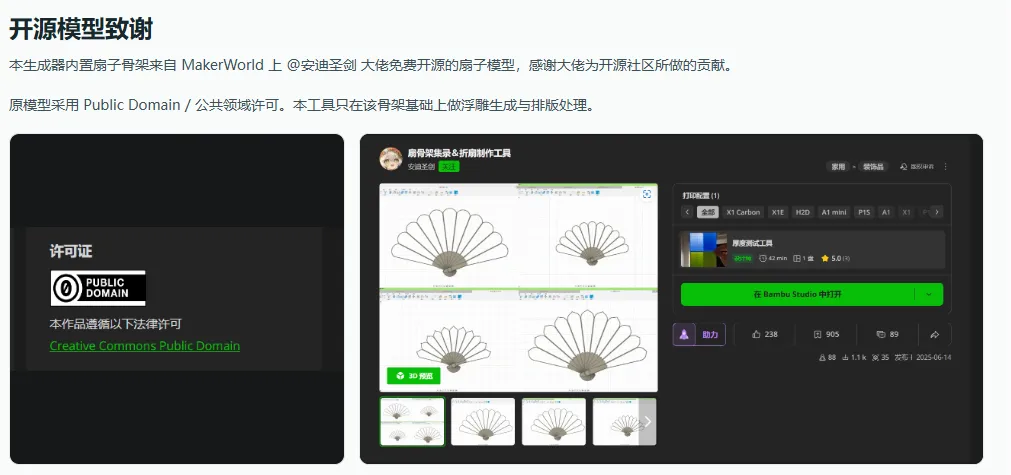
Thanks to @安迪圣剑 for the open-source sharing and creation.
The tool is still being optimized. Everyone is welcome to upload their printed works on MakerWorld and provide feedback on any issues encountered during use in the comments section.
If you find this tool useful, please consider liking, favoriting, or sending a boost voucher. Your support encourages me to continue maintaining the generator and developing more useful gadgets for 3D printing~💖
License

You shall not share, sub-license, sell, rent, host, transfer, or distribute in any way the digital or 3D printed versions of this object, nor any other derivative work of this object in its digital or physical format (including - but not limited to - remixes of this object, and hosting on other digital platforms). The objects may not be used without permission in any way whatsoever in which you charge money, or collect fees.


Comment & Rating (0)