
GTA Vice City 3D Map


Print Profile(4)


Description
Want to support me or sell my designs?
If you want to support me or sell my designs check out my patreon
https://www.patreon.com/3DMakeryDE
My models will stay free for personal use!
Boost Me (for free)
If you like this model please consider a boost. Thank you <3
Update 08.07.2024: Feedback appreciated
There stills seem to be issued with the unload/load command inside bambu studio.
I used V 1.8.4 with a P1S and a current firmware (01.06.00.00 (20240611)) for the printer. I send the files to the printer via cloud service.
Before you print I recommend to test it. Create a small cube. Add a pause in the slicer. When the pause happens you can try to unload the filament from bambu studio to make sure it works.
If you manage to print this model like described here, please provide feedback and state your setup to help others! Thank you!
Update 30.06.2024: Important! About unloading and loading filament
With the current version (1.9.3) of BambuStudio you cannot change filament mid-print. The unload botton is disabled!
You can use Version 1.8.4 from github. With this version everything works as described.
https://github.com/bambulab/BambuStudio/releases

Update 09.05.2024:
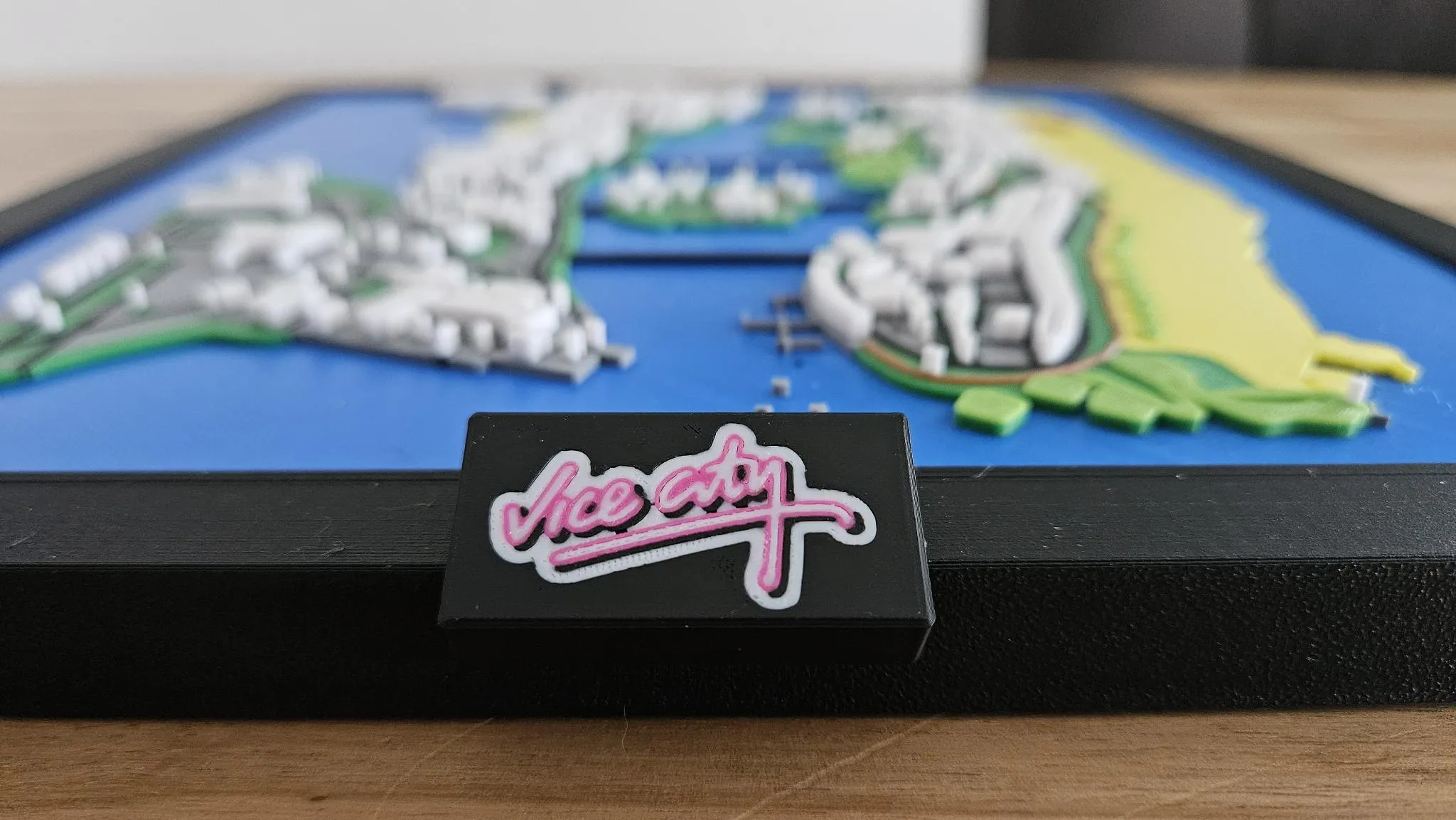
Added another print profile for a optional "badge" you can glue on the frame.
Original post
Loved this game as a child (18 year old child of course) so I decided to make this map and give myself a challenge.
It is a 3D Map and uses 9 (!) colors to print. But you need only 1 AMS to print it. For best results you should use a 0,2mm nozzle (the docks in the south are pretty tiny)
Please check the print instructions below!
Also included in one of the printing profiles are the vice city logo and a fitting frame for the map. You can hang it onto your walls as decoration of just lay it flat on a table.
The size of the map is 245mm x 225mm x 5mm
With the frame its 273mm x 253mm x 15mm
The logo is about 50mm x 25mm
The map takes around 25h to print
No glue required. Maybe some sanding for the frame parts
Print instructions:
You need 9 colors: (10 if you print the logo)
- Black
- White
- Light grey
- Dark grey
- Light green
- Dark green
- Blue
- Yellow
- Brown
- Optional: Pink (for the logo)
Step 1: Fill AMS with these colors
Slot 1 | Slot 2 | Slot 3 | Slot 4 |
Blue | Light Grey | Dark Green | Black |
Step 2: Start print
Step 3: Change filament I
- Wait for the print to pause
- Change filament in slot 1 from blue to yellow
- Resume print
Slot 1 | Slot 2 | Slot 3 | Slot 4 |
Yellow | Light Grey | Dark Green | Black |
Step 4: Change filament II
- Wait for the print to pause
- Unload filament the current filament and write down which AMS slot it was!
- Since this is a simple pause in the gcode, the current used filament is still loaded and cannot be pulled out in order to change the spool
- This step cannot be done with the current version (1.9.3) of BambuStudio! Please use version 1.8.4!
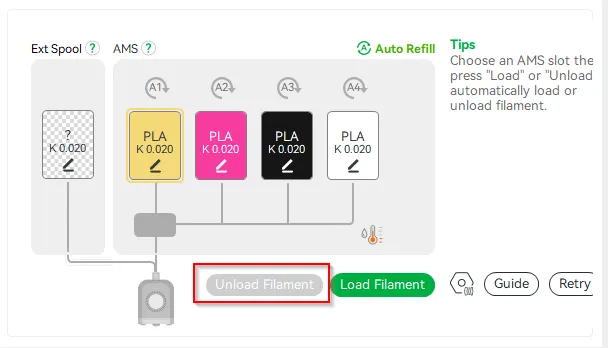
Change filaments in all AMS slots
Slot 1 | Slot 2 | Slot 3 | Slot 4 |
Brown | Dark Grey | Light Green | White |
- Very important!!!!
- Load the Filament into the slot you wrote down before changing the spools
- Since this was a simple pause in the gcode, the filament will not be pulled in automatically, but need to be loaded manually.
- Load the Filament into the slot you wrote down before changing the spools
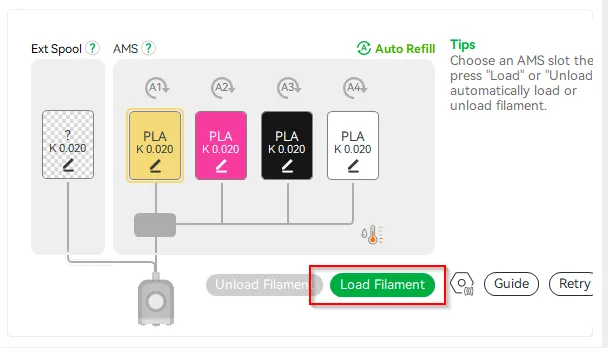
Step 5: resume print
Step 6: Enjoy
Assembly instructions:
- Assemble 2x frame top/bot and 1x frame right/left
- Slide the map in
- Assemble remaining frame top/bot
- Optional: Glue the logo
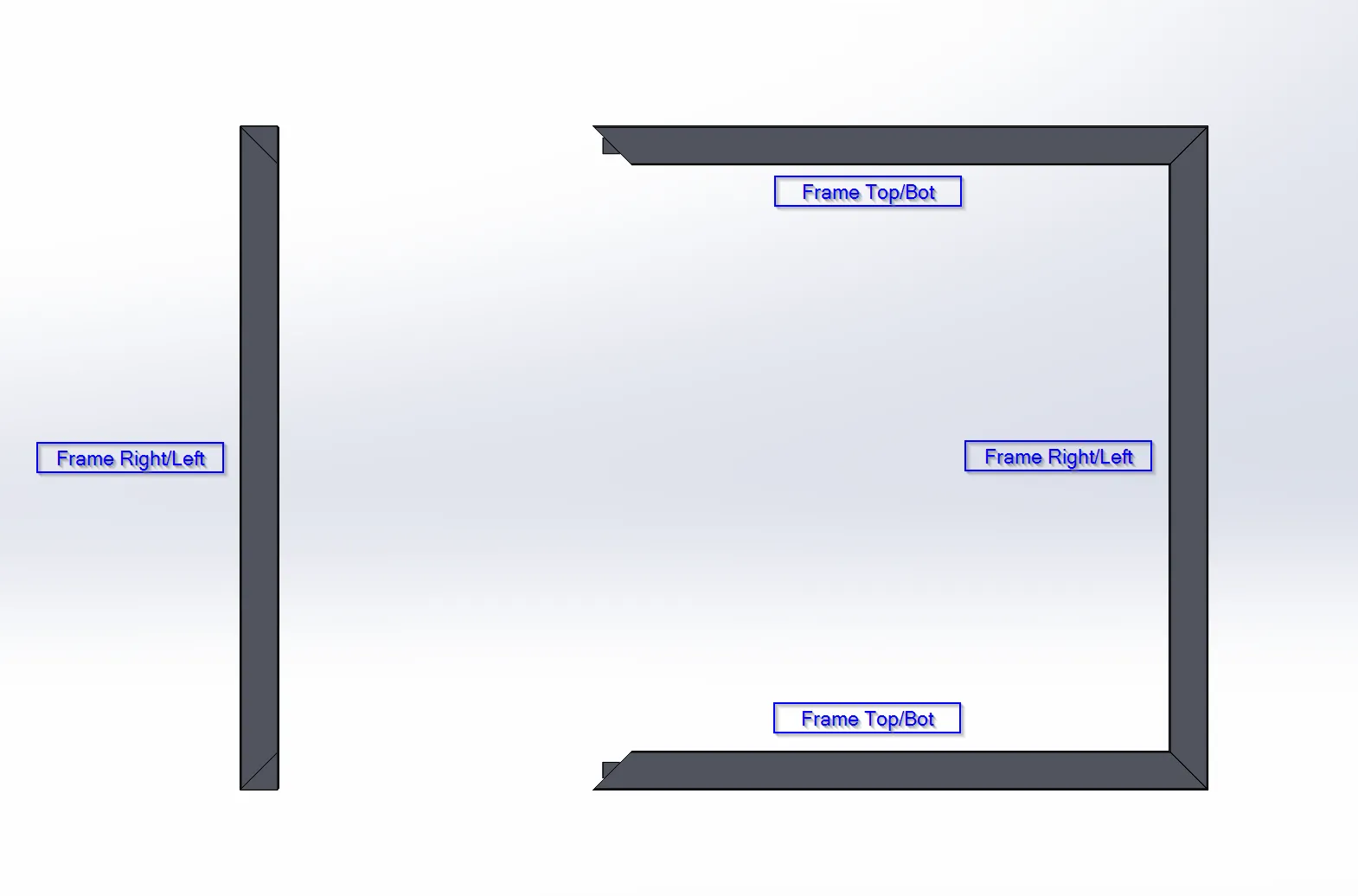
License

You shall not share, sub-license, sell, rent, host, transfer, or distribute in any way the digital or 3D printed versions of this object, nor any other derivative work of this object in its digital or physical format (including - but not limited to - remixes of this object, and hosting on other digital platforms). The objects may not be used without permission in any way whatsoever in which you charge money, or collect fees.


Comment & Rating (41)