
Tube Extension for Venturi Filament Dryer
Print Profile(1)

Description
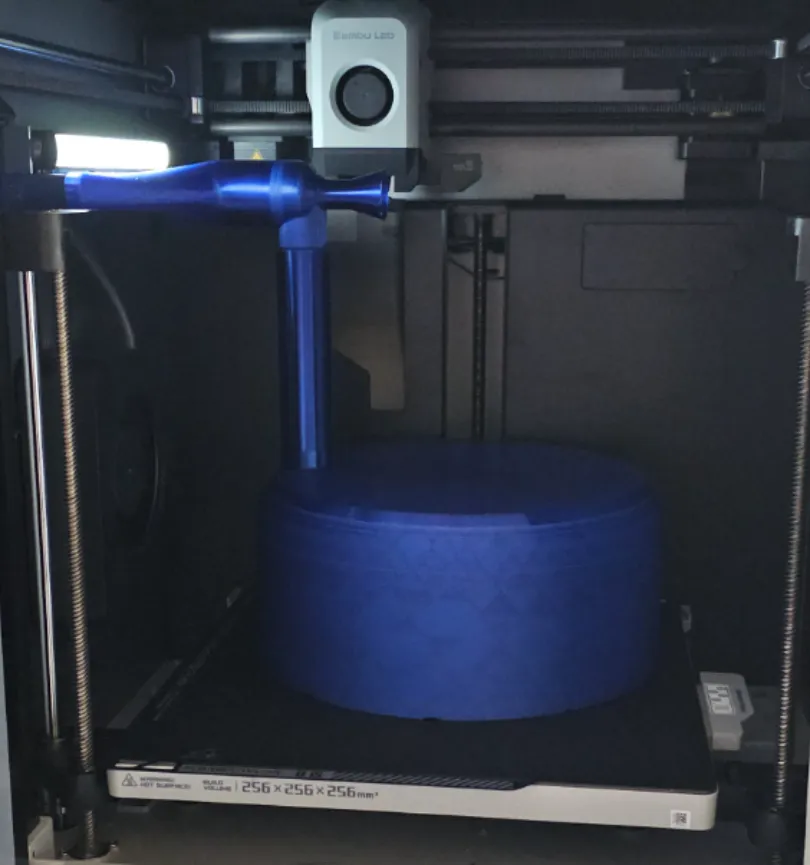
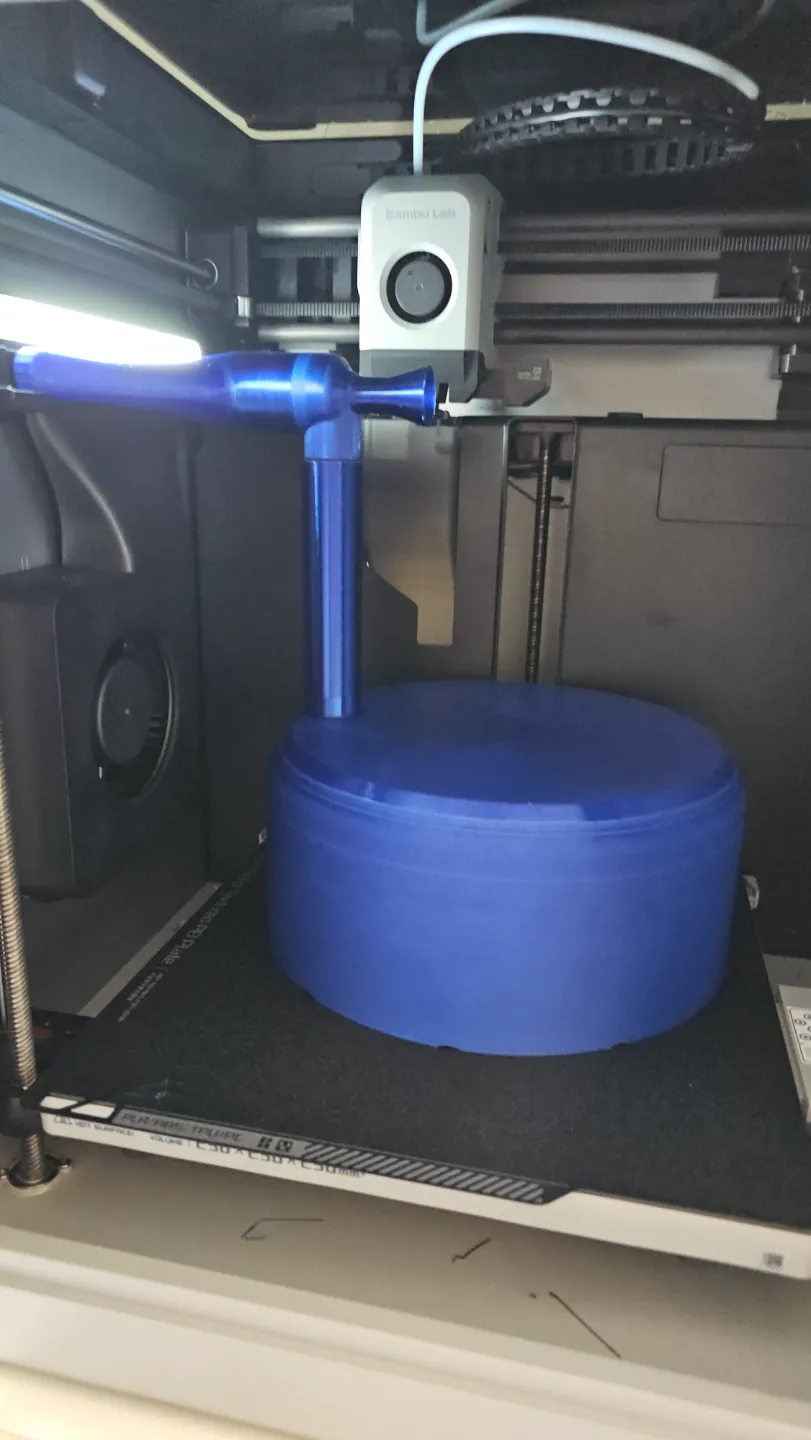
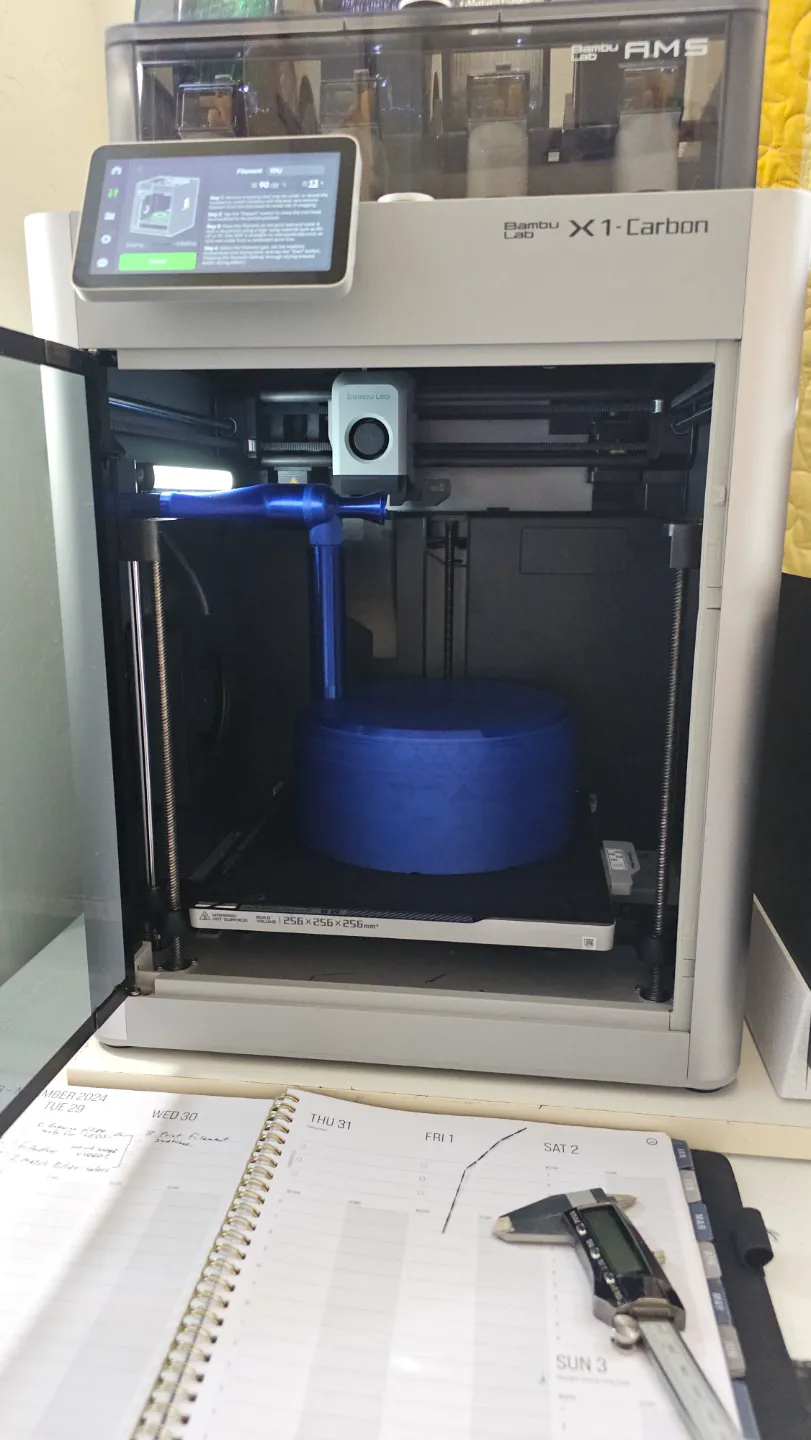
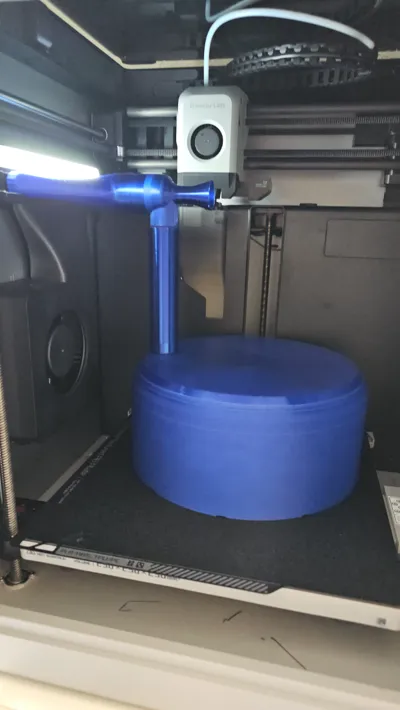
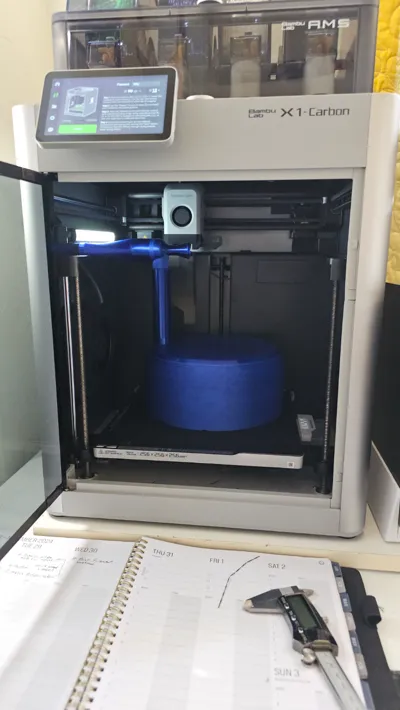
This model adds an extension tube to the Venturi Filament Dryer P1S/X1C design so that the dryer can be used with the printers' built-in filament drying cycles (select Utilities → Dry Filament under the Controls tab). During the cycle, the printer first prompts you to PREPARE, by removing everything above and below the build plate. It then positions the build print down low and parks the print head. After that, you can place your filament with the Venturi Filament Dryer P1S/X1C, but the Venturi nozzle won't align to the printer's auxiliary fan exhaust shroud. This extension tube fixes that by raising the venturi dryer so it is level with the printer's aux fan exhaust shroud, so air can flow through the venturi mechanism and pull moist air out of the filament cover.
There's currently one big problem: The built-in filament drying cycle of these printers does not easily allow you to turn on the auxiliary and chamber fans, though it is possible with some difficulty (see procedure below).
PLEASE HELP: Please write to Bambu Lab technical support asking them to add aux and chamber fan controls to the screen for the built-in dryer cycles, so that the fans can be easily controlled during drying cycles.
NOTE: From my tests, the built-in drying cycles seem to turn on the board fan, but not any of the other 3 fans (aux fan, chamber fan, part fan).
FOR NOW: To turn on the aux fan and chamber fan, hit the home icon after you've started the drying cycle, which brings up the Home tab. Then hit the controls icon (the one below the Home icon), and you'll be back in the Controls tab, where you'll be able to select Temperature/Axis. Set the aux fan to desired setting by hitting the + button (it seems at least 50% fan speed is needed before the Venturi system starts working) by hitting the + button. The printer may not turn on the fan immediately. It may even override your request reset the fan speed. Just keep trying a few times until the setting sticks. The chamber fan can be set the same way. To return to the drying screen, select Utilities → Dry Filament, and you'll be returned to the in-process drying cycle.
NOTE: The original designer of the Venturi Filament Dryer included the following instruction. Please take note:
IF USING HIGH BED TEMPS PLEASE MAKE SURE YOU SET CHAMBER FAN TO MINIMUM 20% TO NOT HEAT SOAK YOUR PRINTER
This remix is based on

License



Comment & Rating (1)